

A phone photo can capture the right moment and still look soft when you open it on a larger screen. Perhaps a hand moved during the exposure, the camera focused behind the person, or the only available copy came through a messaging app. These problems can look similar in a thumbnail, but they need different decisions.
The Unblur Image tool is a useful place to try improving a recognizable subject with soft edges. The aim is a photograph you are comfortable keeping, with the person, object and scene still intact. This guide takes you from choosing the source to deciding whether the result is an improvement.
The editorial illustrations and diagrams explain the workflow. Images labeled as actual tool results are separate processed examples, not guarantees for every photo.
 Concept illustration: compare the source file with a resized or shared copy before choosing what to enhance.
Start with the best copy you already have
Before editing, search for the original image in your camera roll or the original attachment. A screenshot of a social post may contain fewer pixels, interface elements and another round of compression. AI cannot know which of those changes belonged to the photographed scene.
Keep the original file separately. Use a filename such as “garden-portrait-original” and save an accepted edit with a different name. This small habit prevents a later export from becoming your only reference.
Open the file at a comfortable viewing size, then inspect a small important region at full size. A face, printed label or window frame is more informative than an empty background. If the subject has no recognizable structure at all, reshooting or finding another frame may be more useful than repeated processing.
 Original synthetic sample: inspect the face, hair and nearby edges.
Identify what is making the photo look unclear
Do not choose an operation only because its name sounds stronger. Start with the visible problem.
| What you see | A useful first action | What to inspect afterward |
|---|---|---|
| Soft edges throughout the subject | Try unblurring | Edge shape and natural texture |
| A directional smear or doubled outline | Try the motion-blur option | Whether outlines remain single and plausible |
| Grain or colored speckles | Try AI Denoise | Fine texture in skin, fabric and foliage |
| Small, blocky image from a screenshot | Find a better source if possible | Remaining pixels and compression artifacts |
| One face is soft while another is sharp | Compare alternative frames first | Whether the soft face still resembles the person |
More than one problem can be present. A dim indoor photo can contain both noise and motion blur. Work on one representative file and compare each result; do not assume that applying every available tool will improve it.
Upload the photo and choose a starting option
Open the unblur page and choose a supported JPG, PNG or WebP. The current tool shows its file and pixel limits beside the upload control. Selecting an image prepares the workspace; it does not itself spend AI credits.
Check the preview before starting. When the wrong file is selected, choose another image rather than processing it as a test. The sample button is also useful if you want to understand the interface before using your own photo.
Start with the standard option when you are unsure what caused the blur. Use the Processing mode menu when you can identify soft focus or motion blur more specifically. A mode is a starting point for that kind of input, not a promise that the missing detail can be recovered exactly.
Review the quote before processing
The workspace displays the credit cost for the operation. Use that current quote rather than a number from an old article or screenshot. Check your available plan and credits if an action is unavailable.
Start processing once the file and options are correct. Allow the task to reach a final status. If a connection interruption occurs, use the task's displayed recovery action instead of repeatedly creating new attempts. Separate submissions can produce separate charges and make the results harder to compare.
Processing time depends on the selected operation, input and service load. Judge completion by the actual status shown in the workspace, not by a countdown from a tutorial.
Compare the result in a consistent way
View the original and result at comparable sizes. First inspect the whole composition: the subject's position, proportions and background should still make sense. Then zoom into two or three important regions.
For a portrait, check both eyes, the mouth, the hairline and jewelry. For a product, check its silhouette, label and distinctive texture. A result can appear sharper because it contains more contrast while also introducing a detail that was never reliable in the original.
 Actual tool output from this sample. Compare identity and structure as well as apparent sharpness.
Use a simple acceptance rule: keep a result only if it helps at the size where you will actually use it and preserves the details that matter. A small family-album image does not need to satisfy the same visual goal as a large product listing. Neither should invent an important name or number.
Know when to stop
Repeatedly enhancing an enhanced image makes it difficult to tell which changes came from the source. If the first result looks artificial, return to the original before trying another option. Keep attempts beside each other instead of stacking them into a single irreversible chain.
A dedicated portrait enhancer may be a better next comparison when facial detail is the main concern. A photograph of writing belongs in the text-clarity workflow, where verifying characters matters more than attractive texture.
If no result preserves the subject well, keeping the original is a valid decision. A different frame, a better scan or a new photo may solve a problem that editing cannot.
Export for the destination
Download the accepted version and inspect the exported file itself. Check its dimensions, format and appearance in the application where it will be used. Do not infer a fixed enlargement factor from the word “unblur.”
A social platform may recompress the file after upload. Compare the posted version too, especially small text and detailed hair. Keep the local original and accepted edit so you can create another export without starting from a compressed social preview.
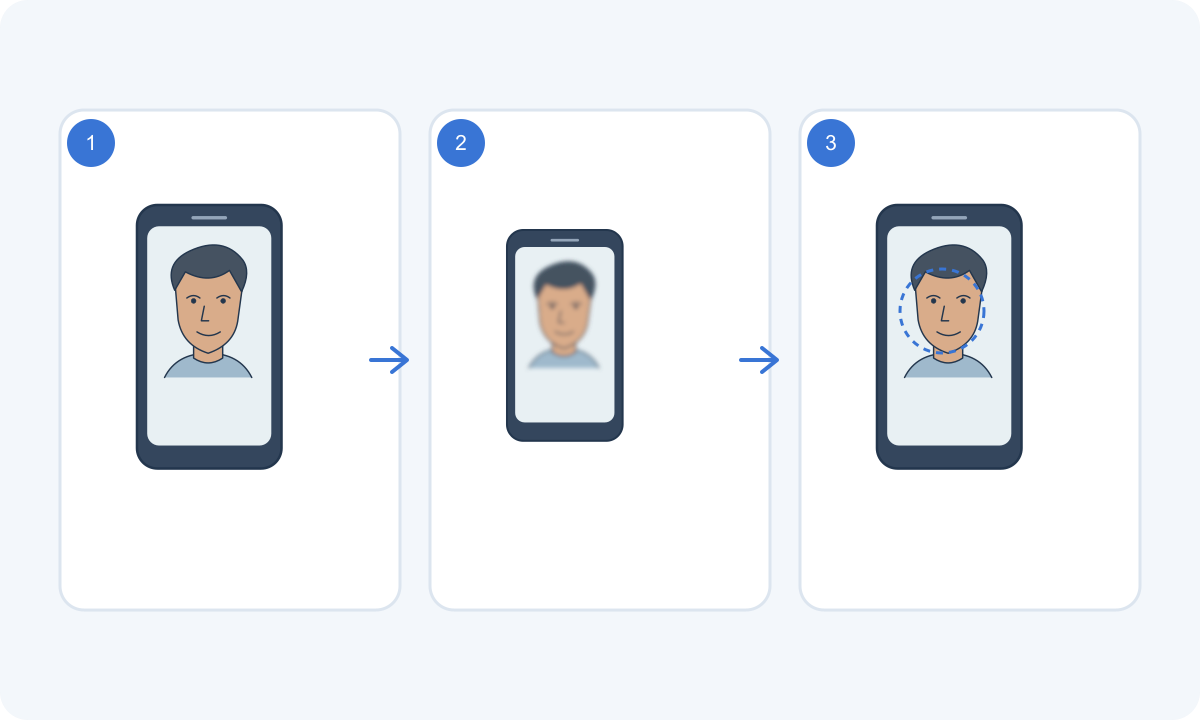 A source, a softer copy and a comparison step. This is a workflow illustration, not a measured processing result.
If you are unsure what caused the softness, compare Unblur Image. If an edit looks sharper but less natural, use the Unblur Image before accepting it.
Common questions
Can unblurring recover an unreadable number?
It may produce a plausible-looking character, but that is not a reliable record of the original. Verify important text against another source rather than treating a sharper result as proof.
Should I denoise every photo before unblurring it?
No. Use noise reduction when grain is a real problem. Extra processing can remove useful texture, so compare the input and each output instead of following a fixed chain.
Is a stronger-looking result always better?
No. Strong contrast, crisp eyelashes or very defined fabric can be attractive and still be inconsistent with the source. Choose the result that preserves the photograph for your intended use.
What is the quickest sensible workflow?
Choose the best original, identify the main defect, try one appropriate setting, compare the subject and download only the version you accept. Start with Unblur Image, or use the complete upload-to-download guide if you are new to the site.
