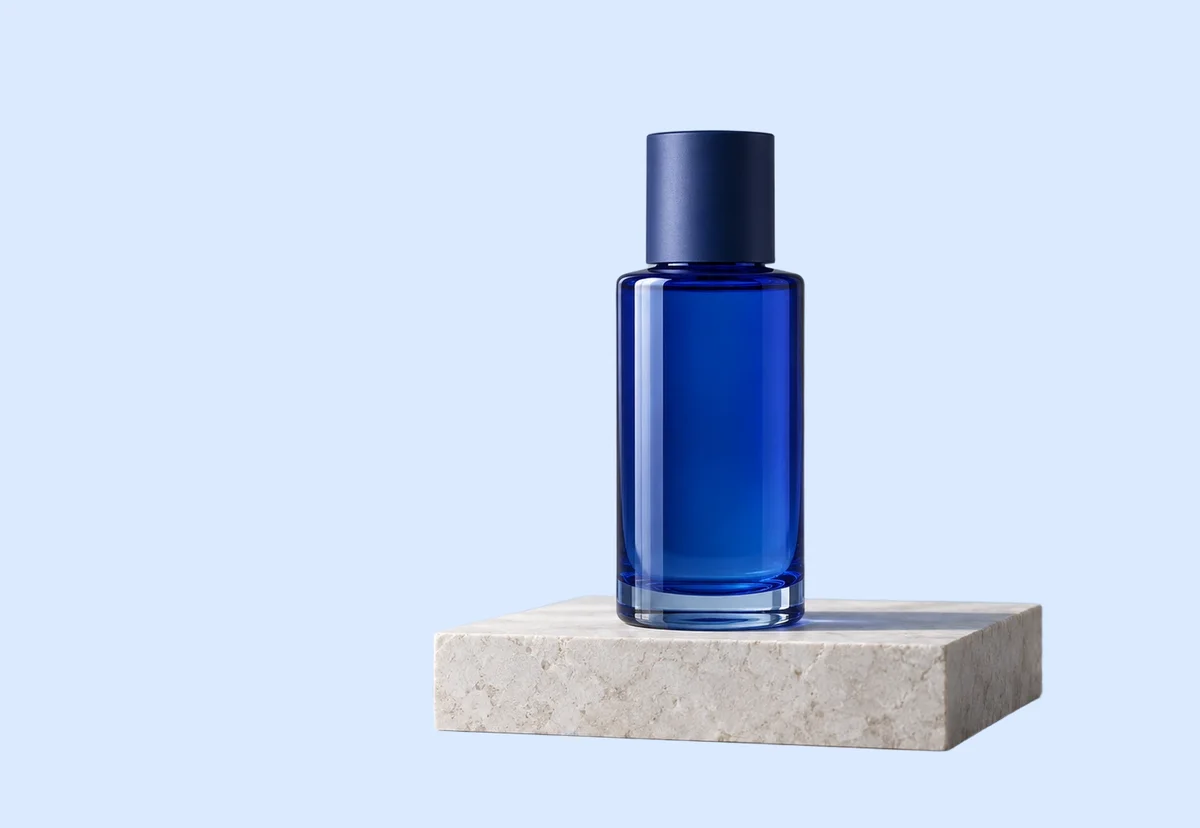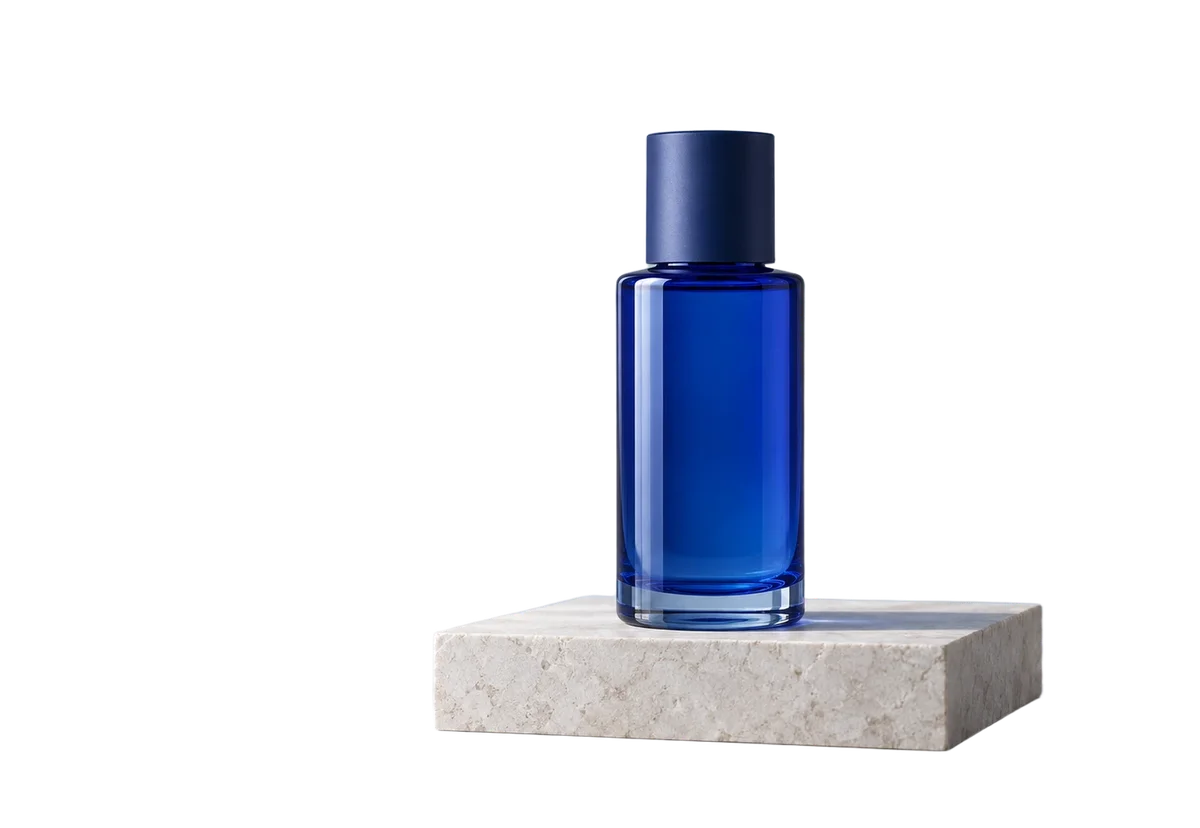

Prepare product details
Improve the source photo before changing its background. Check labels, materials and small product features.
Enhance a product photoUpload · Edit · Download
Replace a photo background with pure white. Upload a product, portrait or pet photo, check the edges and download as PNG, JPG or WebP.
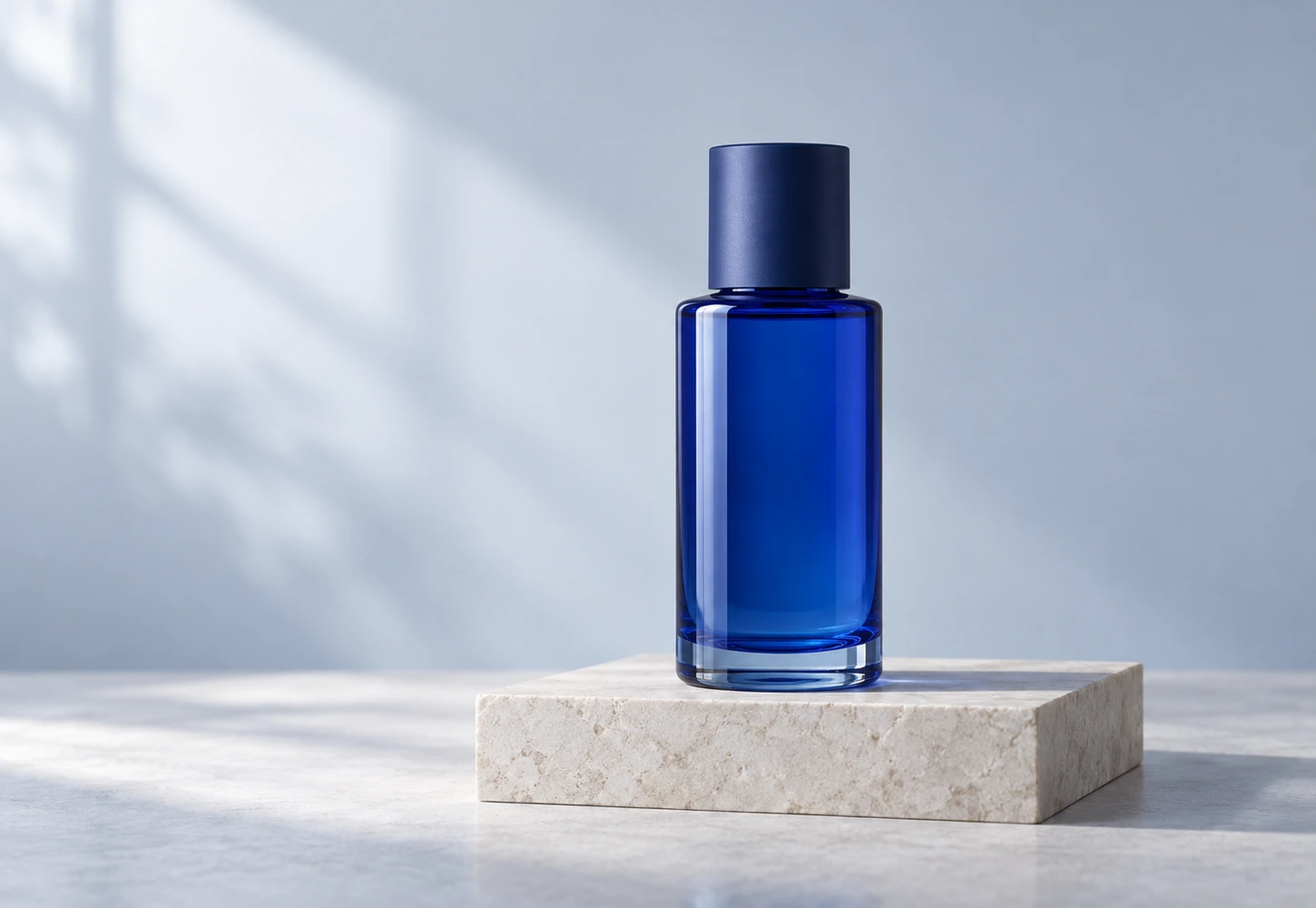 Sample original
No photo handy? Start with this sample.
Drop a photo here or choose a file
JPG, PNG or WebP · up to 20 MiB and 16 MP
Selecting an image does not spend credits.
A pure white background keeps attention on the product.
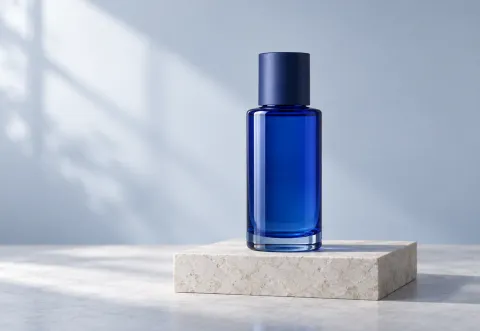
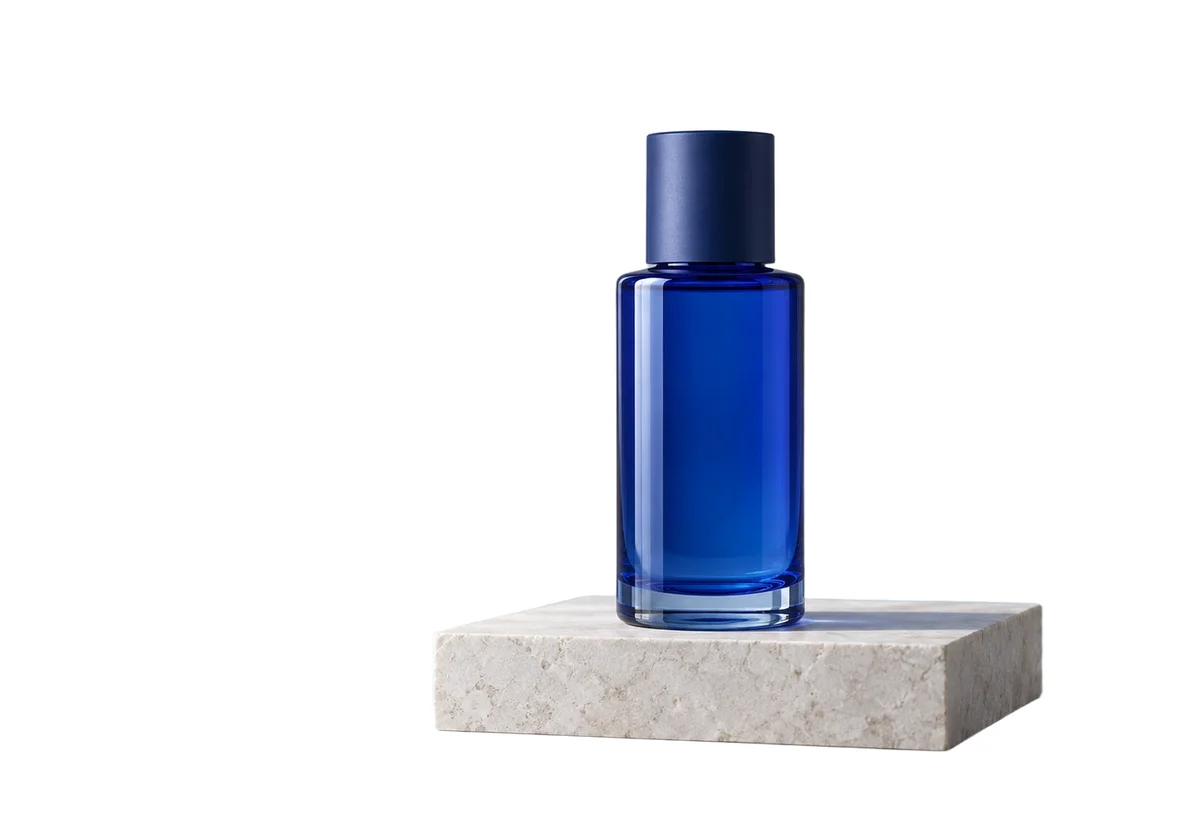
Synthetic sample images processed with our tools. Results vary by image; check details at full size.
Choose a sharp, evenly lit photo with the complete subject in frame. White clothing, pale products and reflective packaging need extra care when the final background is white. Upload one JPG, PNG or WebP, up to 20 MiB and 16 megapixels; the current processing limit may be lower.
Upload the original or try the sample. White is selected by default, so the result will use a #FFFFFF background.
Review the displayed credit cost and start AI processing. The returned cutout is placed on white in your browser; this does not generate a new studio scene.
Check the subject against the original, especially pale edges and the area under it. Keep White selected and download PNG, JPG or WebP.
Choose Transparent if another app should supply the background. A transparent image may appear white in a viewer, but those empty areas are different from a saved white background.
Keep White selected to fill the space behind the cutout with #FFFFFF. This suits a consistent set of product images or profile photos when the destination accepts that treatment.
Look for missing flyaway hairs, fur tips and pale fabric edges. Temporarily preview a darker background to reveal white fringes, then select White again before downloading.
Look through transparent areas and around reflective edges. The original background can remain visible in glass; simply adding white does not rebuild realistic reflections.
Inspect the contact area so the item does not appear to float. Background removal may change or remove its original shadow. This tool does not guarantee a new natural-looking studio shadow.
With White selected, download PNG, JPG or WebP. PNG retains the result without JPEG compression; JPG is widely accepted for photos, while WebP requires support at the destination. Check the downloaded image and the destination’s size, framing and format rules. A white background alone does not make a photo compliant with a marketplace or ID standard.
AI background removal uses the credit amount shown before you start. Free allowances depend on visitor or account limits and current availability. After a result is ready, switching between transparent, white and other solid backgrounds does not use additional AI credits.
No. Marketplaces and document issuers can have requirements beyond the background, including dimensions, framing, lighting and permitted edits. Check their current requirements yourself. The tool does not certify compliance or correct the subject’s pose.
Read the message beside the tool. Check the file limits, available credits and whether processing is available. For a size error, try a smaller original. If the task is still processing, wait for its status to update. If only export fails, try downloading the available result again before leaving.
No. AI background removal uploads the photo for processing. Background color changes and format export use the returned cutout in your browser. Download results before leaving or refreshing, especially during a visitor session; do not rely on this page as permanent storage.
YOUR NEXT STEP
Keep the result you like, then choose one focused tool for the next change.
Improve the source photo before changing its background. Check labels, materials and small product features.
Enhance a product photoChoose an exact solid background color after isolating the subject. Use AI editing for a whole new scene.
Change the background colorRemove the background and export transparent PNG for a layout, product listing or collage. Check hair and glass edges.
Remove the backgroundNew here? Follow the upload-to-download guide or browse all photo tools.