
Make a clean product listing
Place your cutout on pure white. Review the outline and crop before adding it to your catalog.
Create a white backgroundUpload · Edit · Download
Remove the background from a photo of a person, product or pet. Review the cutout edges, then download a transparent PNG or choose a solid background.
 Sample original
No photo handy? Start with this sample.
Drop a photo here or choose a file
JPG, PNG or WebP · up to 20 MiB and 16 MP
Selecting an image does not spend credits.
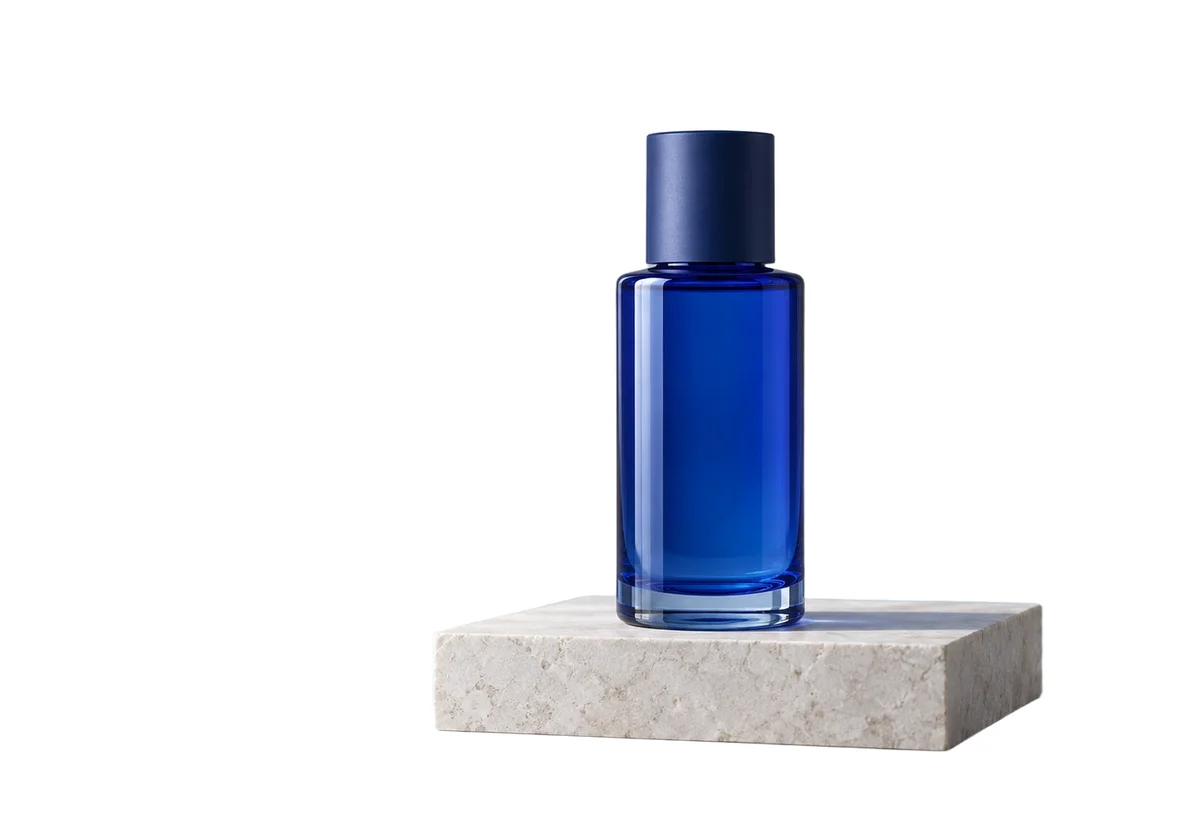
The checkerboard represents transparency. Inspect the bottle outline before placing it into another design.


Synthetic sample images processed with our tools. Results vary by image; check details at full size.
Use a well-lit original with the whole subject visible and some contrast against its surroundings. Blurred edges, cropped-off ears and objects overlapping the subject make a clean cutout harder. Upload one JPG, PNG or WebP, up to 20 MiB and 16 megapixels; the current processing limit may be lower.
Choose your photo or try the sample. Keep the original so you can check whether the cutout has lost small details.
Keep Transparent selected, review the displayed credit cost and start AI processing. The tool separates the foreground from the background.
Compare the result with the original. Inspect the outline and spaces between parts of the subject, then download PNG to keep transparency.
Choose transparency when placing a product, person or pet into another design. The checkerboard is a preview of empty areas, not a pattern saved in your image.
Choose White or another color when the destination needs a complete rectangular image. You can switch backgrounds on the finished cutout without running AI again.
Check fine strands, whiskers, ears and gaps around the body. A smooth-looking outline can still cut away hair or leave a fringe of the old background.
Glass, veils and reflections can contain colors from the original scene. Automatic removal may erase a transparent part or leave unwanted background inside it.
Compare the base of the subject and any contact shadow. Shadows may be removed or retained unevenly. Preview against both light and dark colors to spot halos.
Transparent mode exports PNG. After choosing a solid background, PNG, JPG and WebP become available. JPG cannot keep transparency. This tool removes a background; it does not recover missing parts of a subject, repair severe blur or guarantee perfect edges. Keep the original when important details are lost.
AI background removal uses the credit amount shown before you start. Free allowances depend on visitor or account limits and current availability. After a result is ready, switching between transparent, white and other solid backgrounds does not use additional AI credits.
Background removal is for separating a foreground subject from its surroundings. It is not a precise object-erasing tool. For a selective edit, continue in the AI image editor and describe the change, then check the result.
Read the message beside the tool. Check the file limits, available credits and whether processing is available. For a size error, try a smaller original. If the task is still processing, wait for its status to update. If only export fails, try downloading the available result again before leaving.
No. AI background removal uploads the photo for processing. Background color changes and format export use the returned cutout in your browser. Download results before leaving or refreshing, especially during a visitor session; do not rely on this page as permanent storage.
YOUR NEXT STEP
Keep the result you like, then choose one focused tool for the next change.
Place your cutout on pure white. Review the outline and crop before adding it to your catalog.
Create a white backgroundChoose an exact solid background color after isolating the subject. Use AI editing for a whole new scene.
Change the background colorDescribe a lighting or background change. Open the full editor for cropping, text and layers; verify any important writing.
Open AI image editorNew here? Follow the upload-to-download guide or browse all photo tools.