
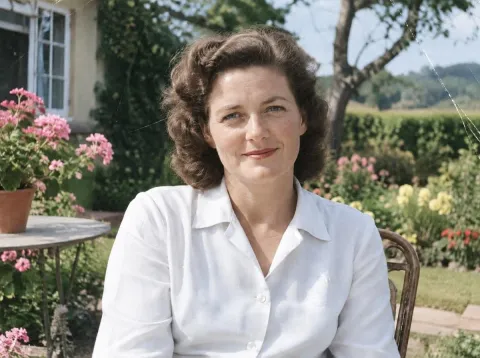
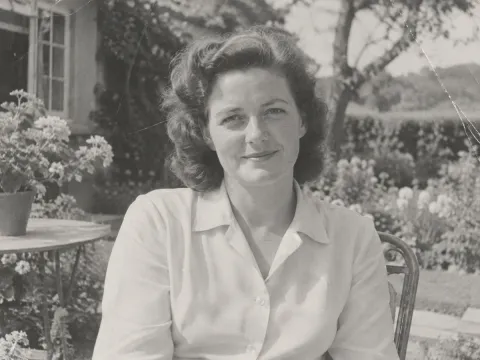
 BeforeAfter
Put a little color into family memories
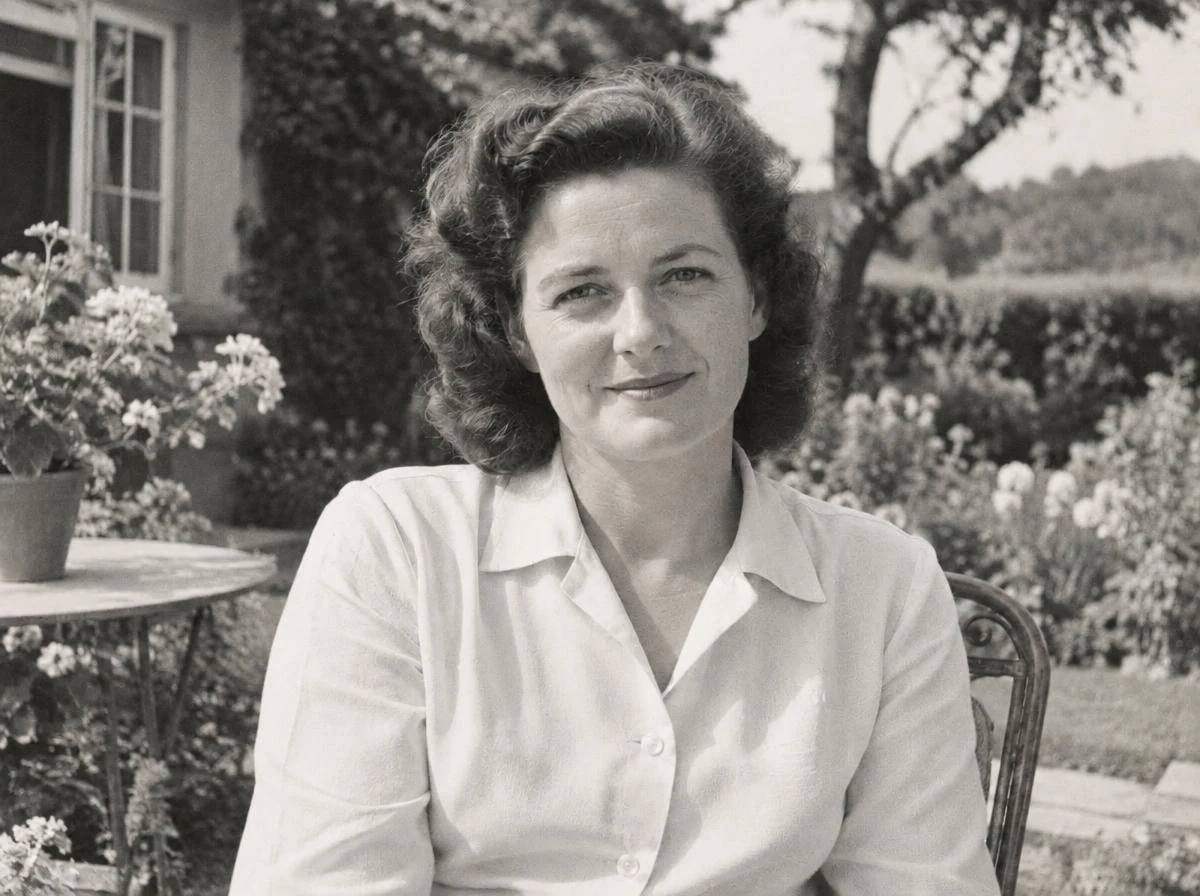
Revisit portraits and everyday moments in the family album. Compare faces and expressions, then keep both versions.
Give black-and-white portraits, family photos and familiar places a fresh perspective. Upload a photo, review the credit quote and compare your result.
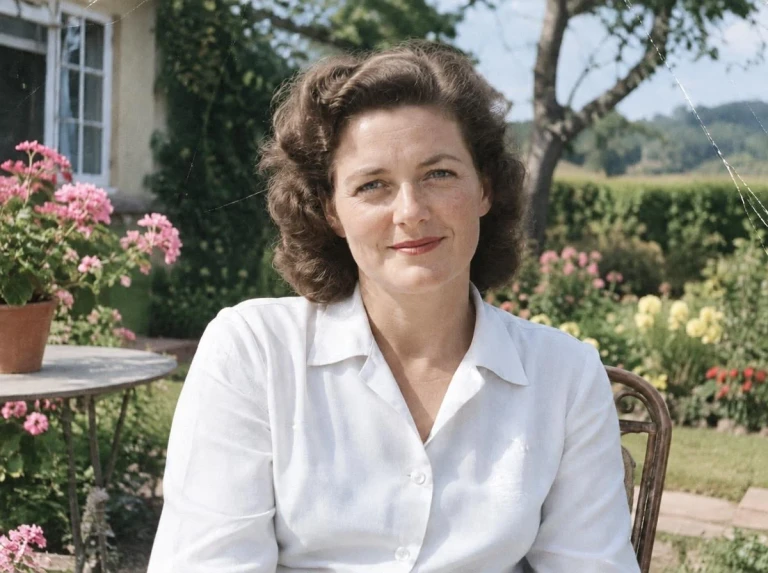
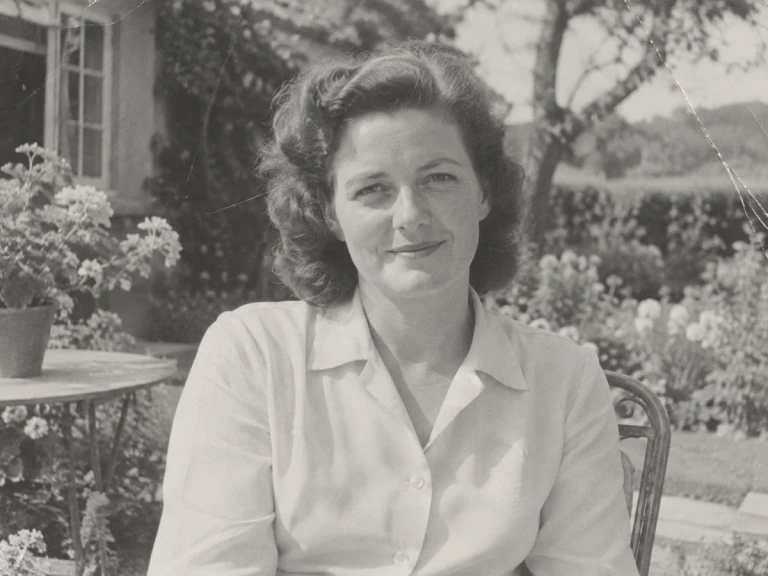 BeforeAfter
Illustrative colorization examples, not a promise of processing results. AI colors are estimates.
A closer look at color
Start with a clear original and explore how color changes the way you see it.
Bring warmth to portraits while checking that faces, expressions and light still look like the original.
See how subtle colors reveal the folds of a dress, the texture of a coat or the finish of an old car.
Trees, skies and buildings provide context. Look for colors that work together across the whole scene.
Compare the same framing, features and object boundaries. Keep the untouched original alongside your color version.
Memories in a different light
From a family album to a street you remember, explore four ways to imagine black-and-white photos in color.
Illustrative colorization examples, not a promise of processing results. AI colors are estimates.
BeforeAfterRevisit portraits and everyday moments in the family album. Compare faces and expressions, then keep both versions.
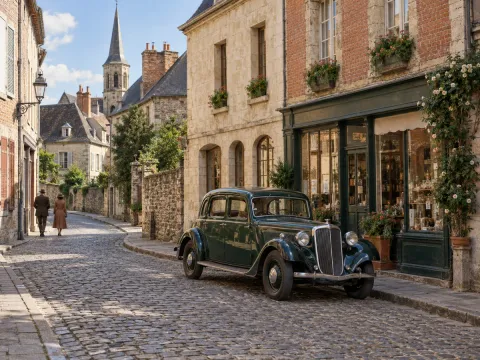
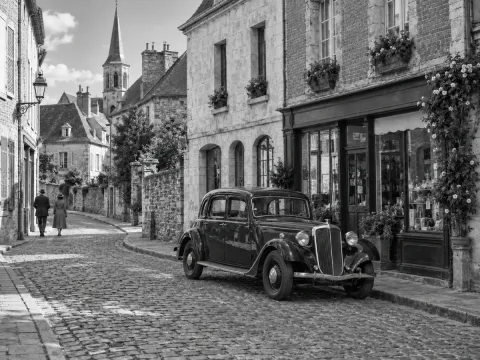 BeforeAfter
Explore possible colors in stone, brick and old vehicles. Label colorized historical images and check reference sources when accuracy matters.
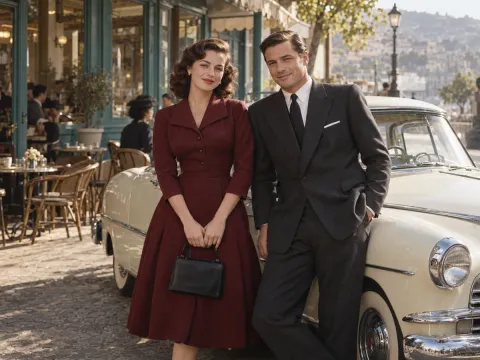
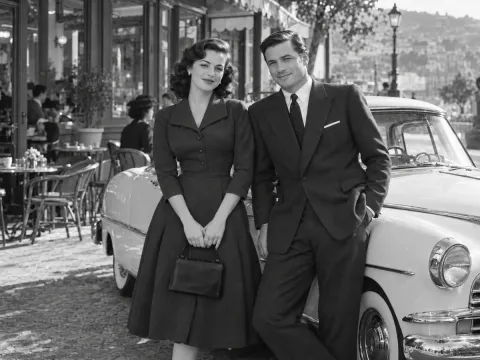 BeforeAfter
Discover how color changes the feel of classic clothes and portraits, while checking fabric edges and fine details.
 BeforeAfter
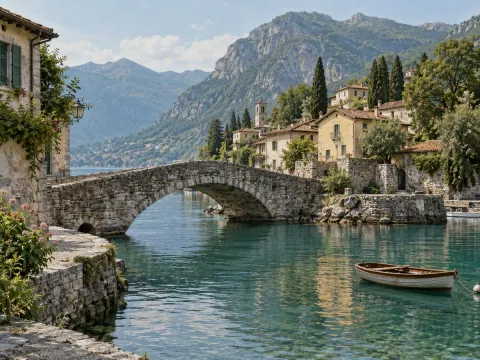
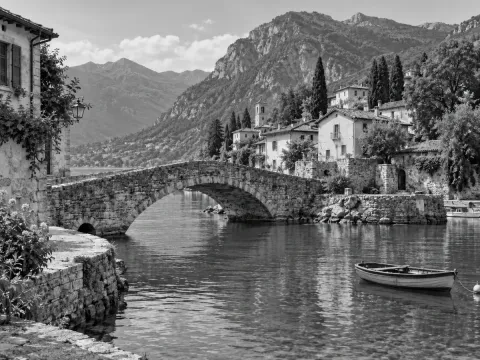
Imagine the colors of water, foliage and old buildings. Look for consistent tones across light, shadow and reflections.
Choose a clear JPEG, PNG or WebP original. Keep an untouched copy.
Start processing and follow the task progress. Restoration and colorization are separate operations.
Inspect the result beside the original, then download the version you want to keep.
Choose how to work with your photo before processing begins.
Open the tool on your computer or phone and upload a JPEG, PNG or WebP photo.
Choose an available quality option and review the exact credit cost before starting.
Save as JPEG, PNG or WebP. Output dimensions depend on the selected model.
Batch processing is available with eligible account benefits. Review the batch quote before submitting.
More ways to work with your photos
Use each tool separately for the change you want to make.

 BeforeAfter
 BeforeAfter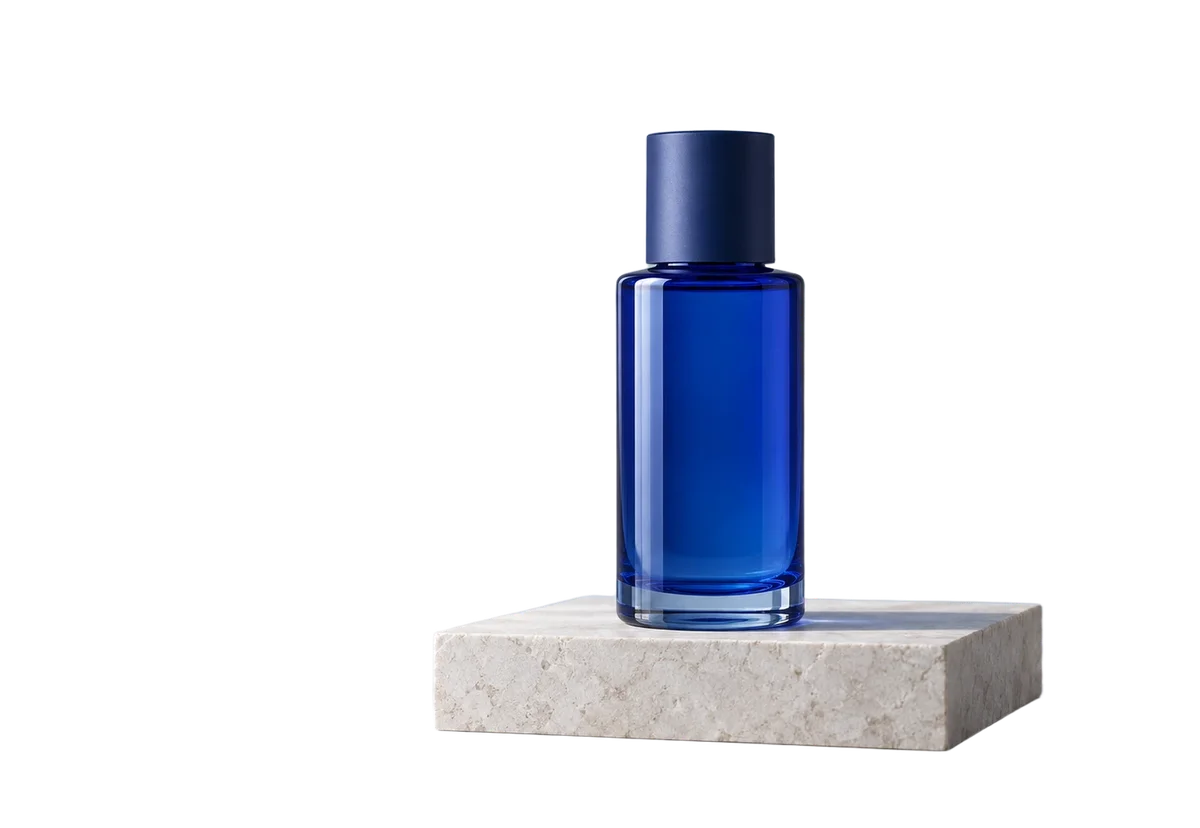
 BeforeAfter
 BeforeAfter
Before you save
A good comparison helps you decide which version you want to keep.
Look for consistent tones in faces, hands and shadows. Watch for changes to facial features.
Inspect hair, clothing and object outlines for color spill, missing details or unusual patches.
Compare known clothing, objects or locations with reliable references. AI cannot establish historical colors.
A black-and-white image does not reveal its original colors. AI-generated colors may be inaccurate and cannot establish the true color of skin, clothing or objects.
Choose a scan with visible faces, clothing and background detail. Keep the monochrome original so you can compare the structure separately from color.
A black-and-white image does not reveal its original colors. AI-generated colors may be inaccurate and cannot establish the true color of skin, clothing or objects.
No. Colorization adds estimated colors; it does not promise to repair scratches, creases or blur. Use the restoration tool separately if needed.
Try with available visitor or account credits. The workspace shows the exact quote before processing; Pro and batch access follow your account benefits.
Download JPEG, PNG or WebP. Dimensions follow the selected model; fixed 2× or 4× enlargement is not included.
Yes. Open the page in your mobile browser and select a photo from your device. You can compare the result and download it in a supported format.
Keep the original, explore a color version and compare them side by side.