Clean up visible grain
Reduce grain in dim photos and scans. Check fine texture so skin and fabric still look natural.
Reduce image noiseTry improving slightly blurry text in screenshots, scans and photos. Upload the original, compare the result and check every important character.
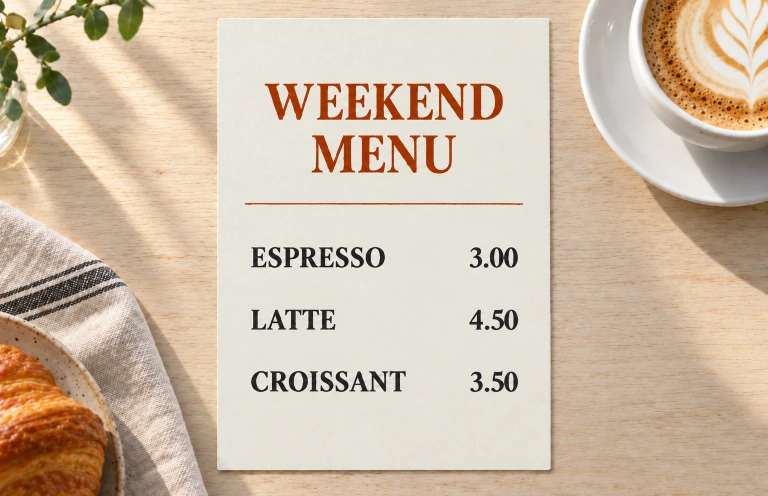
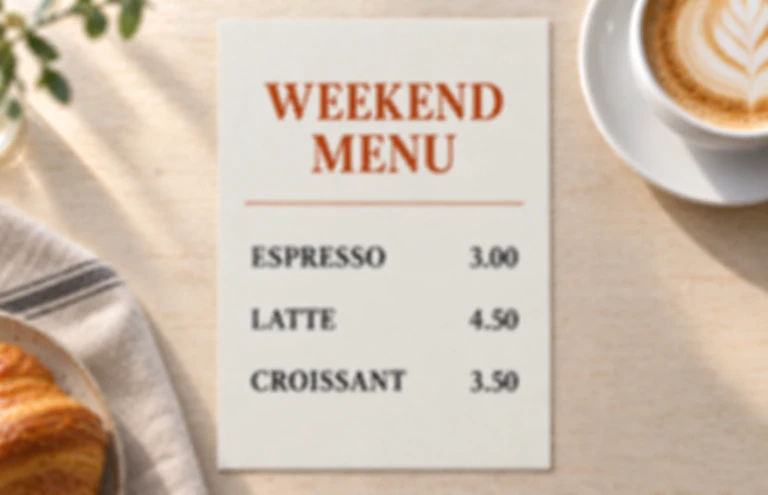 Original photoEnhanced photo
Before you start
The more detail your original retains, the more useful the result can be. Check the image before deciding to try.
Use the original screenshot or camera photo instead of a chat thumbnail or a repeatedly compressed copy.
Slightly soft strokes may improve. Missing, covered or completely unreadable content cannot be reliably recovered.
Choose a balanced exposure without strong glare. If the page is too dark or washed out, taking another photo often helps more.
A clearer appearance does not guarantee correct content. Check names, numbers, punctuation and prices against the original.
Different images. The same careful review.
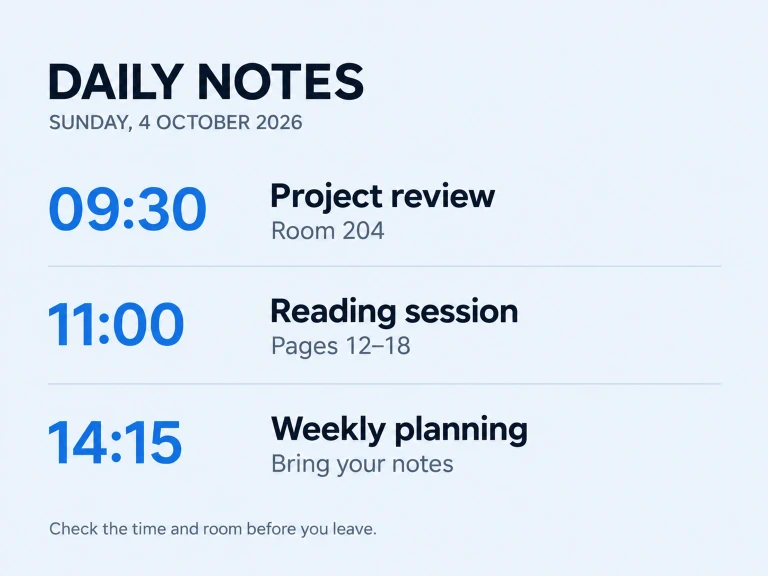
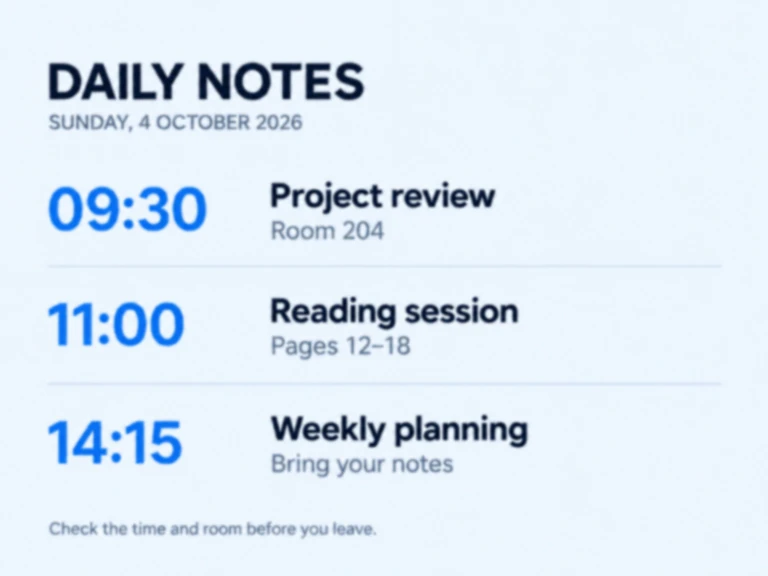
Choose a scene and drag the divider between the simulated blur and clear reference to see which details need checking.
Resizing, sharing and compression can soften small interface text. Find the first saved screenshot before trying to improve readability.
Check times, room numbers and short sentences, especially colons, dashes and similar-looking digits.
These fictional, synthetic examples illustrate visual differences between blurred and clear text. They are not results from this site's processing service. Actual results depend on the original.
AI can change or invent characters. Unreadable text cannot be reliably recovered, and the result does not provide extracted or editable text.
Upload a JPEG, PNG or WEBP. The relevant scene is already selected; you can change it before starting.
Try the available free experience, or sign in to choose other options. Check the displayed credit quote before confirming a paid run.
Inspect the result beside the original, then download it. Visitors should download before leaving or refreshing the page.
YOUR NEXT STEP
Keep the result you like, then choose one focused tool for the next change.
Reduce grain in dim photos and scans. Check fine texture so skin and fabric still look natural.
Reduce image noiseUse deblurring when edges look smeared. If you see grain instead, start with noise reduction.
Unblur a photoDescribe a lighting or background change. Open the full editor for cropping, text and layers; verify any important writing.
Open AI image editorNew here? Follow the upload-to-download guide or browse all photo tools.
Try photographed menus, signs and scans with mild softness. Use the clearest original and check numbers, names and small print after processing.
AI can change or invent characters. Unreadable text cannot be reliably recovered, and the result does not provide extracted or editable text.
Yes, subject to visitor usage limits and current availability. Sign in for daily free-account credits and to save new enhancements. Pro quality and batch processing require a signed-in account with an active paid subscription or available credit pack credits. Check the credit quote before processing.
The tool supports JPEG, PNG and WEBP output. Dimensions depend on the AI result; fixed 2× or 4× enlargement is not promised. Check the result and download before leaving a visitor session.