

Removing a background is useful when a photo needs to fit into a new layout: a product card, a presentation, a collage or a design with a brand color. The useful output is the subject with transparent space around it, not a screenshot that merely looks like it has a blank background.
The Background Remover detects the foreground and lets you review it before downloading. This guide explains the current flow, the checks that matter around edges and how to keep a reusable transparent version.
The editorial illustrations and diagrams explain the workflow. Images labeled as actual tool results are separate processed examples, not guarantees for every photo.
 Editorial illustration of the subject discussed in this guide; this is not a before-and-after processing result.
Choose a source with a recognizable subject
Start with the original image if available. Clear separation between the subject and its surroundings makes it easier for you to judge whether the output retained the right object. A small screenshot can make fine edges harder to inspect.
Look at the whole scene before uploading. Decide whether a stand, handle, shadow or nearby accessory belongs with the main subject. Automatic extraction may keep a group of connected objects rather than the single item you had in mind.
In our sample, the useful foreground includes the blue bottle and its display pedestal. A different task might require only the bottle. Define that goal before accepting the result.
 Original synthetic sample: decide which parts of the foreground should remain.
Before uploading, choose quality and an initial background
Open Background Remover, review the available Flash or Pro quality, and prepare a supported JPG, PNG or WebP within the displayed limits. Check the quality options and account conditions before uploading.
The page offers Transparent, White, color swatches and a custom color control. For a reusable cutout, keep Transparent selected. You can later compare the extracted subject on solid colors without needing to choose a permanent background at the start.
Check the original and filename on your device before uploading, especially when similar files are nearby. The public before-and-after examples help you identify review points; switching a displayed example does not submit your own photo. Use the upload control when you are ready to begin.
Review the quote before choosing the file
Confirm quality, background, output format and the estimated credits on the upload button before choosing the correct file. Follow any sign-in or other required checks, then the progress of that task. Consult plans and pricing for current access information. Do not rely on an old fixed price or assume that file selection is always followed by a separate start button.
Wait for the task to complete. If the connection is interrupted, use the existing task's recovery action rather than immediately creating another request. Independent submissions can create separate costs and duplicate outputs.
Once a result is available, review it before downloading. The fact that the background disappeared does not automatically mean the foreground selection is correct.
Check the outline in a deliberate order
Start with the overall shape. Confirm that all required objects are present and that obvious background pieces have not remained attached. Then inspect a few difficult regions at a useful enlargement.
| Region | What to inspect | Why it matters |
|---|---|---|
| Outer silhouette | Missing or extra pieces | Determines whether the correct subject was extracted |
| Fine hair or fur | Hard clipping and unwanted fringe | Small boundaries affect natural appearance |
| Handles and gaps | Whether empty spaces are actually clear | Internal openings are part of the cutout |
| Glass or reflective edges | Residual background color and reflections | Removing the surroundings does not recreate all optical behavior |
| Contact area or stand | Whether it belongs to the intended foreground | A connected object may be retained with the subject |
Do not judge every material as if it were a flat opaque sticker. Fine fibers, soft shadows and translucent surfaces can require a more careful decision about whether the result suits the destination.
Test the result on light and dark colors
Use the background controls in the same workspace to view the cutout on White and another contrasting color. A pale fringe may be hard to see on white and obvious on dark; a dark edge can behave the other way around.
Changing the solid background of the current cutout does not use additional AI credits. It reuses the result already produced. Starting a new AI task is a different action, so avoid pressing the processing button again simply to compare colors.
The white-background page and background-color guide page are useful starting points for those goals. You can make these simple color choices directly on the result you already have rather than uploading the same image again.
 Actual cutout: transparent regions take on the background of the viewer or layout.
Return to Transparent before exporting PNG
After checking colors, choose Transparent again if you need a reusable subject. In the current interface, transparent cutouts use PNG output. Solid-background results also offer other available formats.
Do not download a screenshot of the checkerboard or preview. Use the Download button so that you receive the image file. A checkerboard is a way to display transparency, not an intended background pattern for the final asset.
Give the file a useful name such as “blue-bottle-cutout.png.” Keep the original photo as well; it remains the best source if you need another extraction attempt later.
Check the file in its next layout
Place the downloaded PNG into the presentation, design or page where it will be used. Review it against that actual background, at the intended size. This is more informative than judging it only in a neutral preview.
If the surrounding area appears white or black in a basic image viewer, that alone does not prove transparency is missing. Some viewers supply their own display background. Check the PNG over another color in a layout that supports transparency.
For text, cropping or layered composition, the full image editor provides another editing route. Preserve a local download before leaving a result, and review any additional changes separately.
Know when the source needs another attempt
If important edges are missing, return to the original and assess whether a clearer source is available. Better focus or a less confusing background can be more useful than repeatedly submitting the same difficult crop.
Do not silently accept a cutout that changes a product's shape or removes a meaningful accessory. The goal is a subject that fits the new design while still representing what you intended.
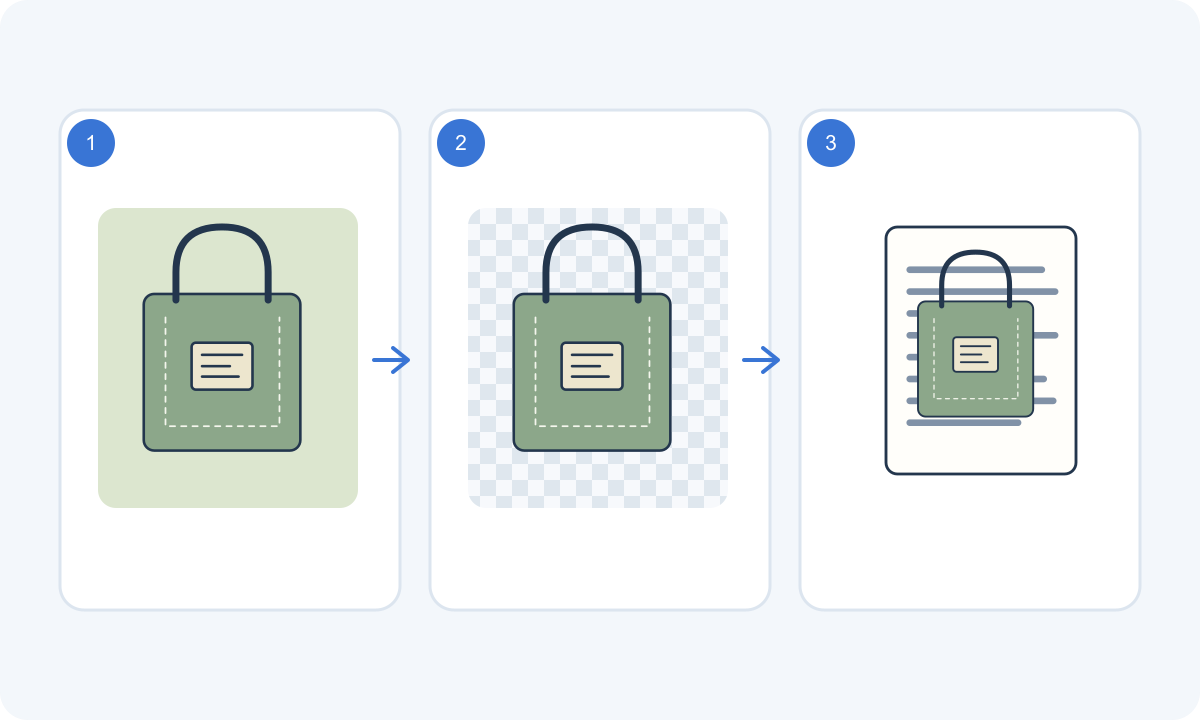 Concept diagram: use these checkpoints when reviewing your own image.
Choose the next useful guide
-
Background Remover — Review fine hair, fur, glass and internal gaps after background removal. Use contrasting backgrounds to spot missing detail and unwanted fringes.
-
Background Remover — Learn the difference between transparency and a viewer background. Check export settings, avoid screenshots and test a cutout in its destination layout.
Common questions
Is a white background the same as transparency?
No. White is an actual background color. Transparency allows the next layout's background to show through.
Will changing the preview color create another AI charge?
Changing the current result's solid background does not spend additional AI credits. A new processing request is separate and should be reviewed against its quote.
Why did the stand remain with the bottle?
The tool may identify connected foreground objects as one subject group. Decide whether that group matches your intended asset and inspect the result before use.
What should I download for a reusable cutout?
Choose Transparent and download PNG, then test it over the actual destination background. Keep the original photo for future comparisons.