AI colorization
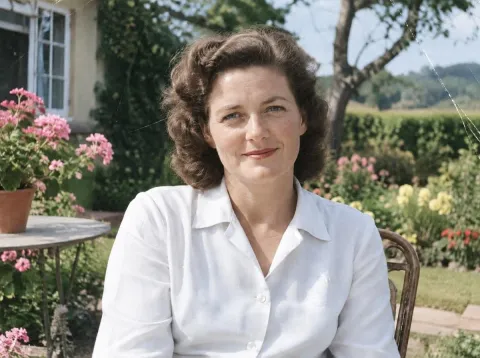
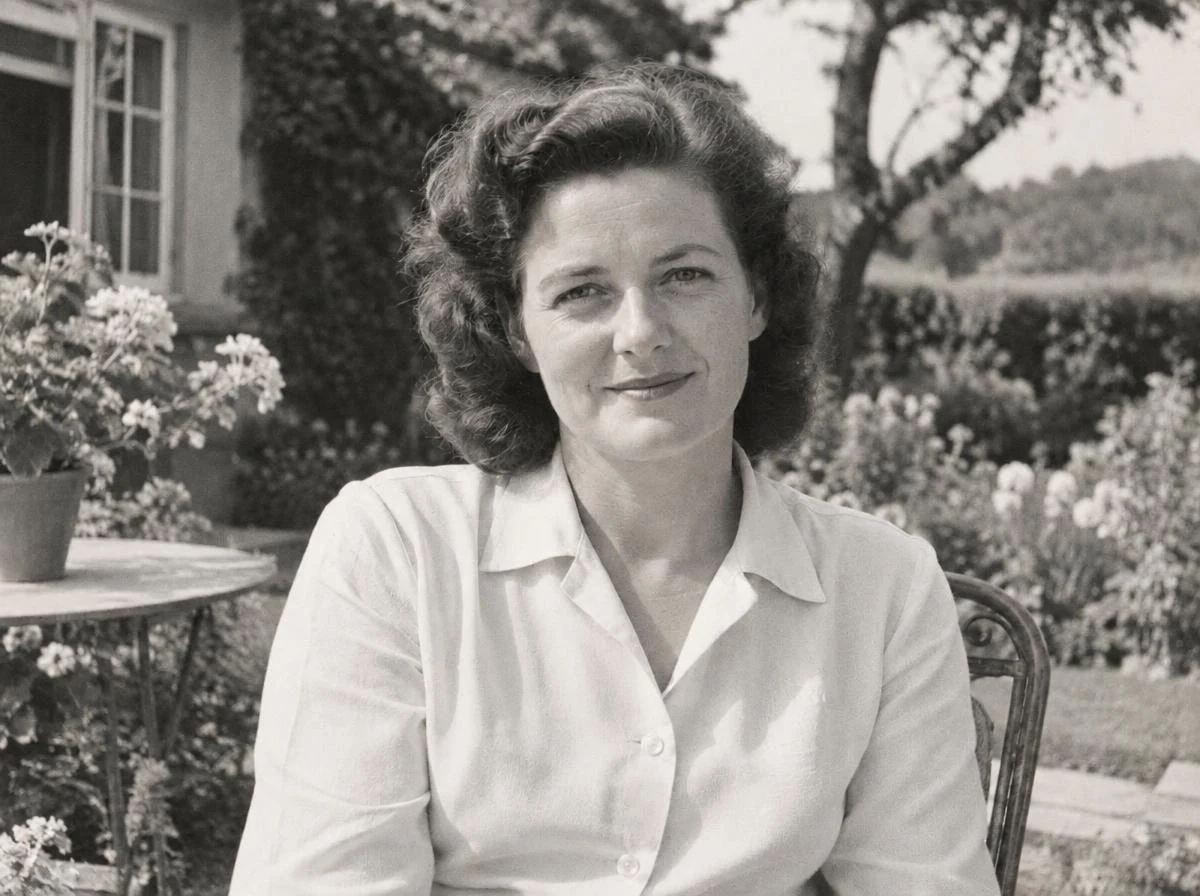
Generate a first color version from visible shapes and context, then compare faces, clothing and background colors with references you trust.
EnhanceMyPhoto image tools
AI colorization offers a starting interpretation. Manual colorization gives you control over individual regions. For a black-and-white family photo, start with the photo colorizer; use the advanced workspace below for manga, line art, palettes and color references.
AI colorization offers a starting interpretation. Manual colorization gives you control over individual regions. For a black-and-white family photo, start with the photo colorizer; use the advanced workspace below for manga, line art, palettes and color references.
Generate a first color version from visible shapes and context, then compare faces, clothing and background colors with references you trust.
In an editing app, paint colors on separate layers and refine masks yourself. This gives region-by-region control and takes time to check edges and skin tones.
Use an AI result as a separate starting copy, then adjust individual colors by hand. Keep the monochrome original and label historical images as colorized.
JPG, PNG or WebP · up to 20 MB and 16 MP each
Up to 20 source images. Batch processing uses your existing membership access.
Loading tool configuration…
Review the credit cost before processing. Uploading and browsing presets do not use AI credits.
Ready
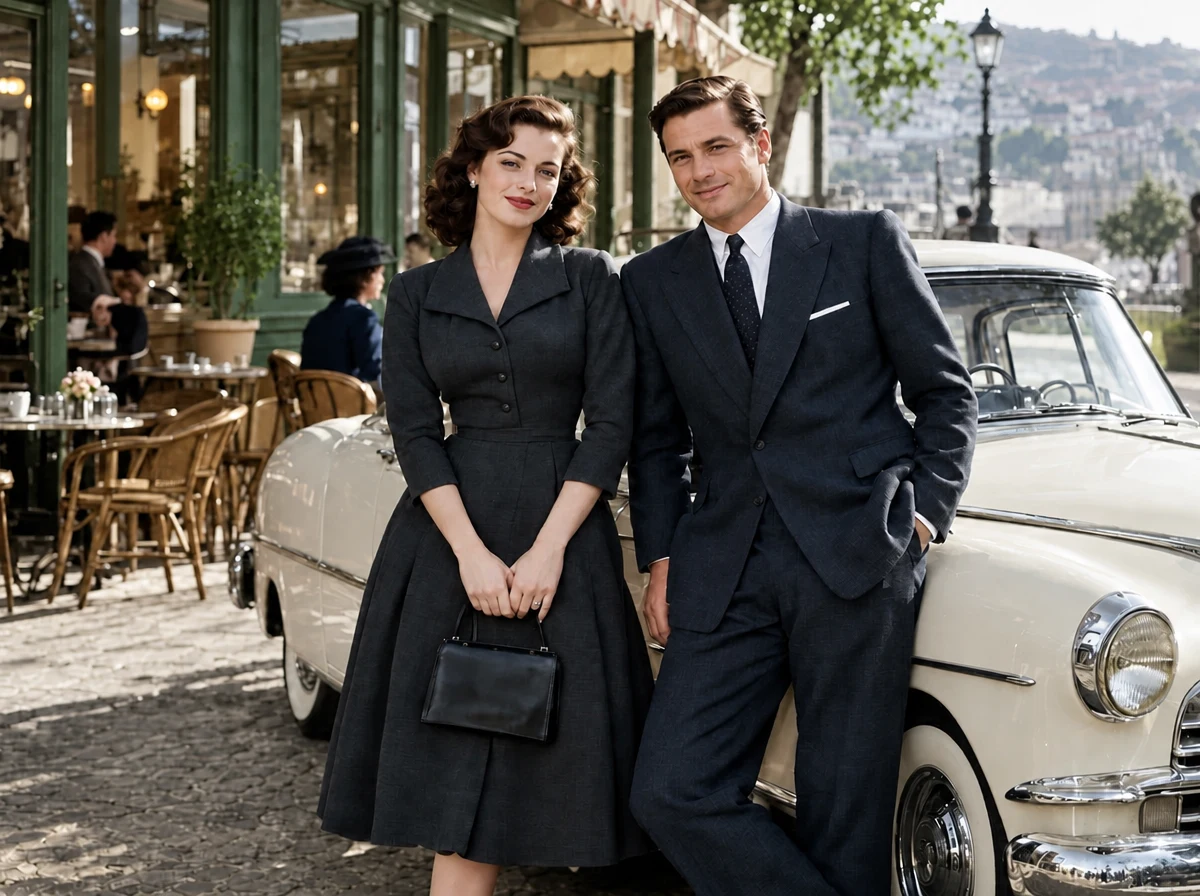
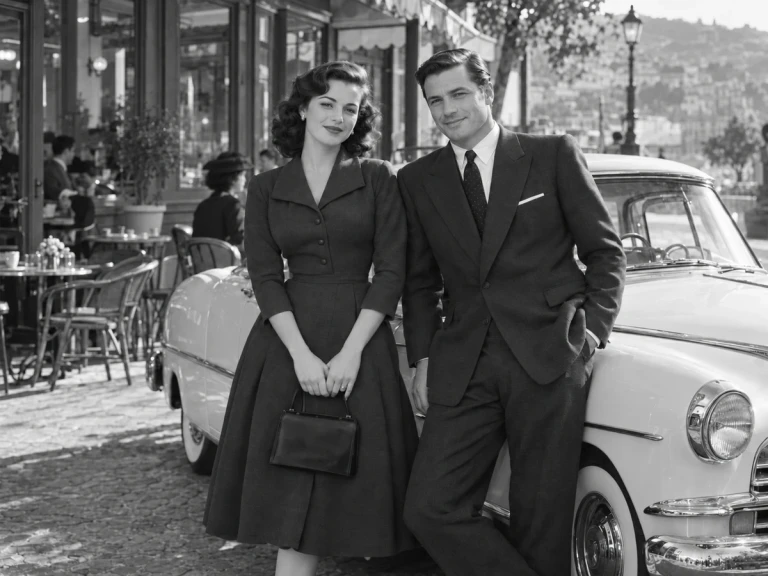 OriginalResult
About this tool
AI colorization offers a starting interpretation. Manual colorization gives you control over individual regions. For a black-and-white family photo, start with the photo colorizer; use the advanced workspace below for manga, line art, palettes and color references.
Processed result
Drag each comparison to inspect the edit. Choose a preset to try the same approach with your own photo.
Photo mode estimates natural color for monochrome images. Treat historical colors as an interpretation, not evidence.
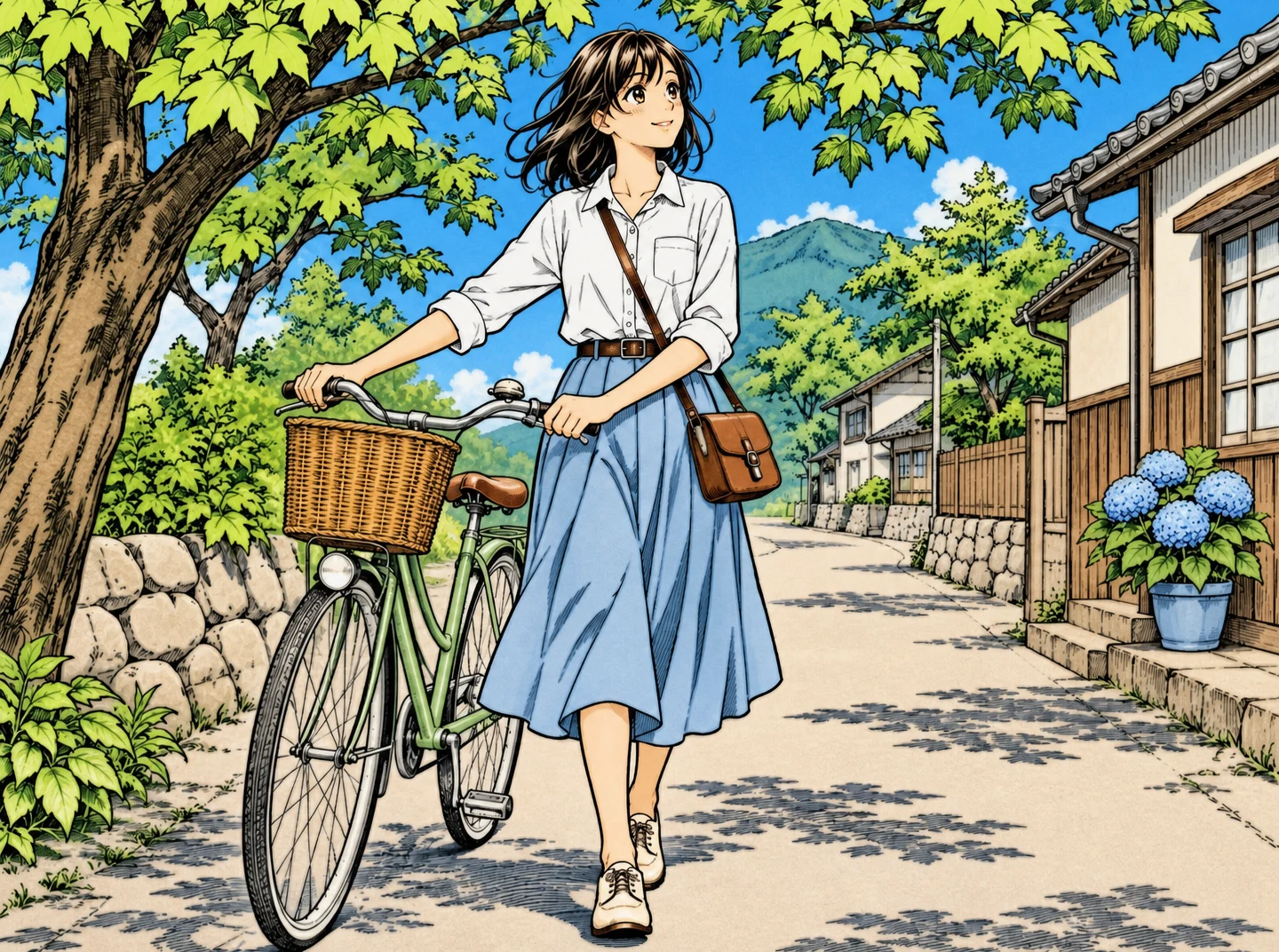
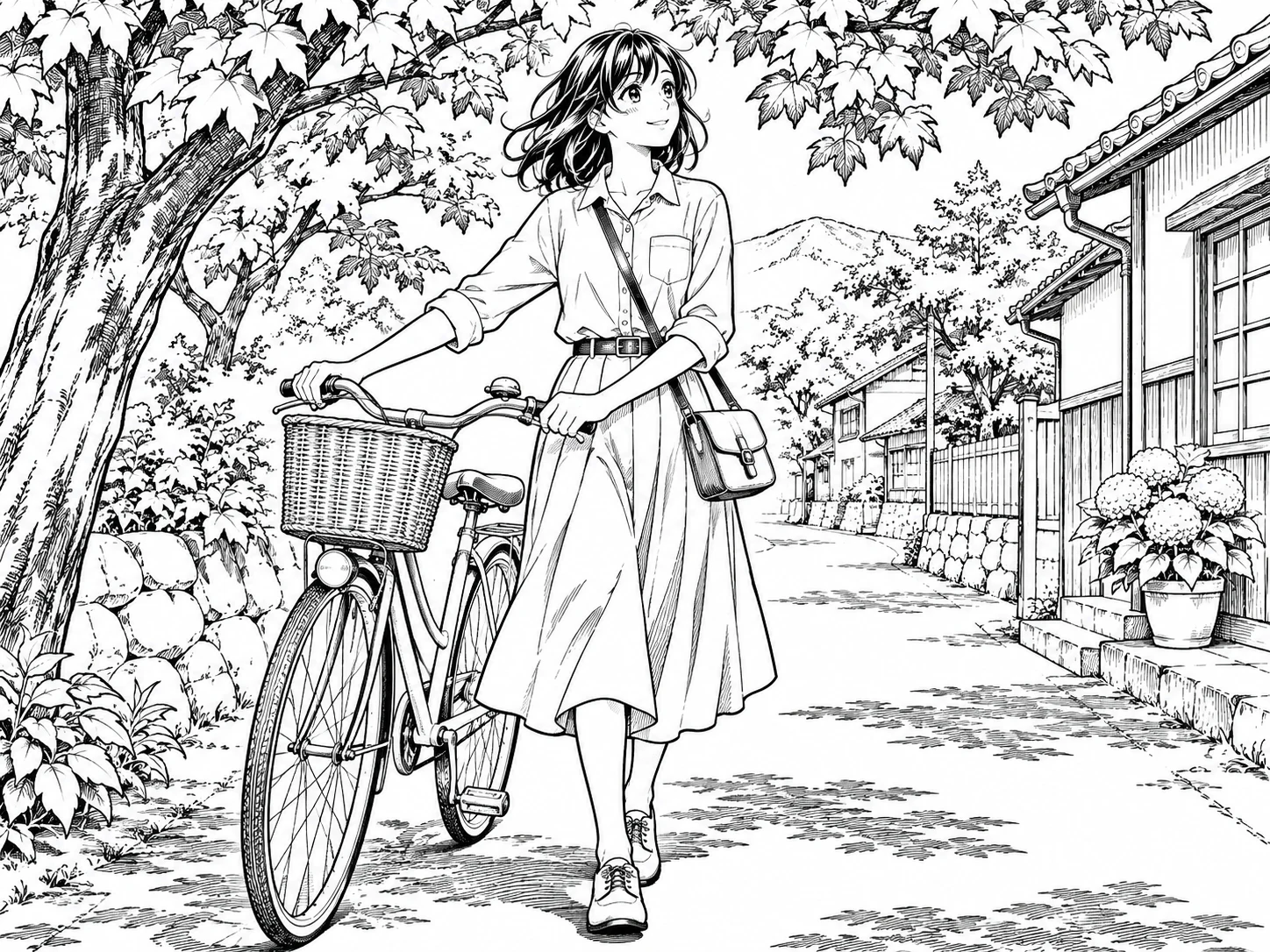
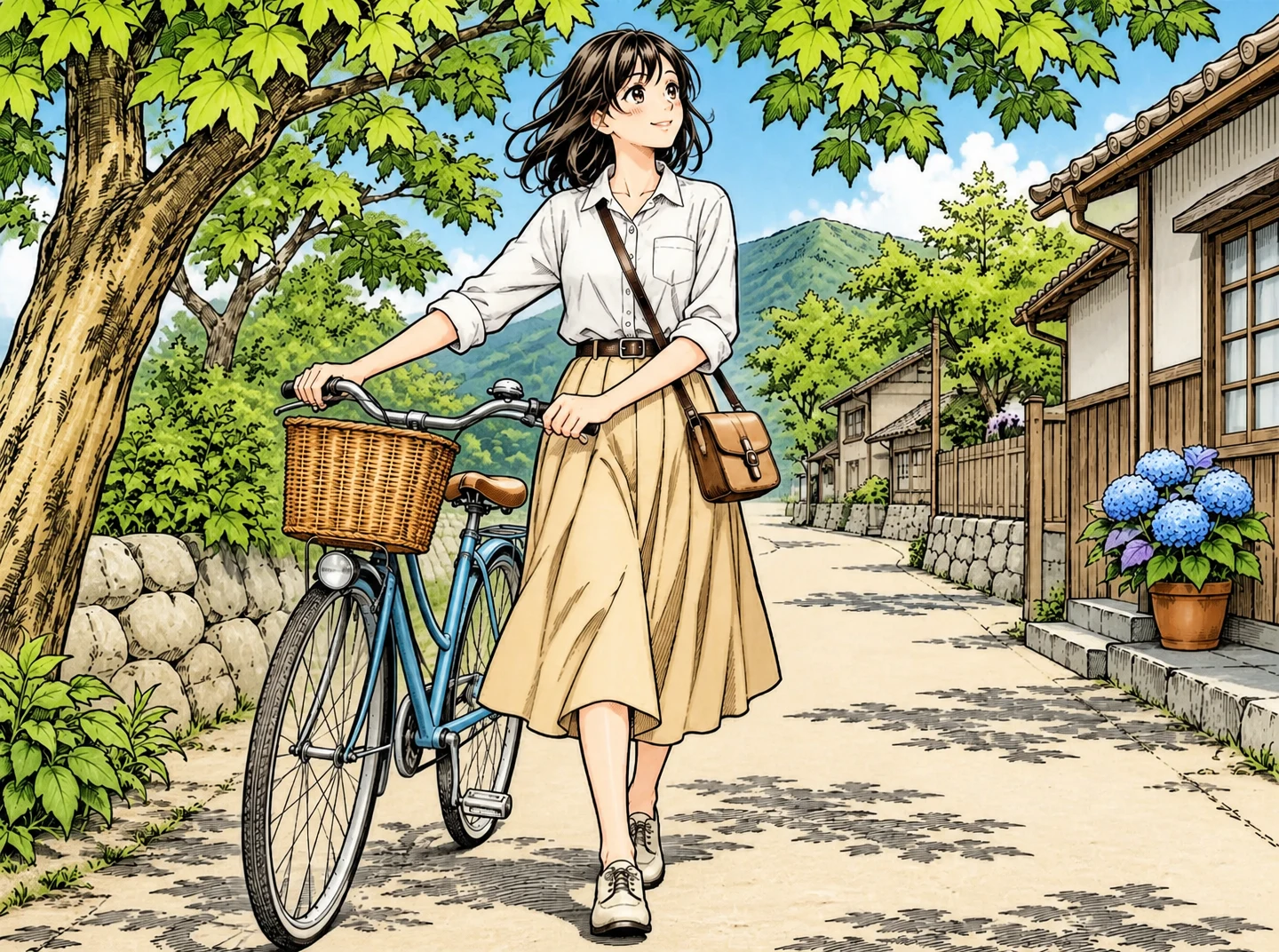
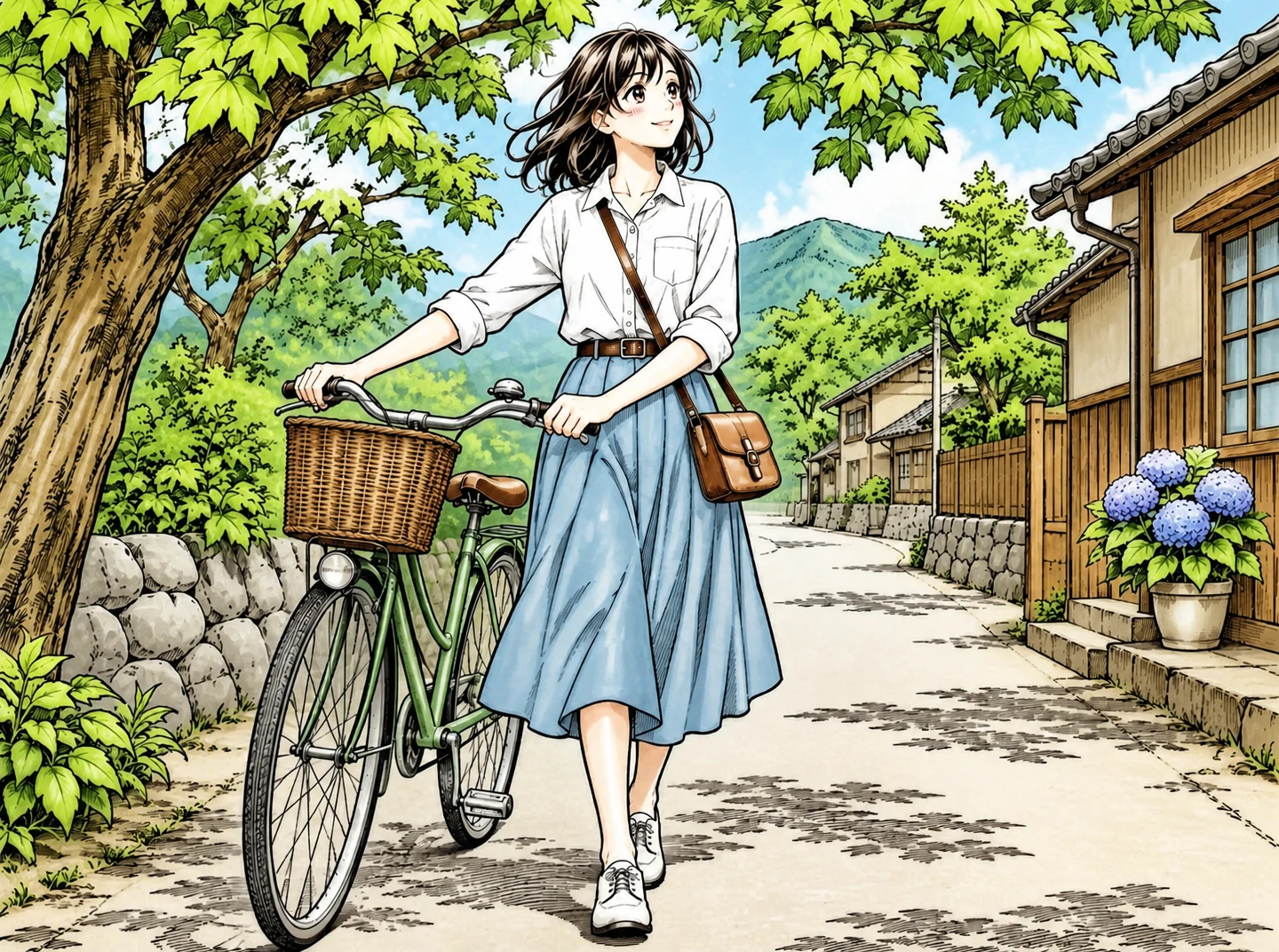
Use this presetManga and line art modes focus on filling regions while respecting ink contours and the existing drawing.
Use this presetText guidance names colors explicitly; reference mode takes its palette from the reference instead of competing written color instructions.
Use this presetAI image colorizer
Text guidance names colors explicitly; reference mode takes its palette from the reference instead of competing written color instructions.
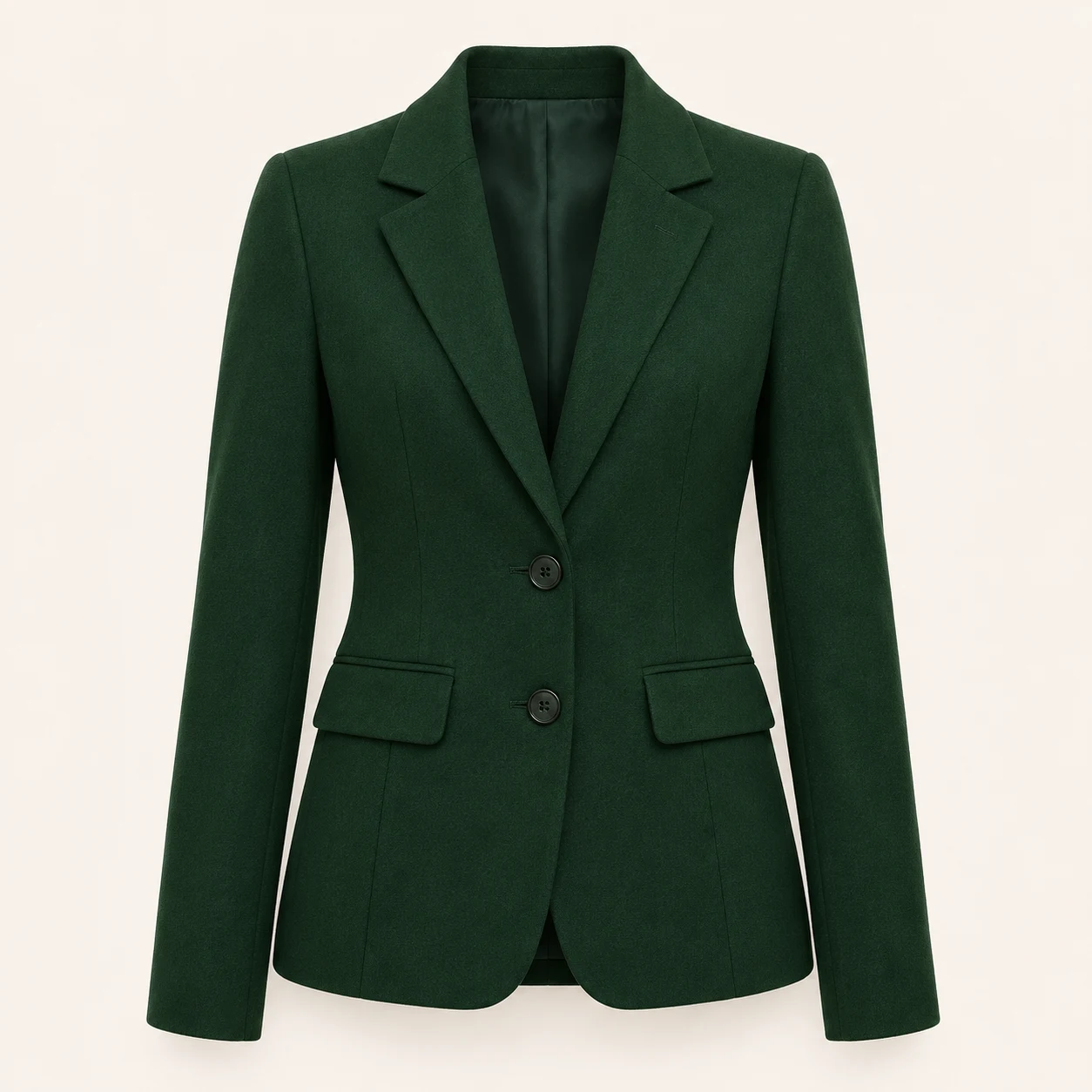
These are example reference inputs. Your source supplies the subject; your references guide their assigned element. Add your own references in the workbench.
AI image colorizer
Upload the source and choose photo, manga, line art, illustration or product.
Choose automatic color and a palette, describe the colors, or upload a color reference.
Review credits, generate and compare lines, shapes, skin tones and important lettering before downloading.
A focused workflow for your image
Review the credit cost before processing. Uploading and browsing presets do not use AI credits.
Describe the target clearly, such as “navy jacket, ivory shirt, warm skin tones.” Keep the instruction consistent.
Use a clear reference showing the intended subject colors. Reference mode takes priority over other color notes.
Repair scratches or dust in an old photo before colorization; inspect manga contours after adding color.
Previews show results made with this tool from our synthetic sample images. A preset fills in settings; it never starts processing or spends credits.
AI image colorizer
Photo Colorizer is a simpler workflow for black and white photographs. This tool also offers artwork and product modes, palettes, written guidance and reference colors. Estimated colors are not historical facts.
Manga and line art presets ask the model to retain the drawing structure. Check fine contours and text because generative processing can still alter them.
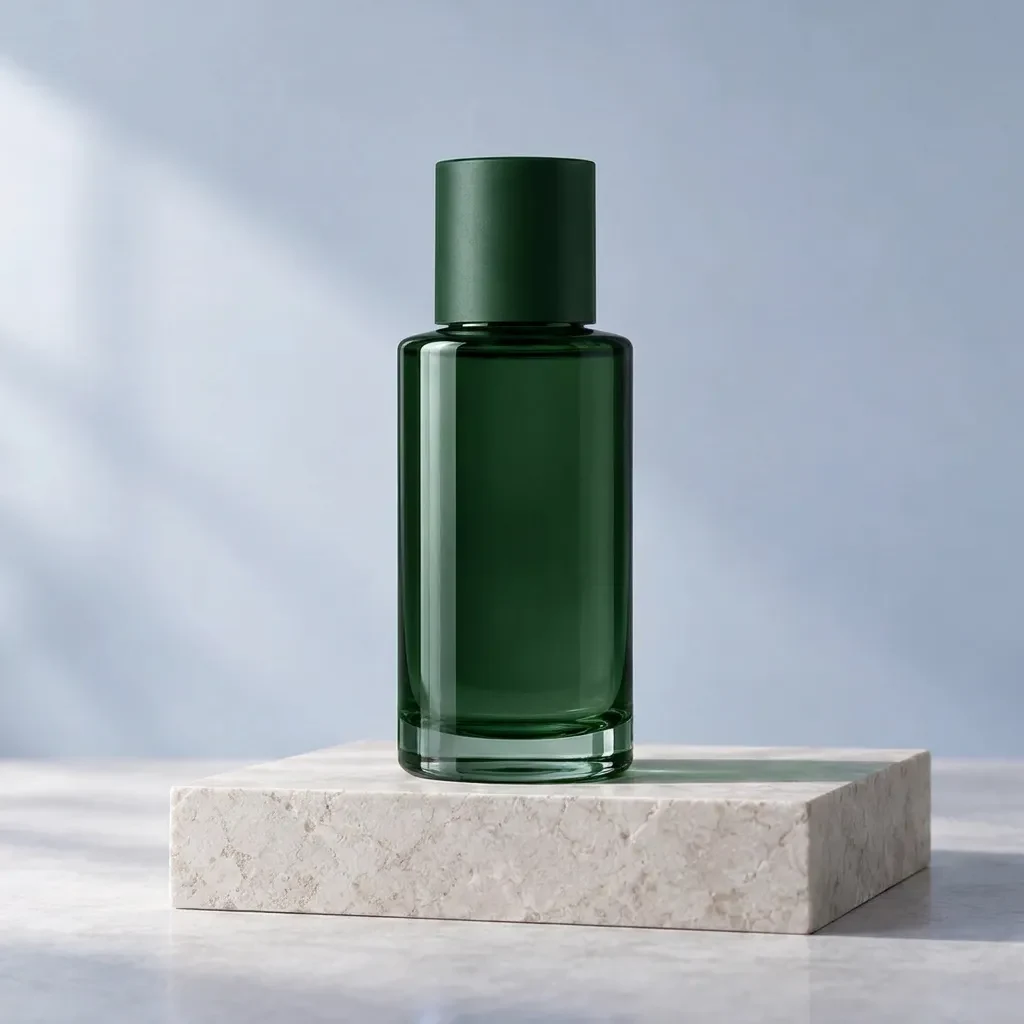
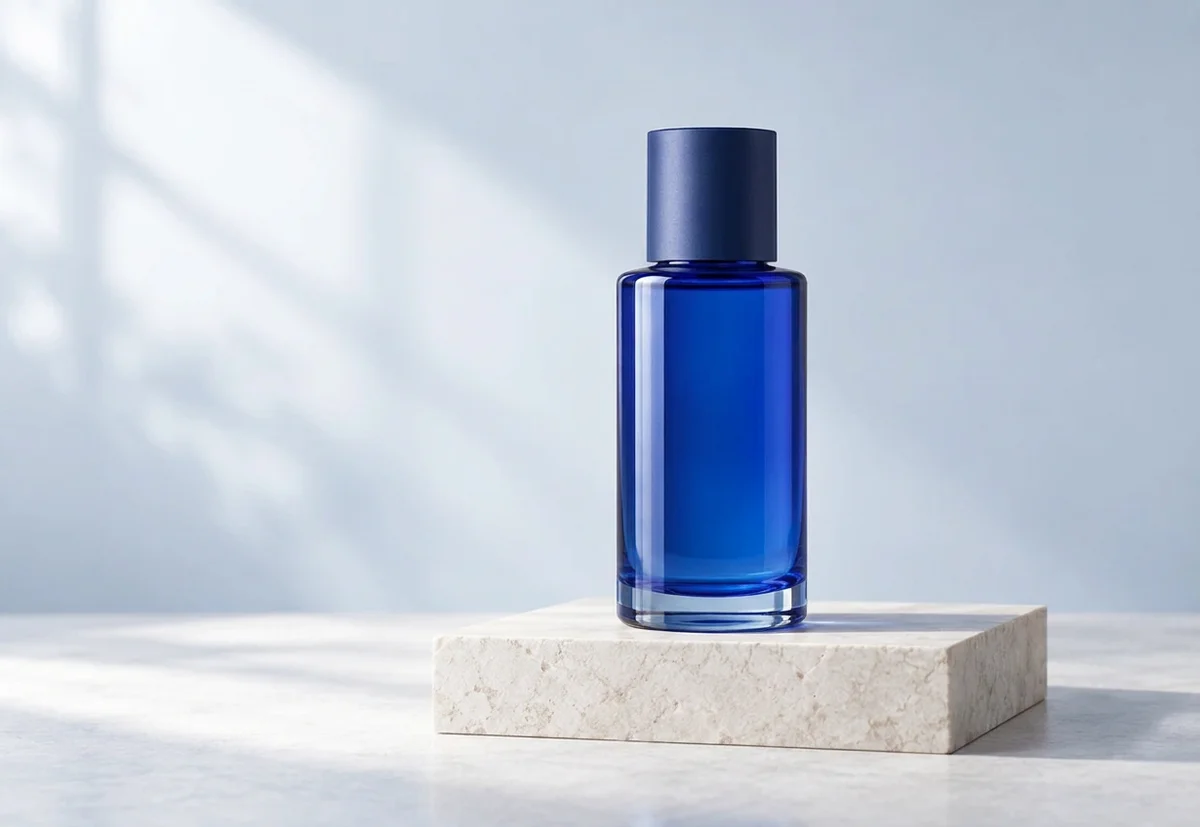
A reference guides the main subject’s palette, but does not guarantee exact measured color values. Compare product color with the original item before commercial use.
Reference mode uses the reference as the color authority. For written color directions, choose text mode instead of giving conflicting reference colors.
Upload a static JPG, PNG or WebP up to 20 MB and 16 megapixels. References have the same limits. Use the best original available.
The server checks the cost before processing. If the quote changes, you must confirm it. Uploading, choosing presets and viewing existing results do not start a paid generation.
Batch access follows your current membership, with up to 20 source images. Every masked edit needs its own saved selection. Failed items can be retried with a new quote.
Download the original result here. Signed in accounts can use history according to their retention policy. Temporary guest results need the active session and expire.
AI can estimate or redraw details. Compare faces, text, product labels and fine texture with your original. Keep the original and review the result before publishing.
YOUR NEXT STEP
Keep the result you like, then choose one focused tool for the next change.
After restoration, create a separate colorized version. AI estimates colors; they may differ from the historical scene.
Colorize Black & White PhotosImprove a faded or lightly damaged scan first. Keep the untouched original as your reference.
Old Photo RestorationDescribe a lighting, background or detail change. Compare the result with the original and check any important writing.
AI Image EditorAdd your source, choose the change, and review the credit cost before processing.
Edit your image