Loading the comparison…
Workwear
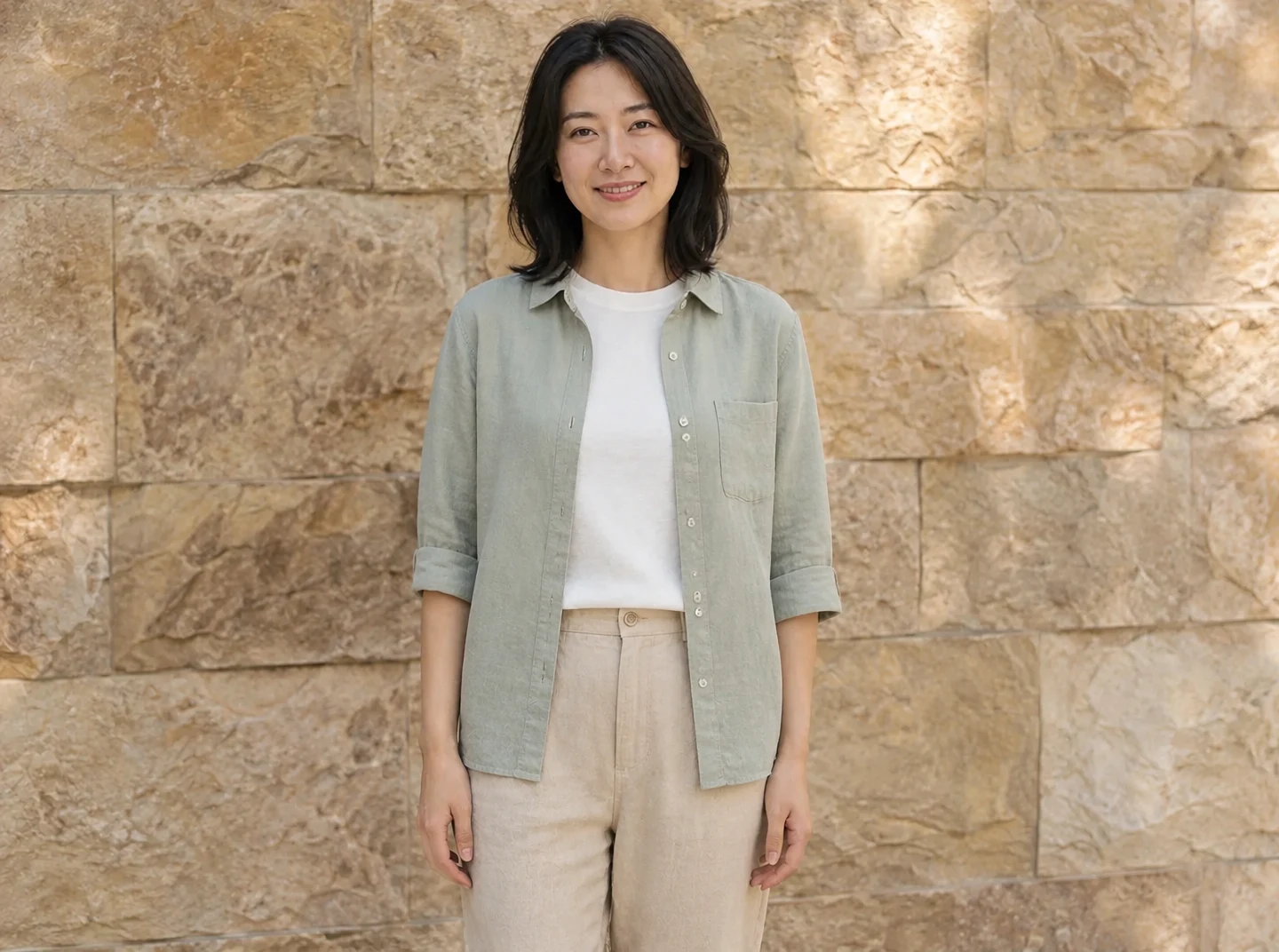
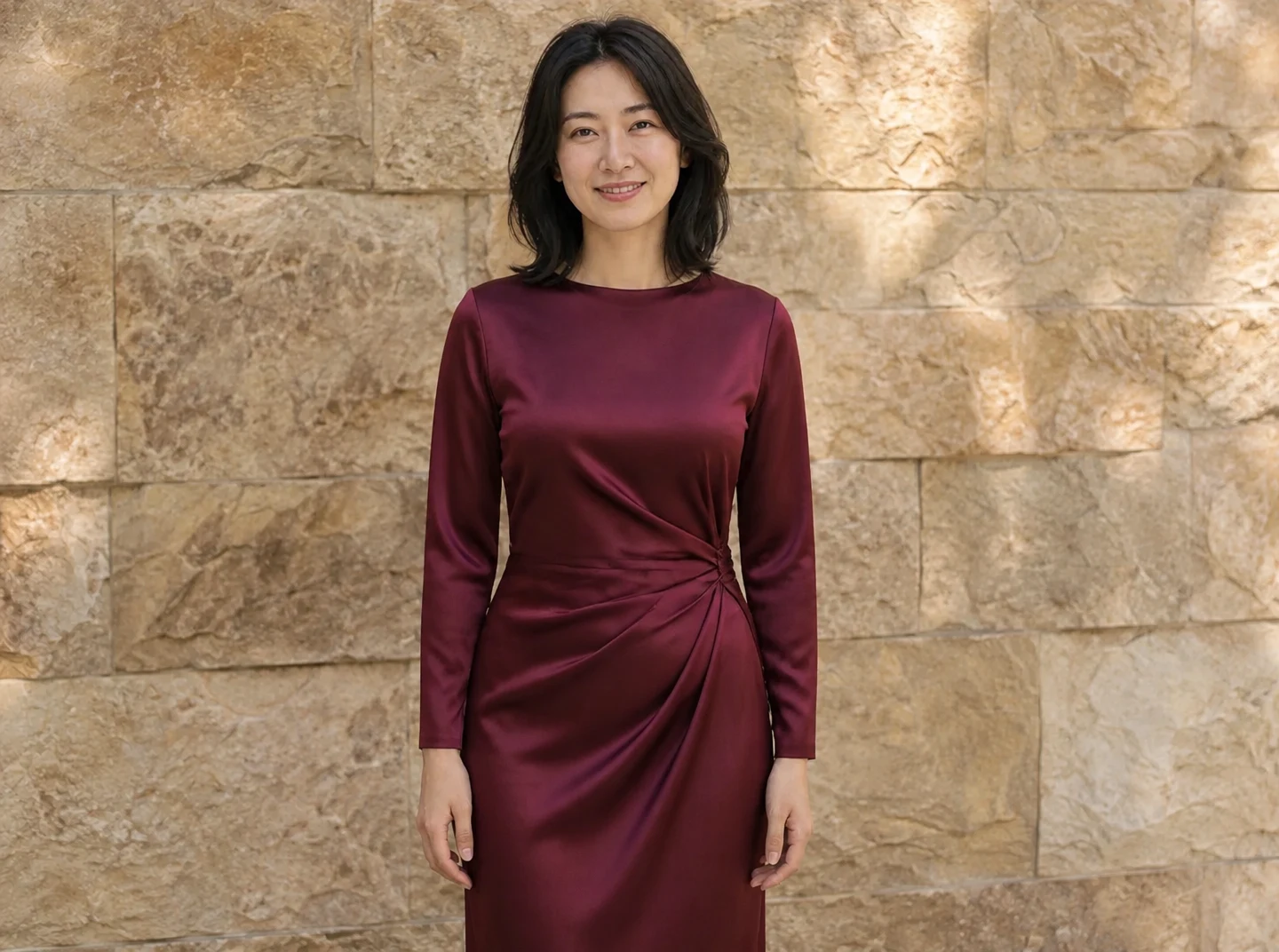
Describe a complete look, including color, fabric, layering and cut. Workwear, casual and occasion presets provide starting directions.
Use this presetEnhanceMyPhoto image tools
Upload a person photo and up to four garment references, or describe an outfit. Compare the face, hands, fabric and fit before saving.
JPG, PNG or WebP · up to 20 MB and 16 MP each
Up to 20 source images. Batch processing uses your existing membership access.
Loading tool configuration…
Review the credit cost before processing. Uploading and browsing presets do not use AI credits.
Ready
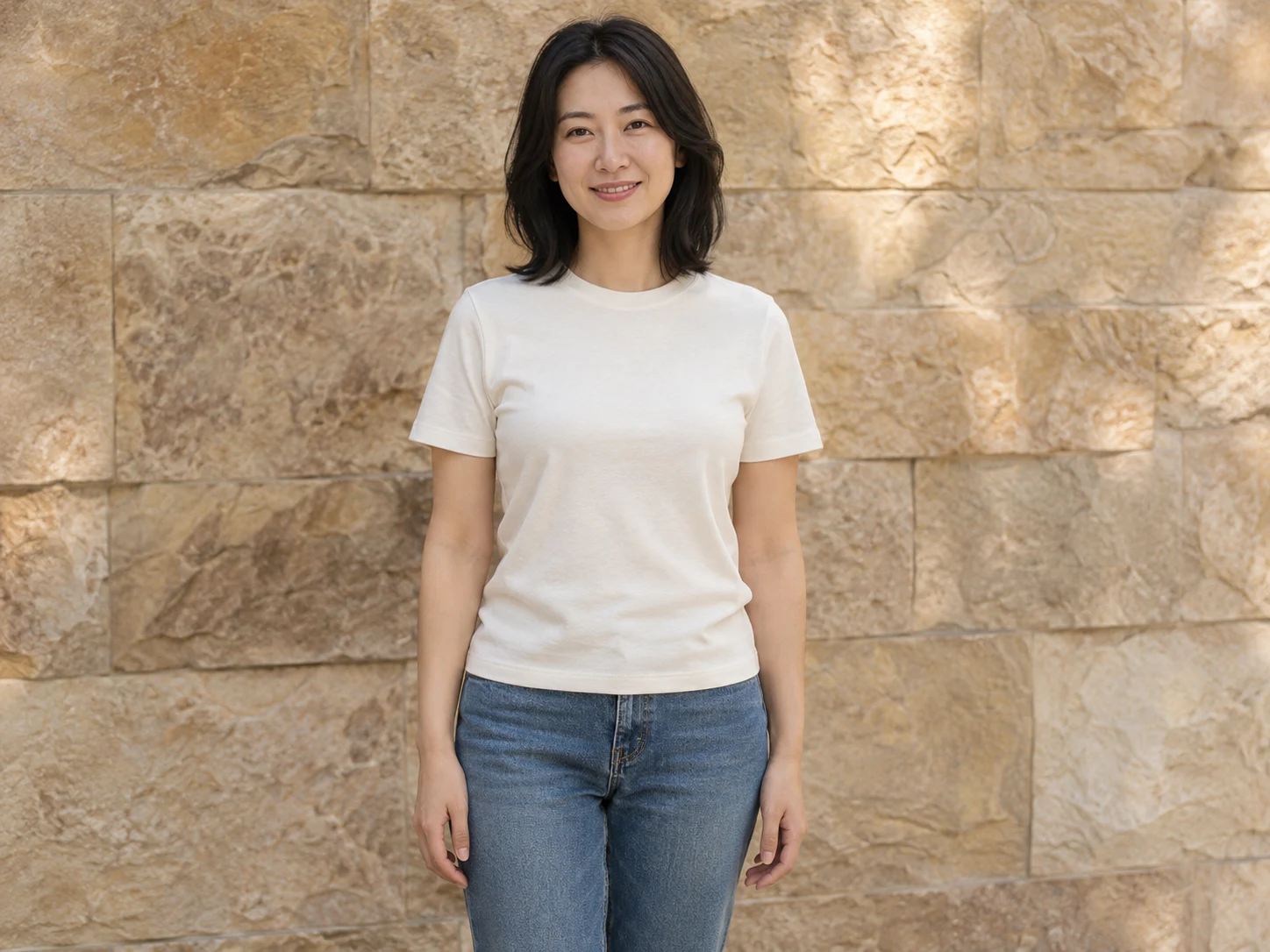 OriginalResult
About this tool
An AI clothes changer previews a different outfit on a person photo. Use Enhance My Photo with a written outfit or up to four garment references, then compare identity, fabric and proportions before saving.
Processed result
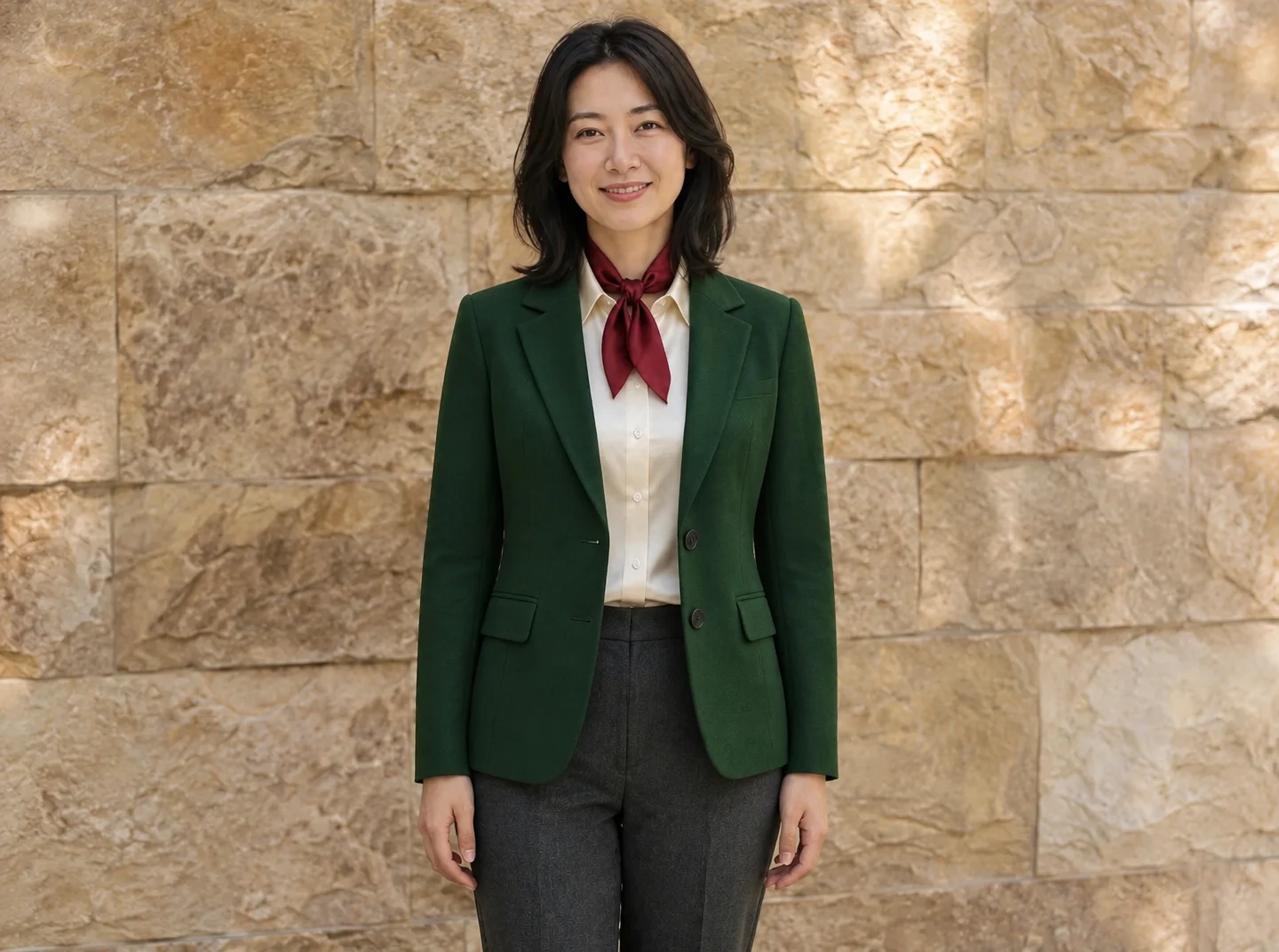
Drag each comparison to inspect the edit. Choose a preset to try the same approach with your own photo.
Describe a complete look, including color, fabric, layering and cut. Workwear, casual and occasion presets provide starting directions.
Use this presetUse up to four clothing references with a model that supports five inputs. Each reference has the garment role.
Use this presetReview the person’s face, hands and clothing edges. Virtual clothing is a visual concept and does not measure physical fit.
Use this presetAI clothes changer
Use up to four clothing references with a model that supports five inputs. Each reference has the garment role.
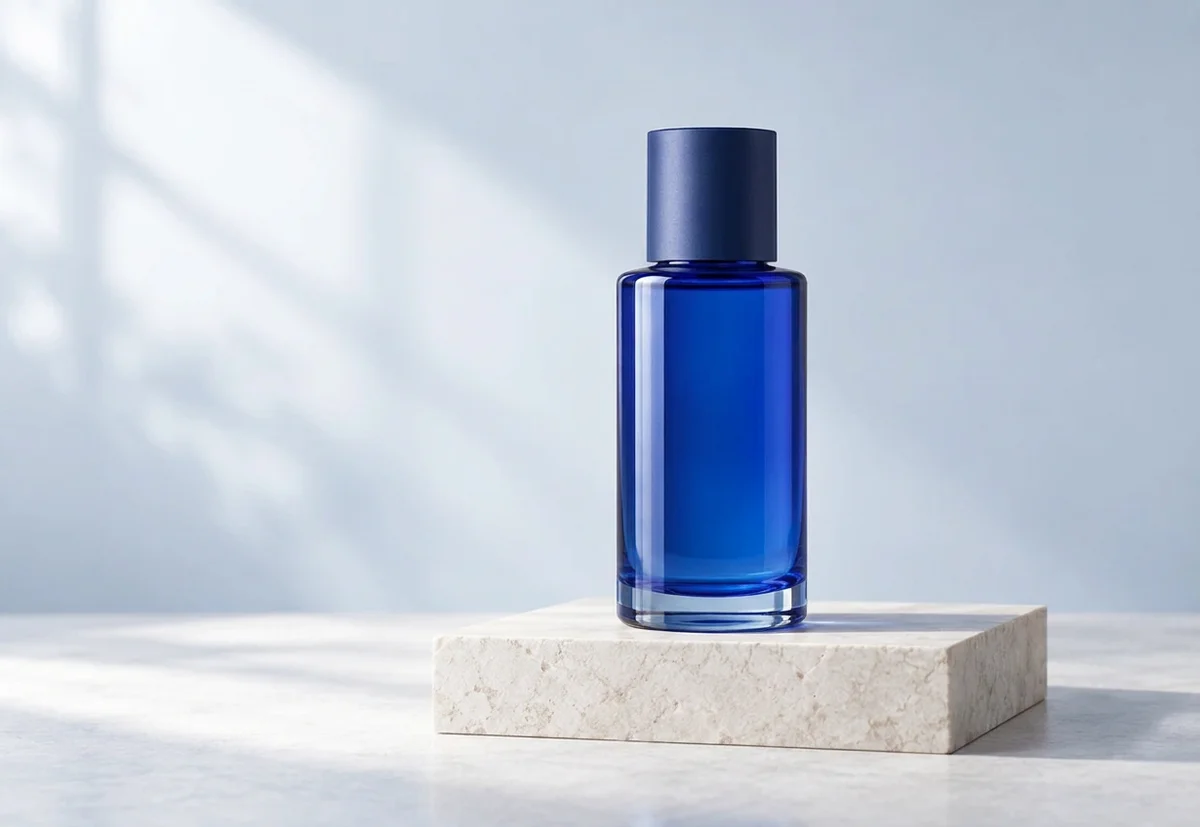
These are example reference inputs. Your source supplies the subject; your references guide their assigned element. Add your own references in the workbench.
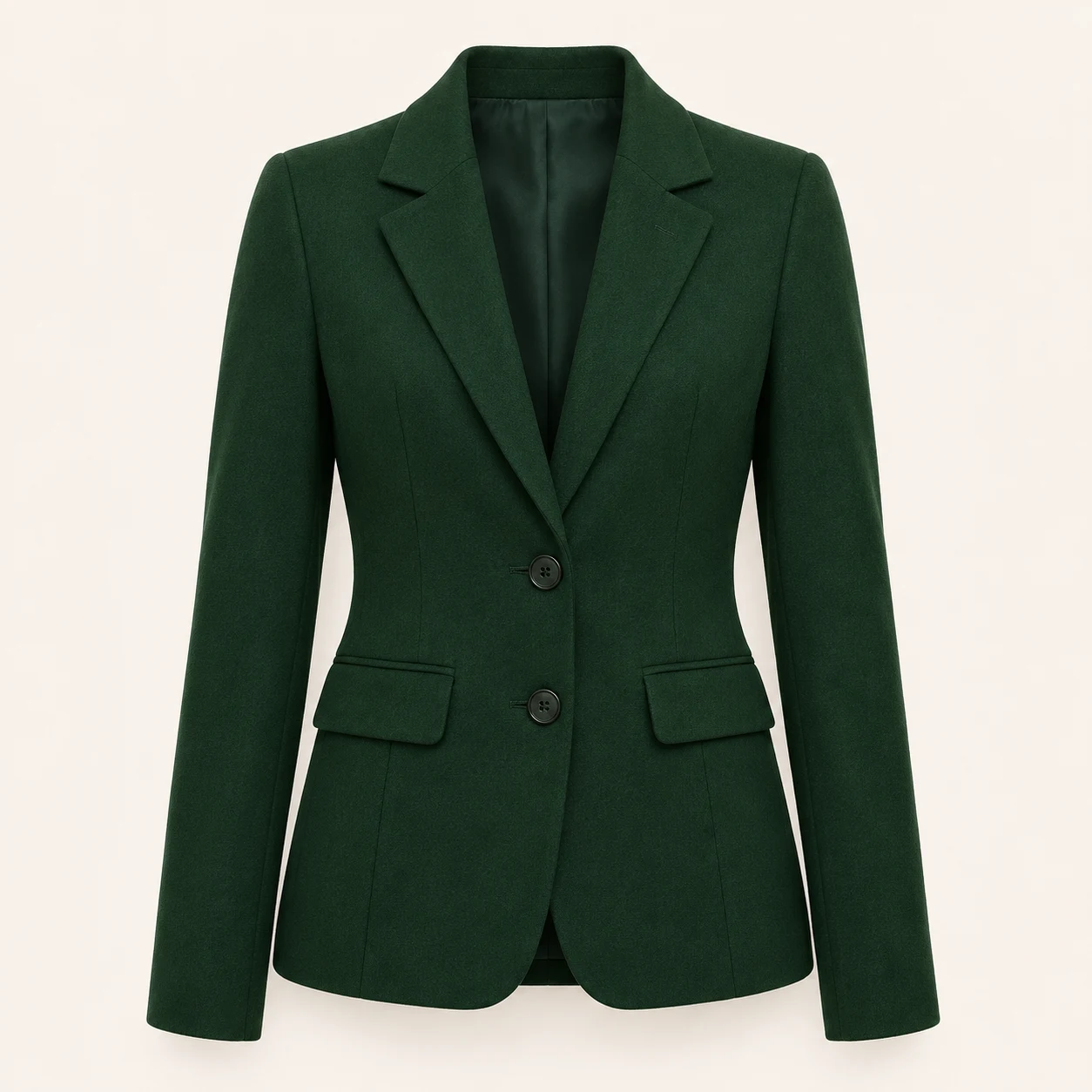
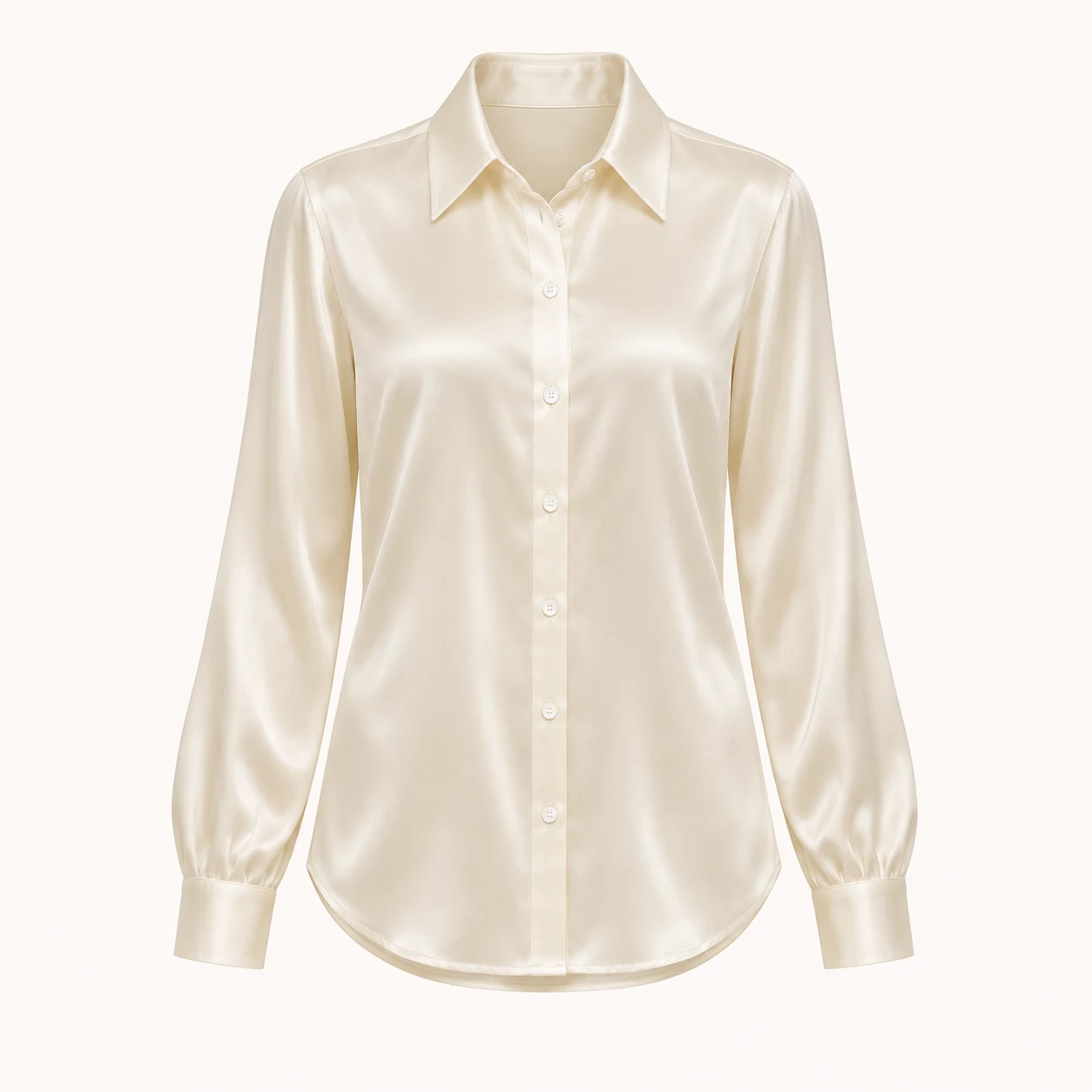
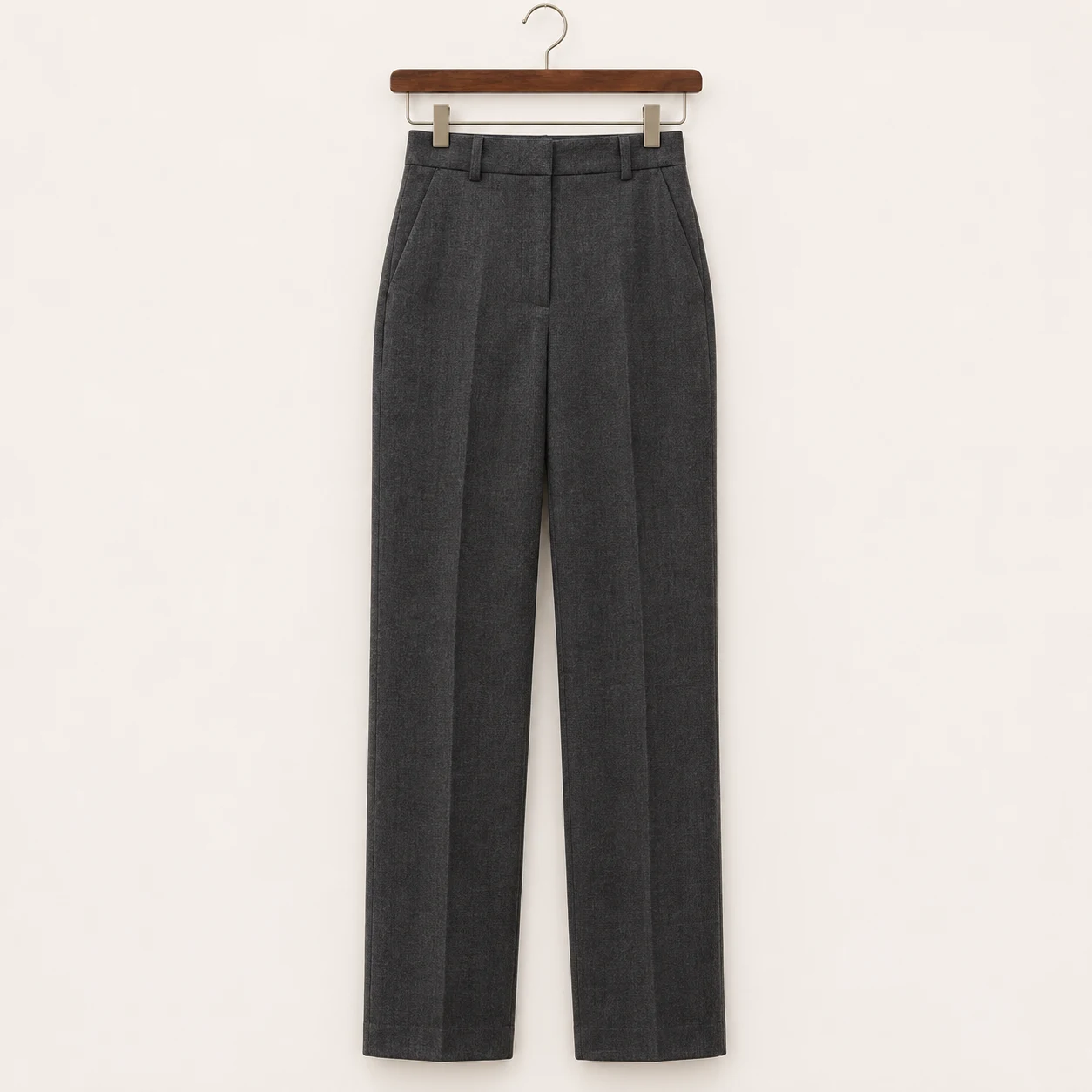
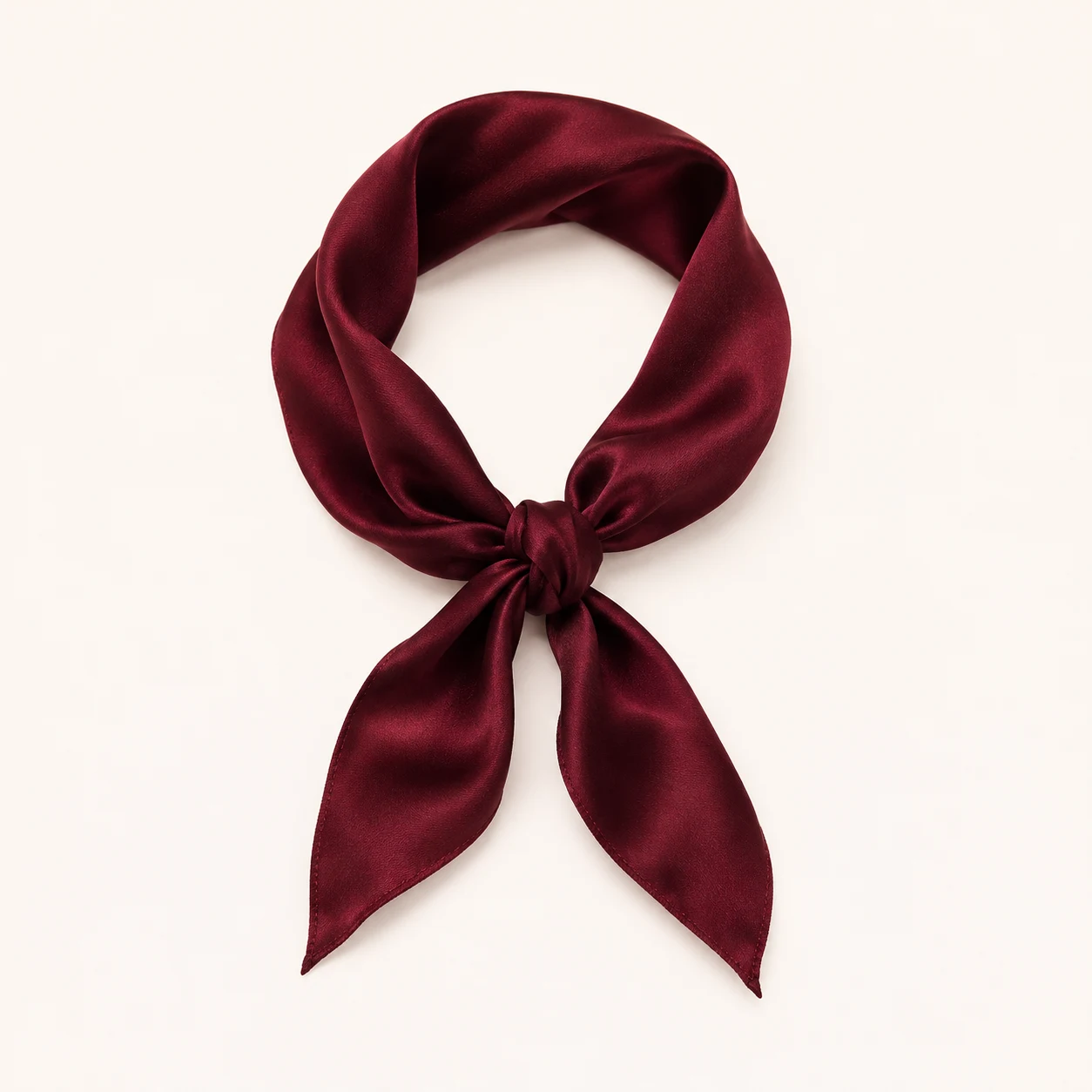
AI clothes changer
Upload one person photo with the relevant clothing area visible.
Choose text and describe an outfit, or add up to four garment references. Set the model, quality and ratio.
Review credits, generate and compare the face and garment details, then download a copy.
A focused workflow for your image
Review the credit cost before processing. Uploading and browsing presets do not use AI credits.
Use a pose with arms and clothing clearly separated. Heavy occlusion makes sleeve and hand boundaries harder to reconstruct.
Show each garment clearly against a simple background. Explain how several layers should be combined.
Check fabric, logos, buttons and proportions. The result is not a sizing recommendation or product photo guarantee.
Previews show results made with this tool from our synthetic sample images. A preset fills in settings; it never starts processing or spends credits.
AI clothes changer
Reference mode accepts up to four clothing images plus one person photo when the configured model supports five input images. Each reference is marked as a garment. This is a visual concept, not a size or fit measurement.
Yes. Text mode accepts an outfit description. Name the garments, colors, material and style you want, and upload the person photo as the source.
The workflow asks the model to preserve identity, but exact preservation is not guaranteed. Compare face shape, eyes, hands and skin before using the result.
Yes, with a configured model supporting five total inputs. The person is first and up to four garment images follow. Review the model’s reference limit before uploading.
Upload a static JPG, PNG or WebP up to 20 MB and 16 megapixels. References have the same limits. Use the best original available.
The server checks the cost before processing. If the quote changes, you must confirm it. Uploading, choosing presets and viewing existing results do not start a paid generation.
Batch access follows your current membership, with up to 20 source images. Every masked edit needs its own saved selection. Failed items can be retried with a new quote.
Download the original result here. Signed in accounts can use history according to their retention policy. Temporary guest results need the active session and expire.
AI can estimate or redraw details. Compare faces, text, product labels and fine texture with your original. Keep the original and review the result before publishing.
YOUR NEXT STEP
Keep the result you like, then choose one focused tool for the next change.
Choose formal, business casual or creative styling, then set the background and outfit. You can also guide those elements with separate references.
AI headshot generatorEnhance a portrait while checking eyes, hair and skin against the original. Keep the version that still looks like the person.
Enhance a portraitDescribe a lighting, background or detail change. Compare the result with the original and check any important writing.
AI Image EditorAdd your source, choose the change, and review the credit cost before processing.
Edit your image