
EnhanceMyPhoto image tools
Image editing templates
Find a starting point for a photo edit. Choose a preset to open the right tool, then add your image and review the settings.
Previews show results made with this tool from our synthetic sample images. A preset fills in settings; it never starts processing or spends credits.
44 image editing presets
Enhance
Image upscaler
Photo
Enlarge a small photo for a larger layout while checking faces and texture.
Use this preset
Image upscaler
Artwork
Prepare a larger artwork image and inspect lines and repeated patterns.
Use this preset
Image upscaler
Text
Enlarge photographed writing, then verify every important character against the source.
Use this preset
Sharpen image
Light
Add a light edge adjustment to an image that already has useful detail.
Use this preset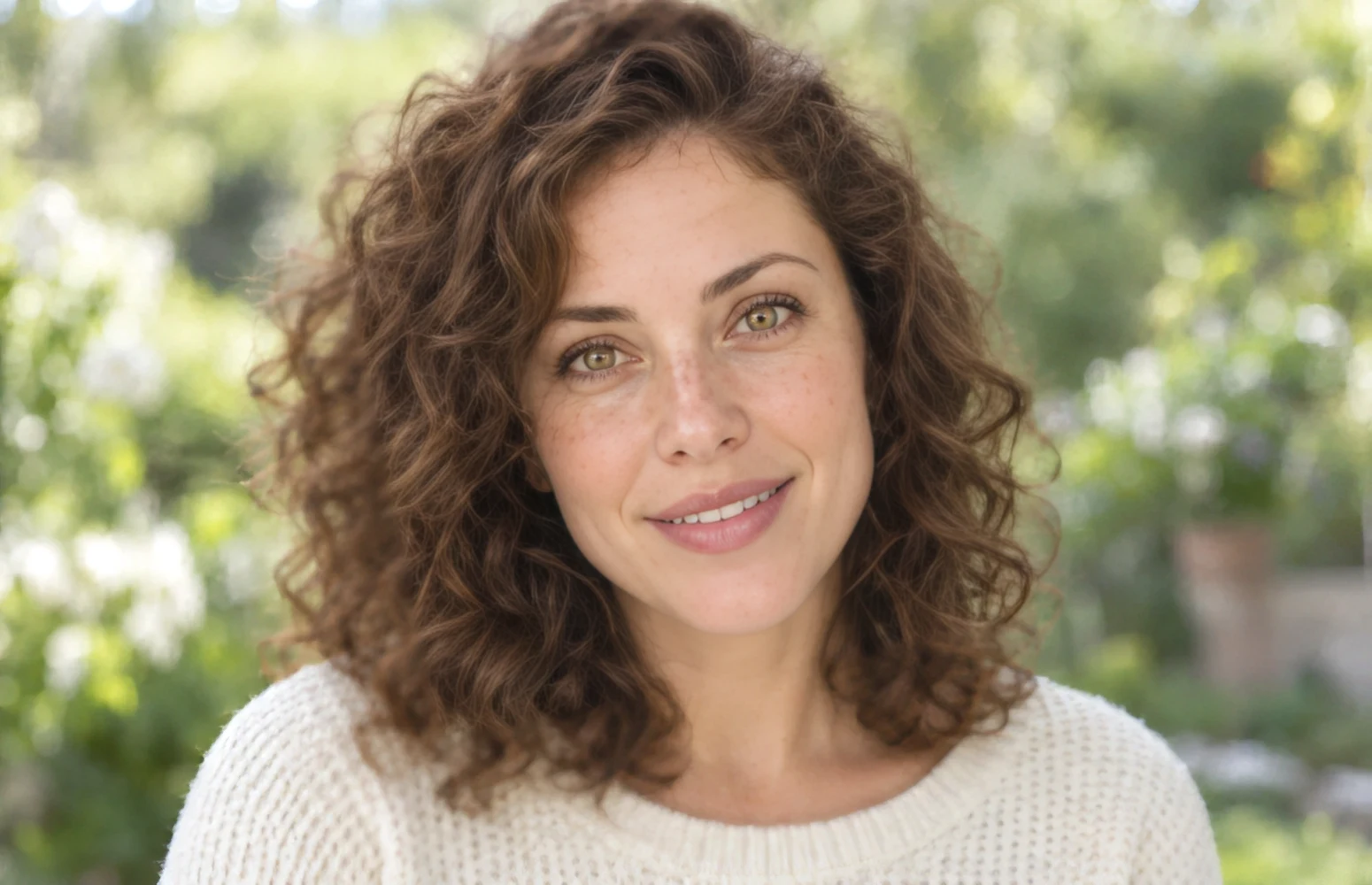
Sharpen image
Medium
Try a moderate edge adjustment for soft details at the original size.
Use this preset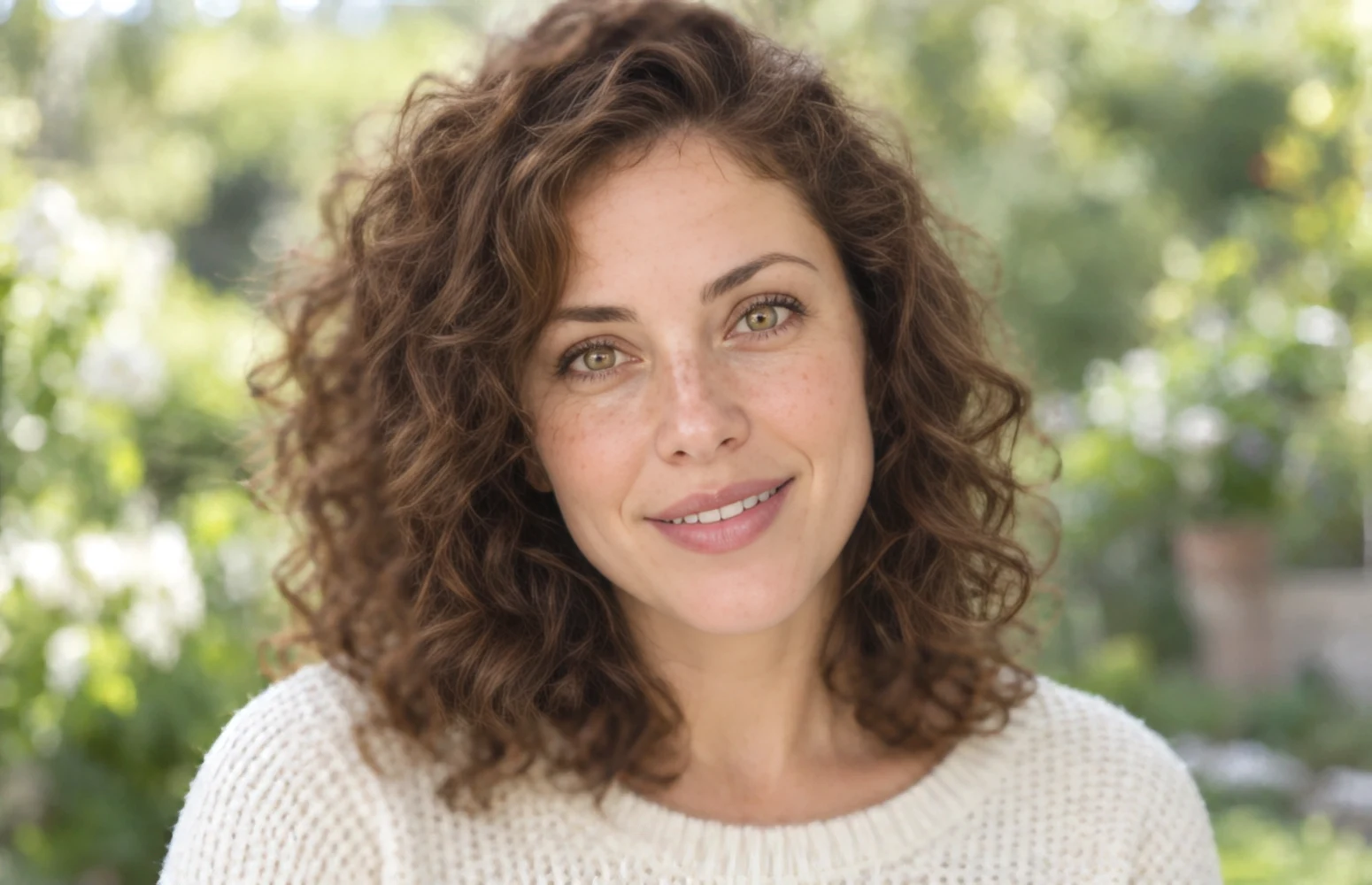
Sharpen image
Strong
Compare a stronger edge adjustment and check for halos before saving.
Use this preset
Cleanup
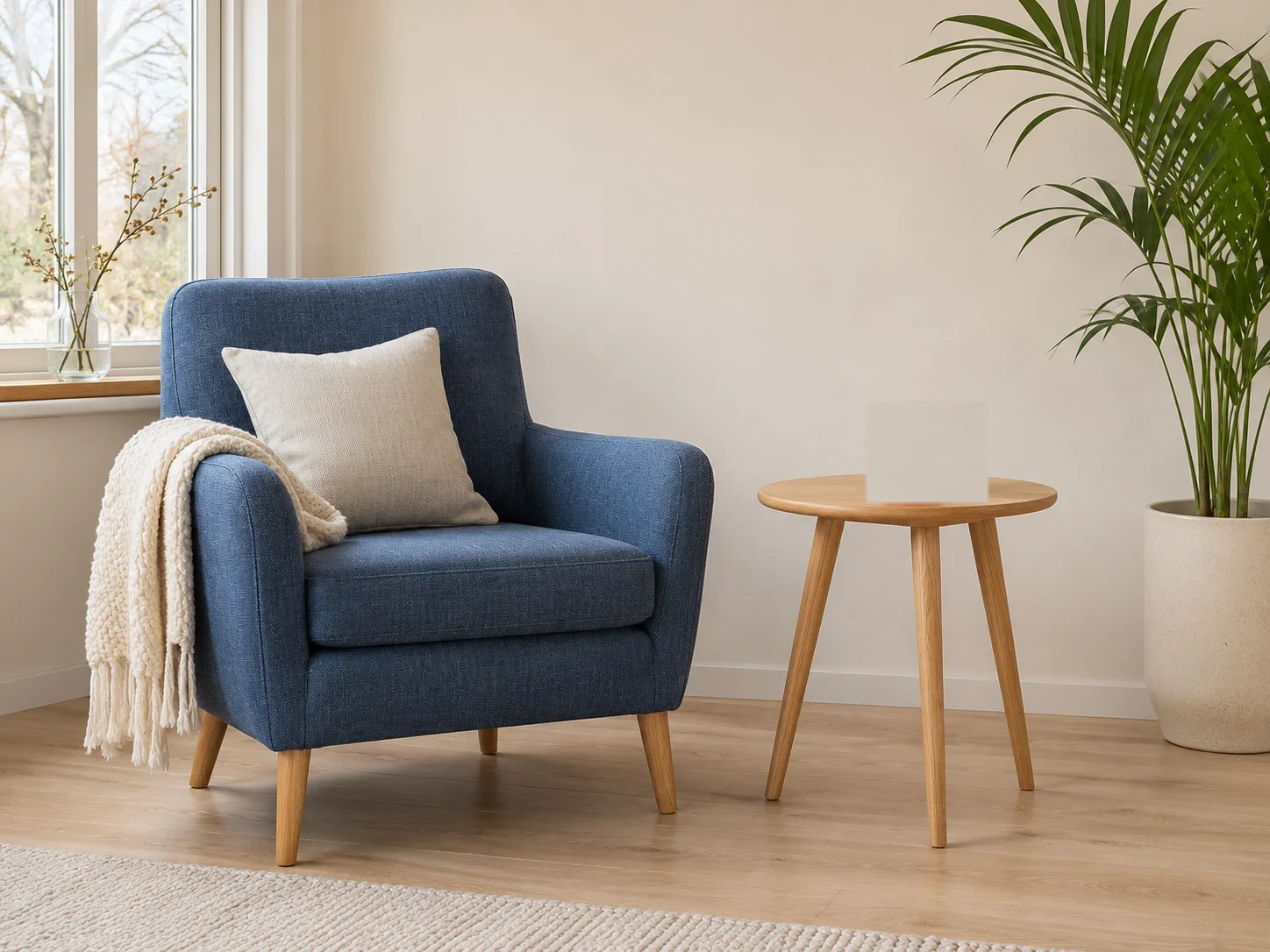
Object remover
Object
Paint an unwanted item to remove it and repair the selected area.
Use this preset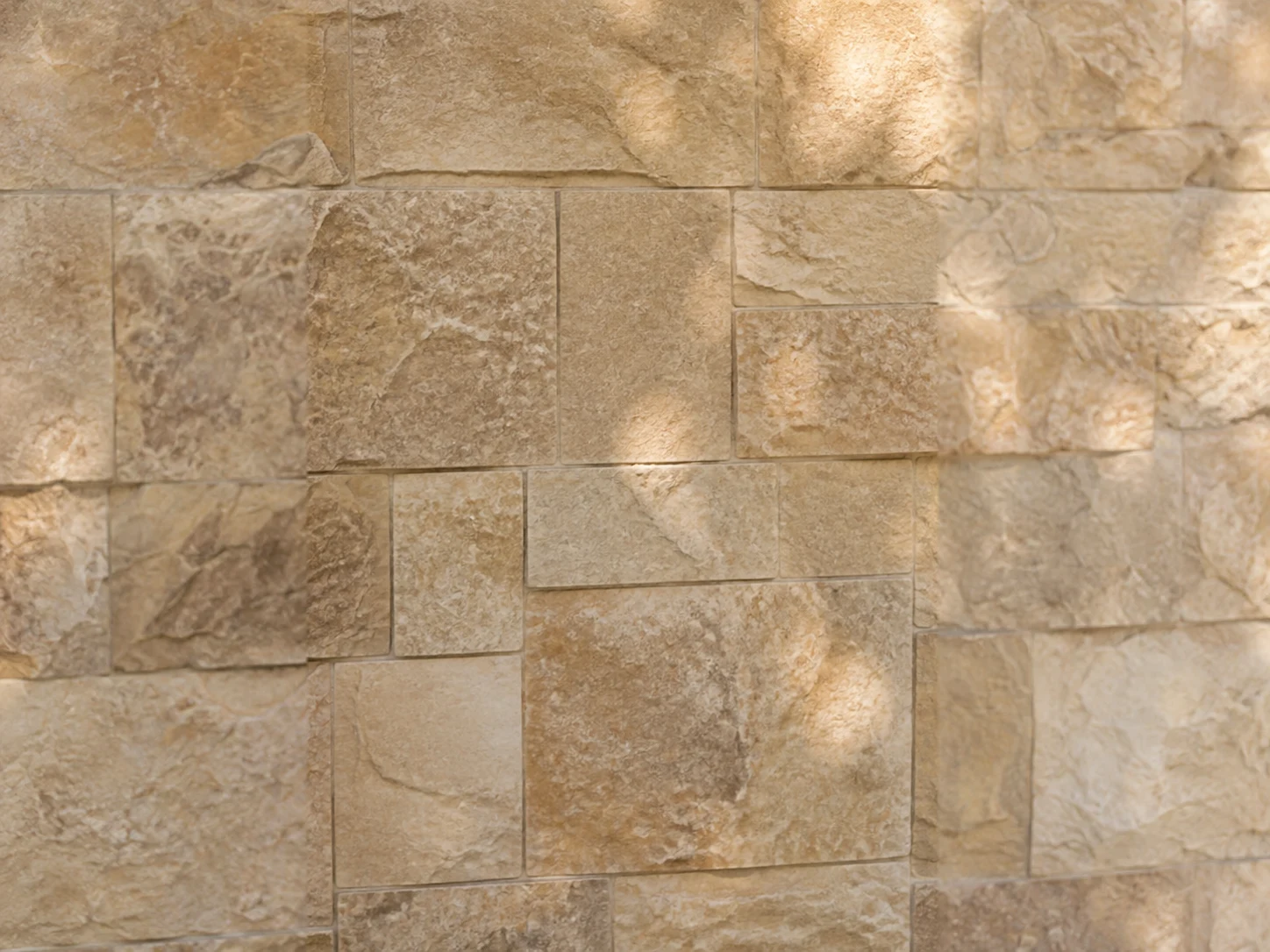
Object remover
Text
Clear selected text from an image you own or have permission to edit.
Use this preset
Watermark remover
Visible overlays
Remove an overlay from your own image or an image you are authorized to edit.
Use this preset
Watermark remover
Date stamp
Clean up a date stamp on a photo you own while checking the surrounding texture.
Use this preset
Watermark remover
Repeated marks
Remove repeated marks from an authorized image and inspect each repaired area.
Use this preset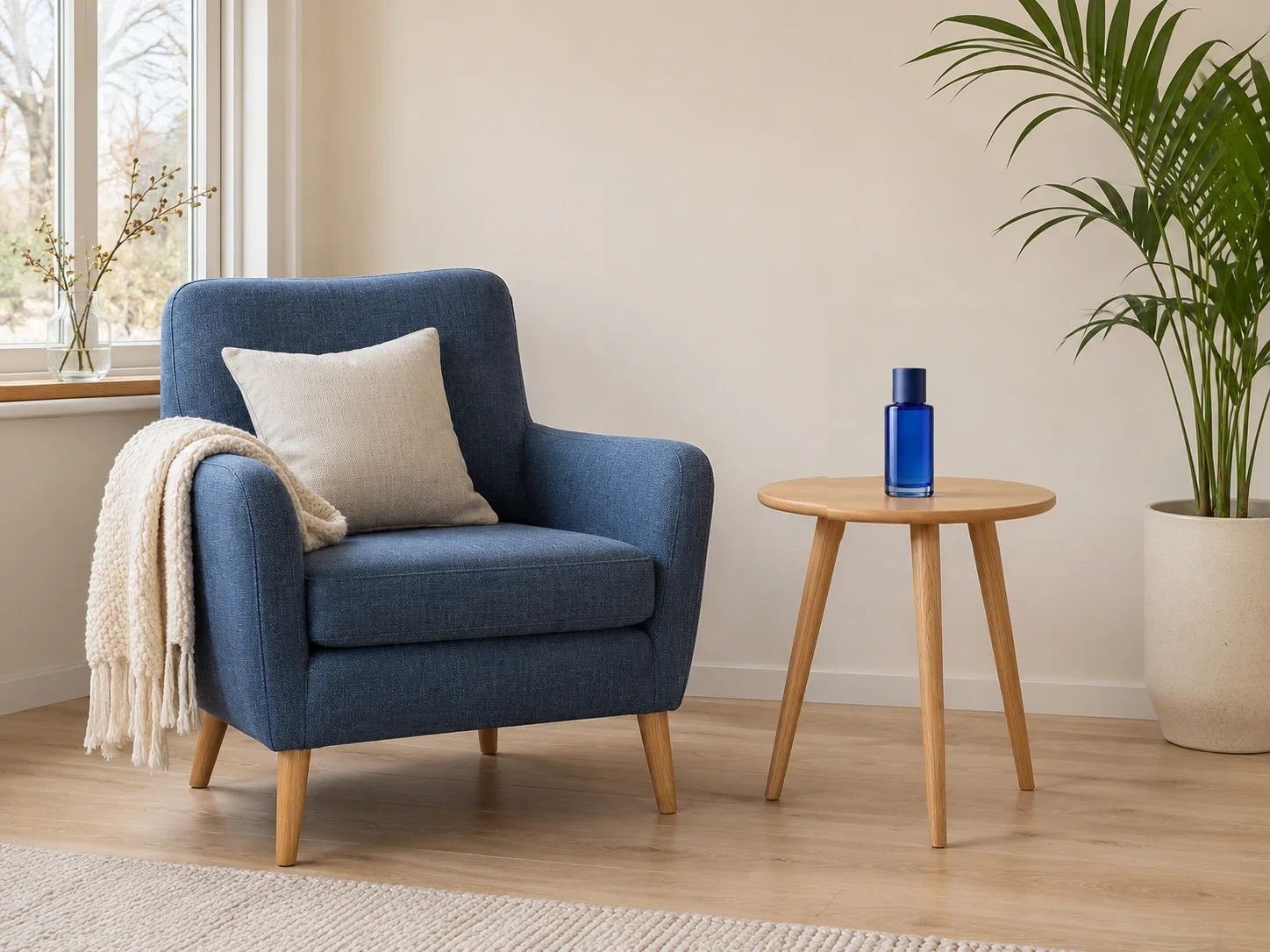
Generative fill
Replace
Replace a selected object with content described in words or a reference.
Use this preset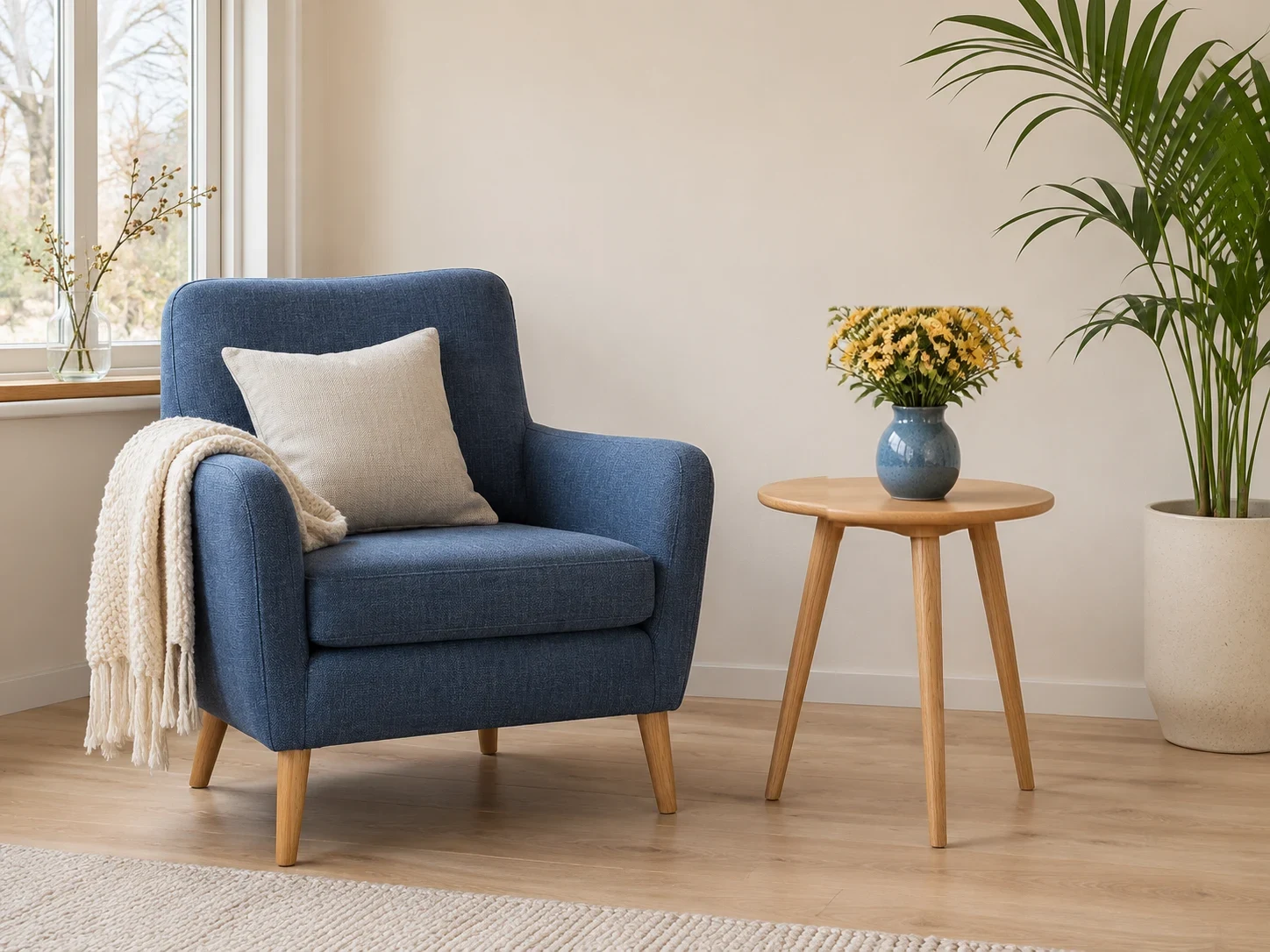
Generative fill
Add an object
Generate an object inside an empty area you select within the image.
Use this preset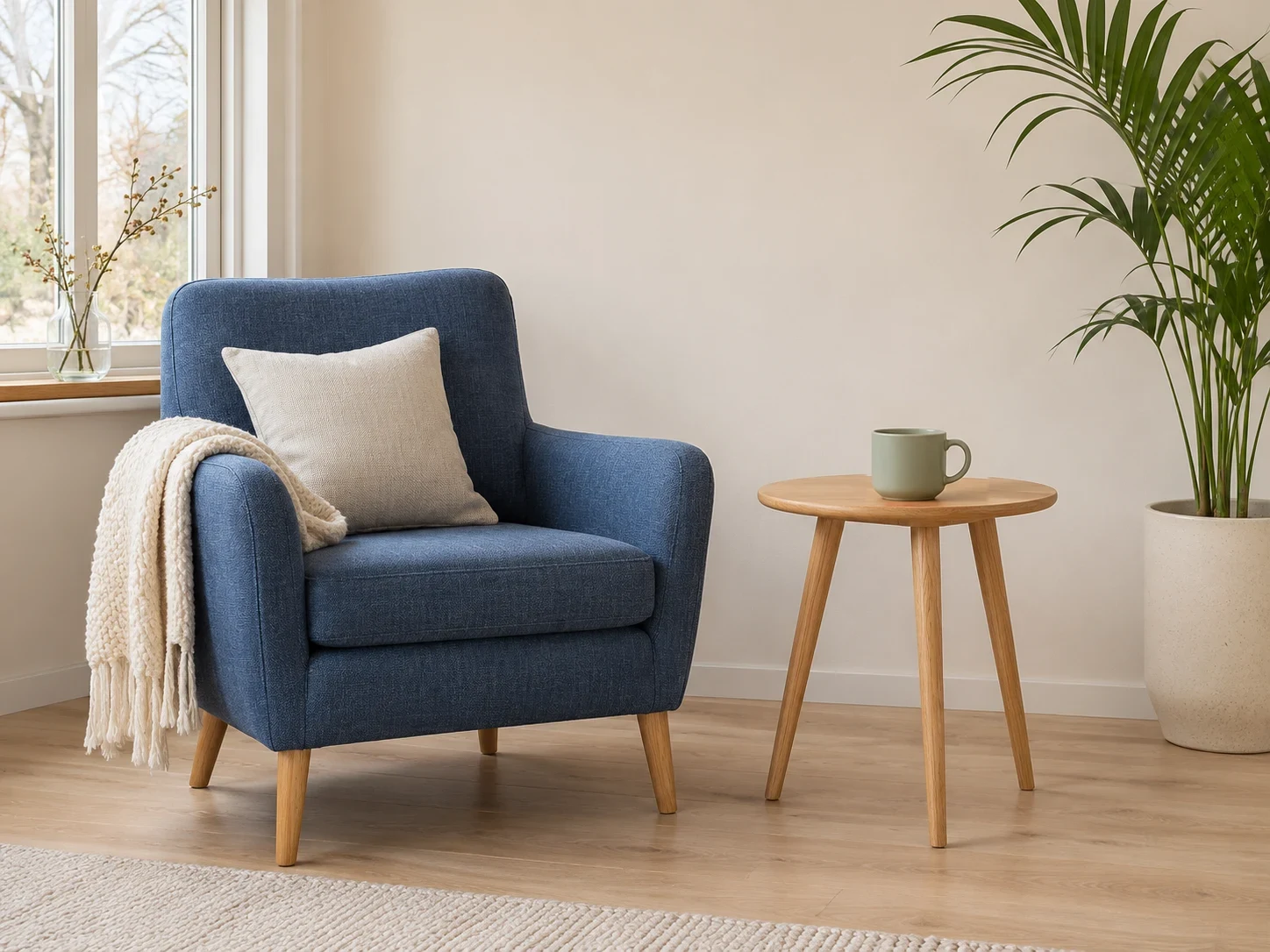
Generative fill
Change color
Try a new color or material inside a selected image region.
Use this preset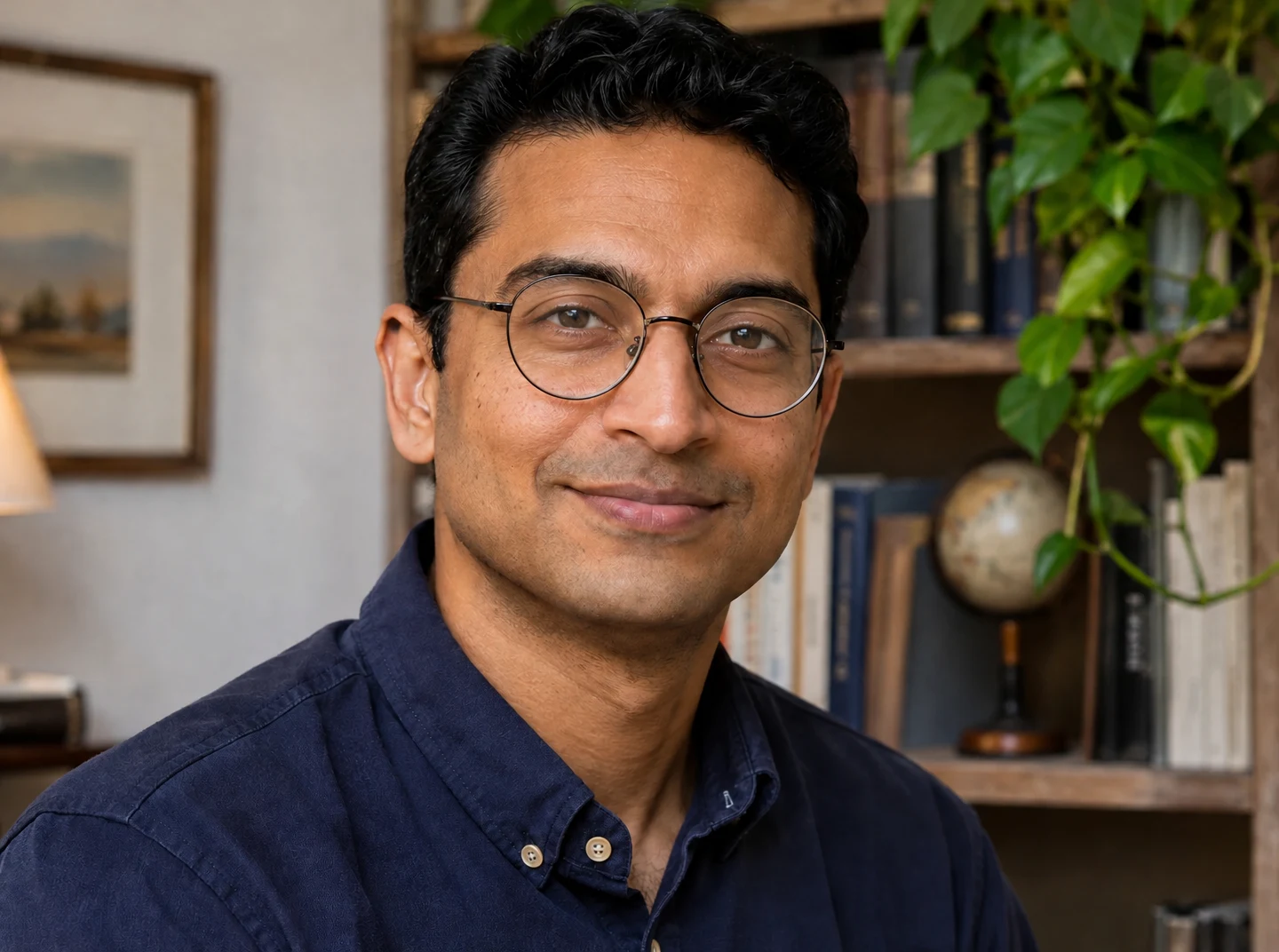
Remove glare
Glasses
Reduce distracting reflections on glasses and check the visible eyes.
Use this preset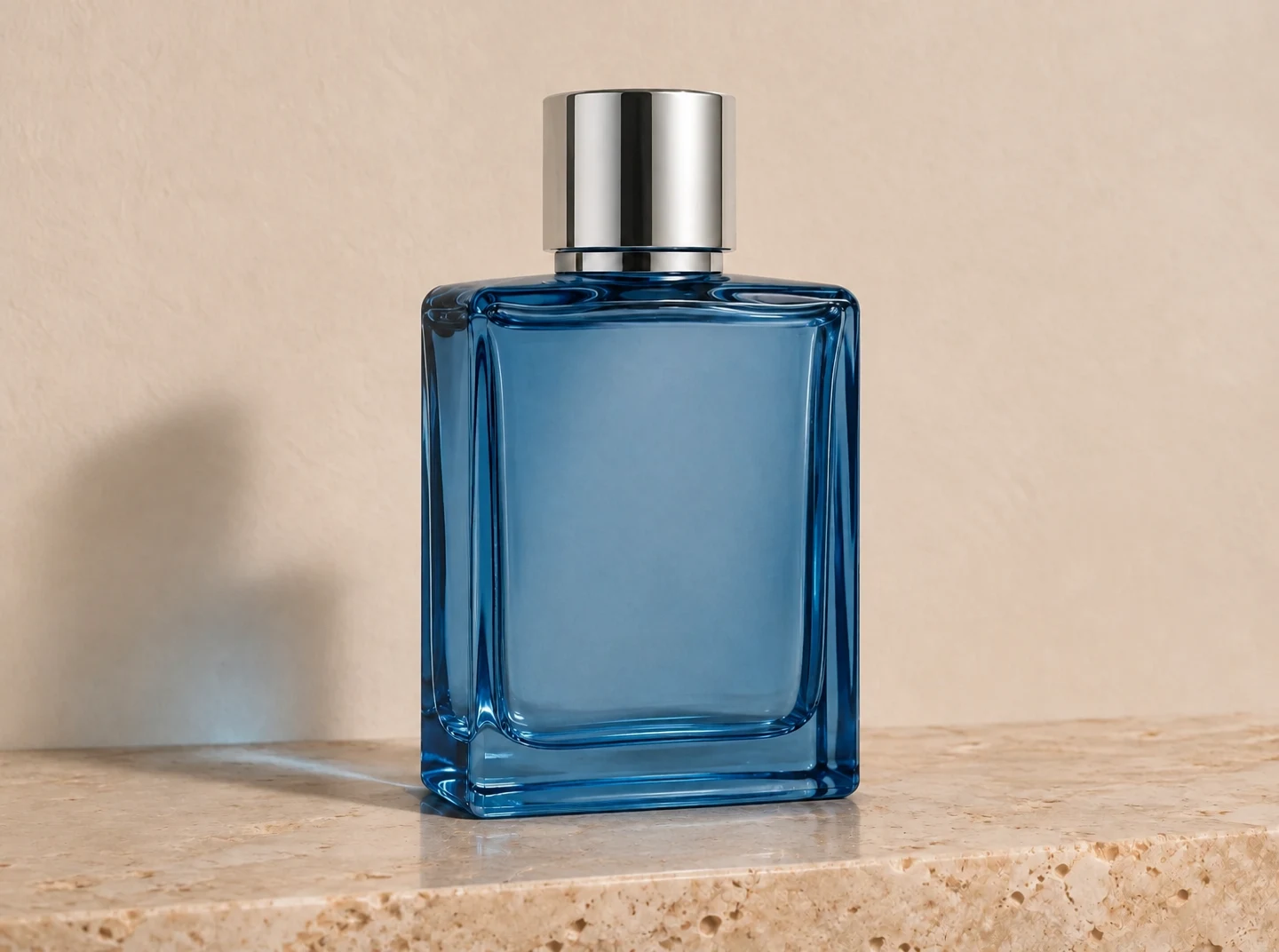
Remove glare
Flash
Reduce a flash reflection and inspect the texture beneath the bright patch.
Use this preset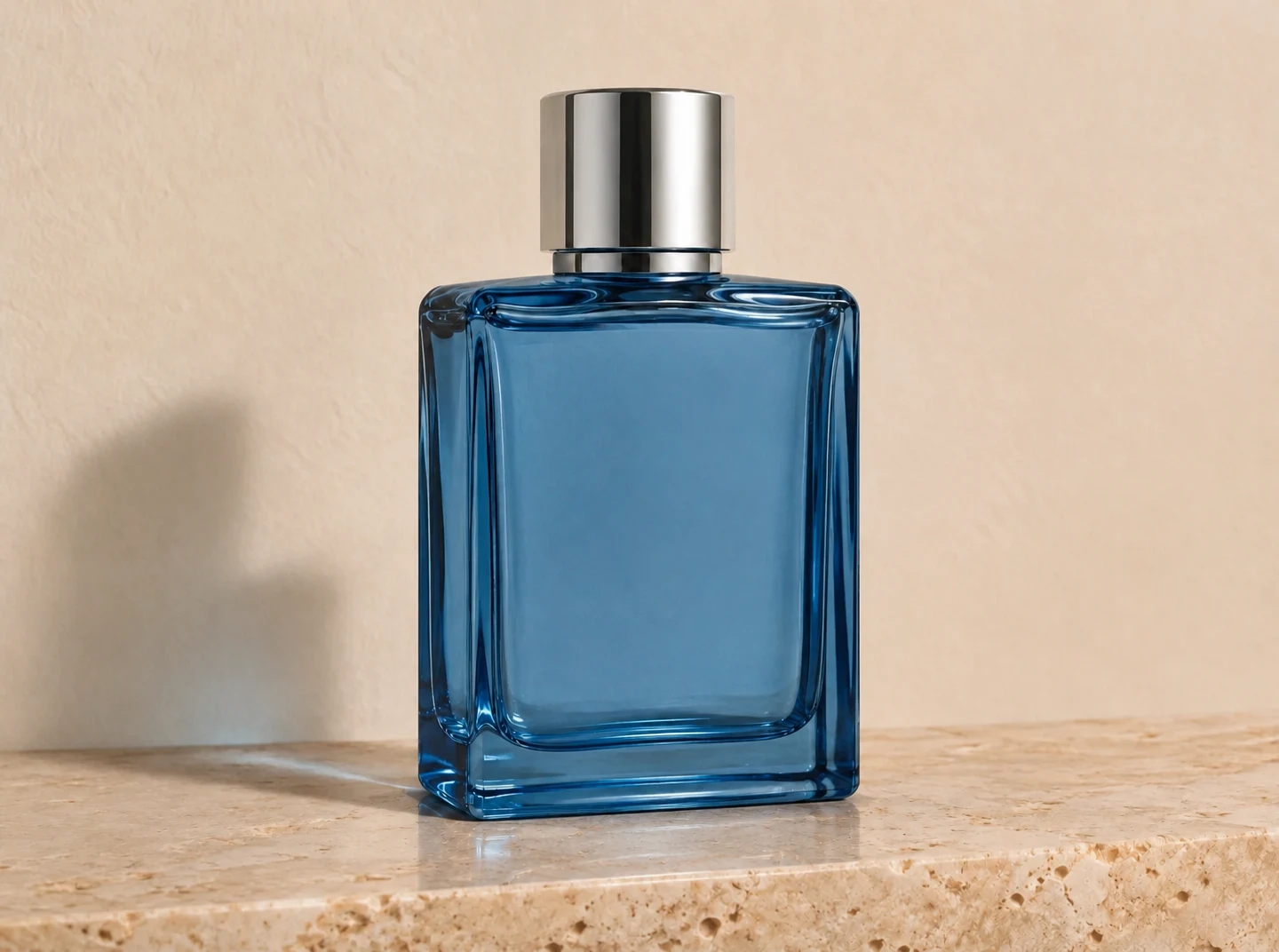
Remove glare
Product
Reduce glare that hides a product surface or label, then verify the details.
Use this preset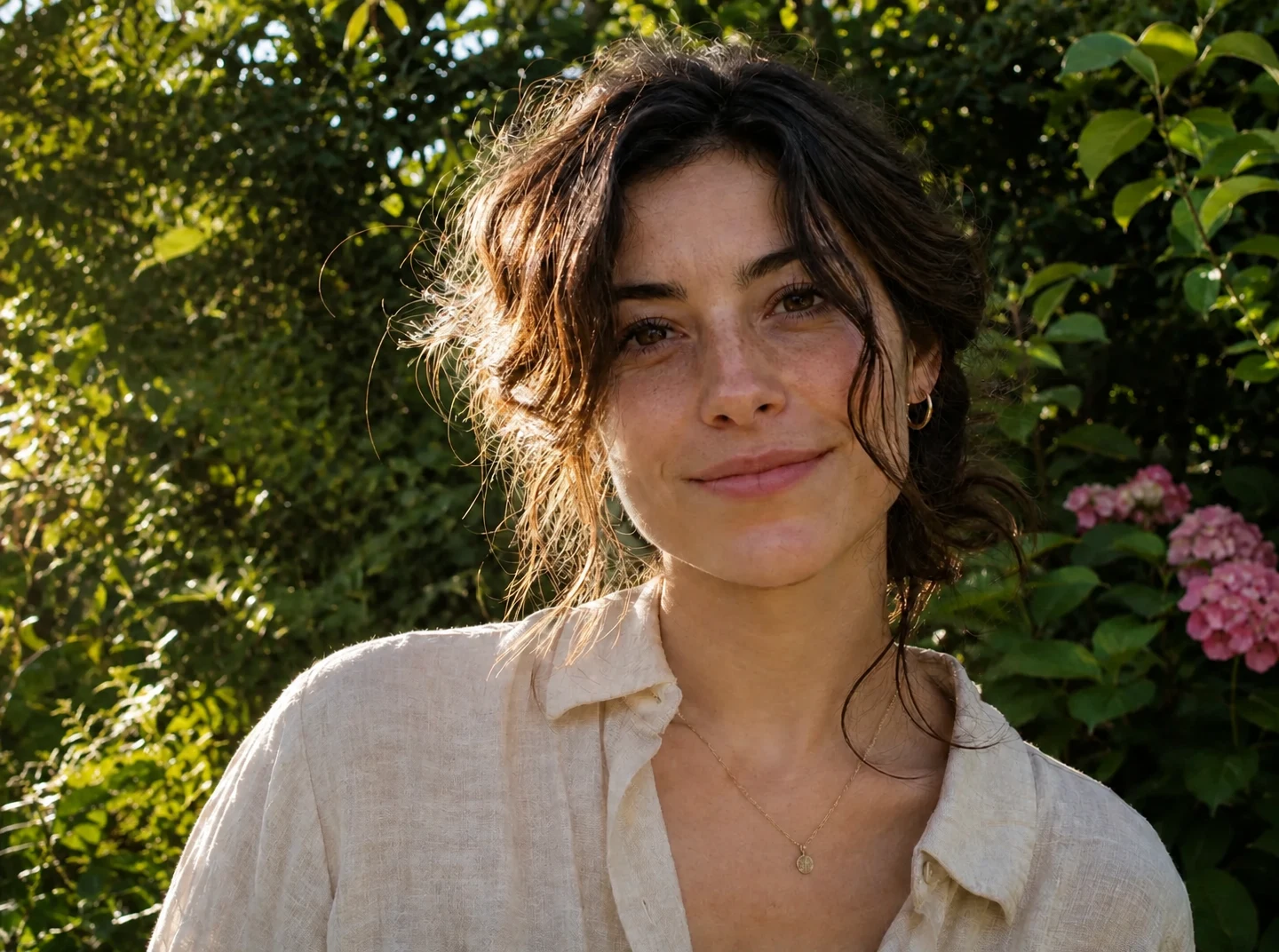
Color
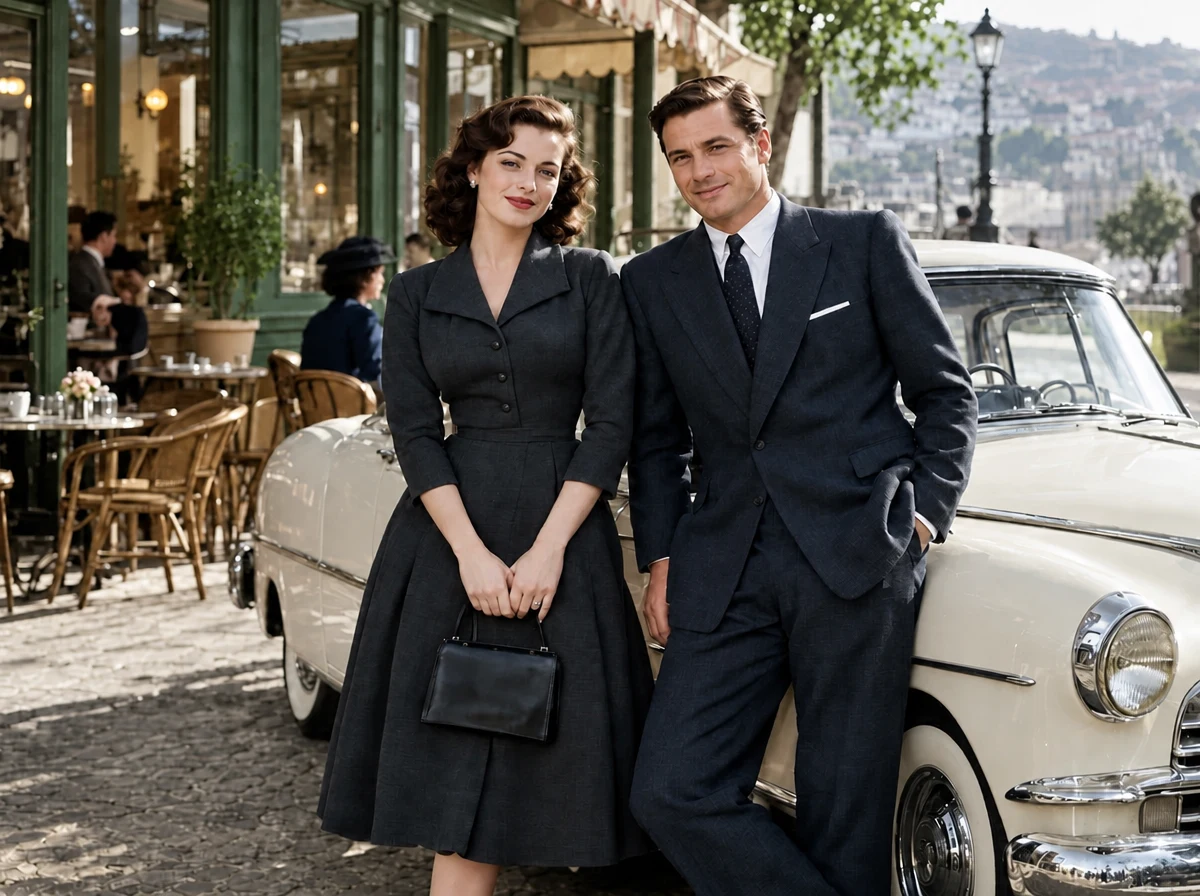
AI image colorizer
Photo
Explore a color interpretation with advanced palettes and references.
Use this preset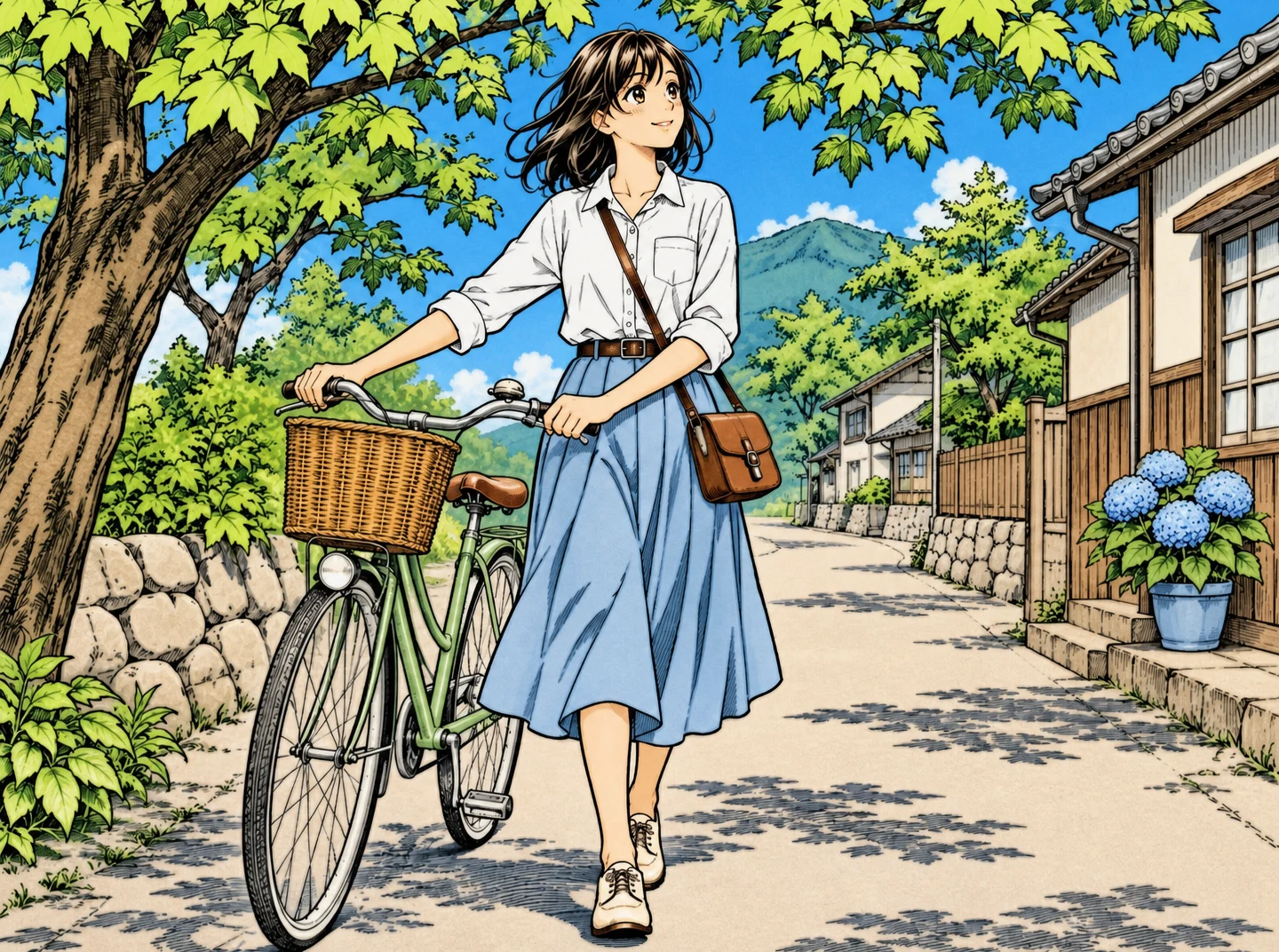
AI image colorizer
Manga
Add color to manga panels while reviewing the original line work.
Use this preset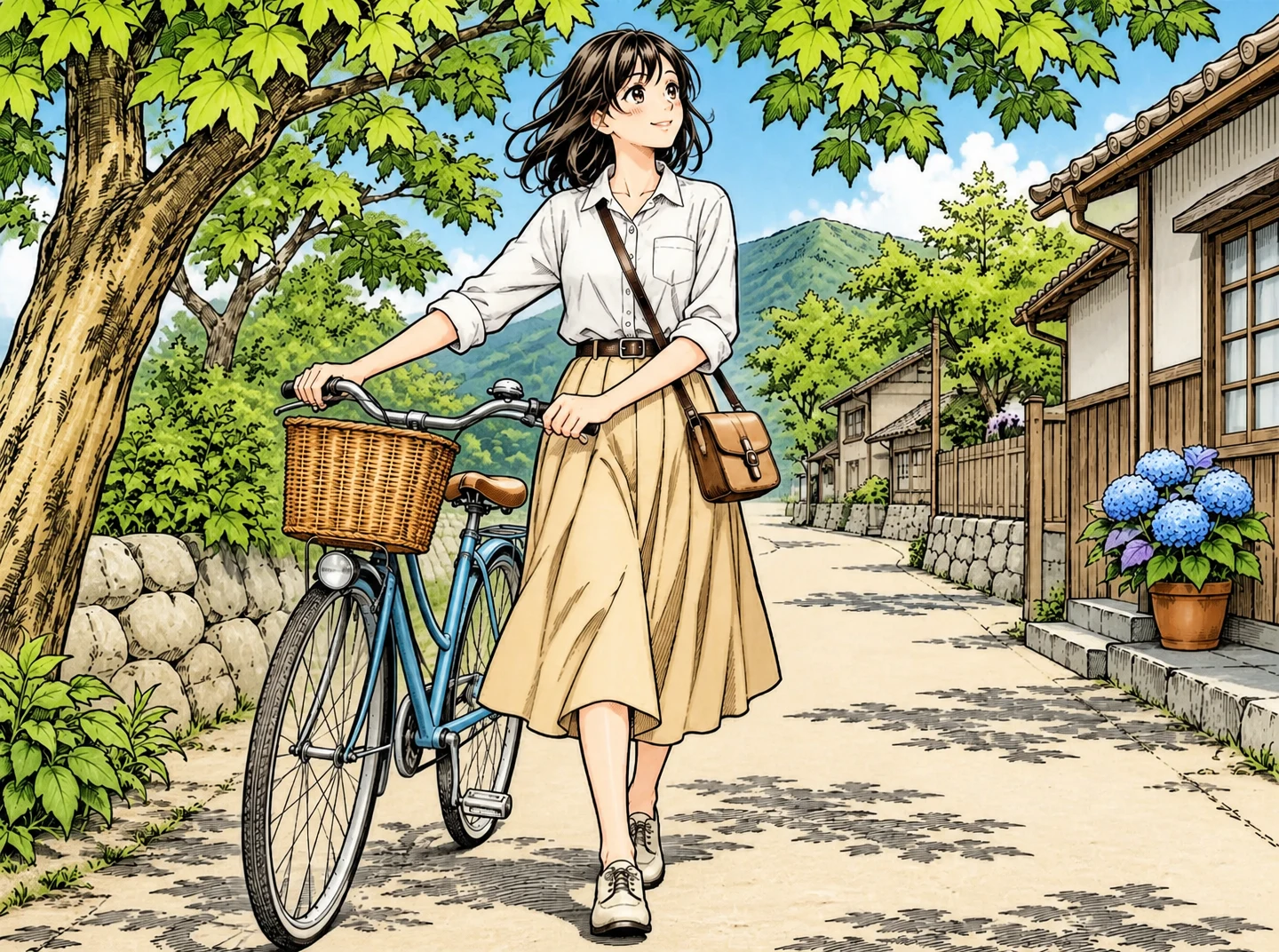
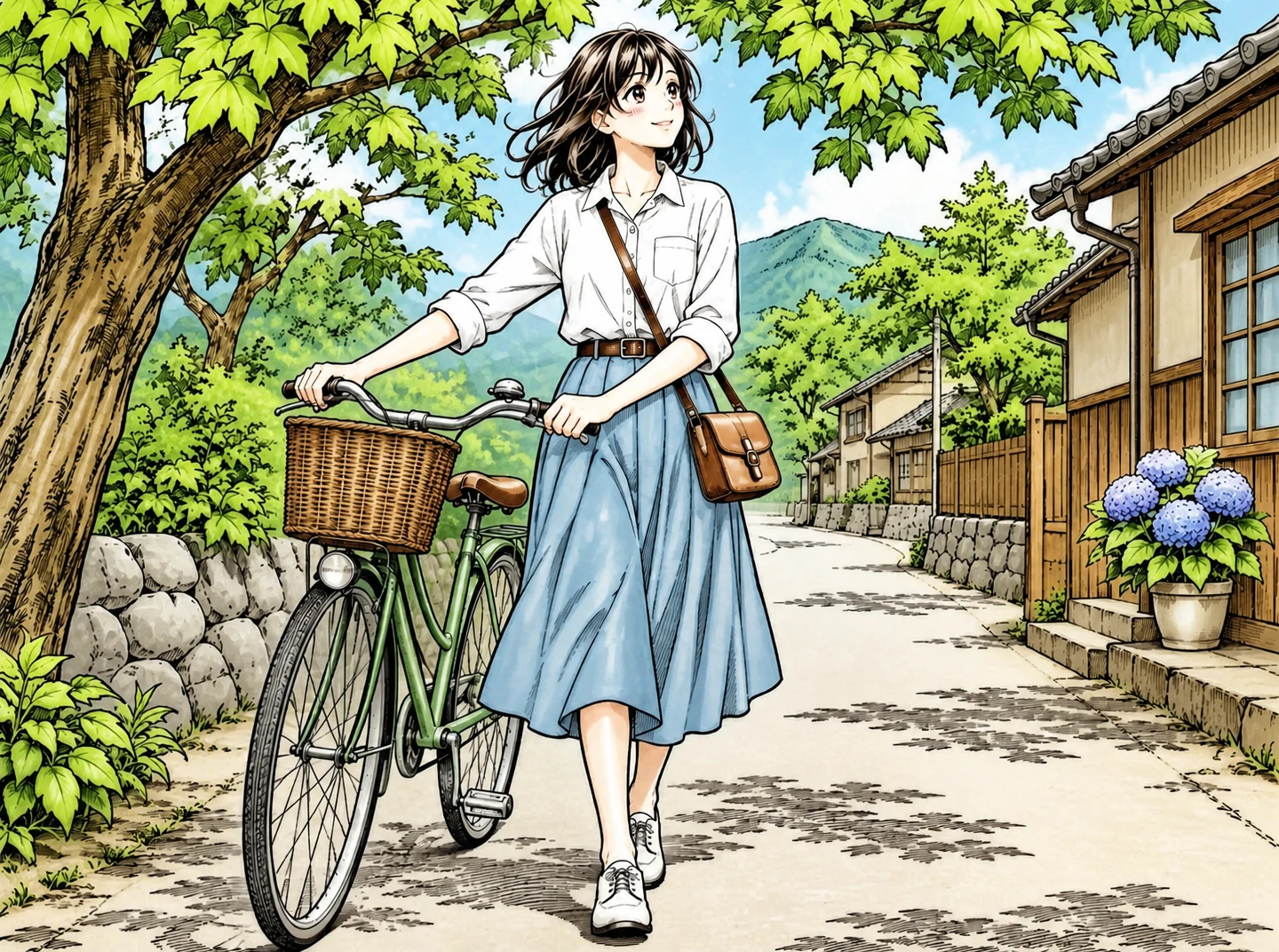
AI image colorizer
Illustration
Explore a palette for an illustration and check the generated colors.
Use this preset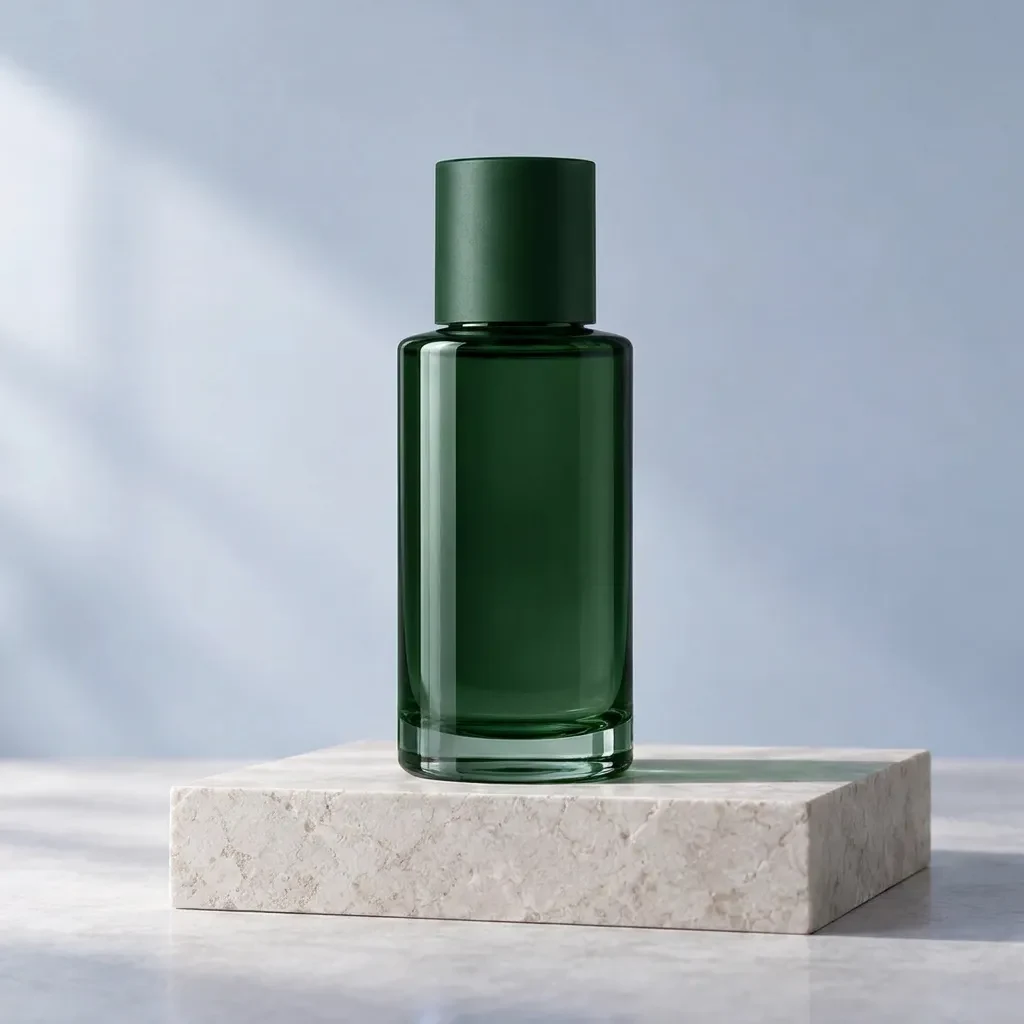
AI image colorizer
Product
Test product colors against your reference and verify them before publication.
Use this preset
Style
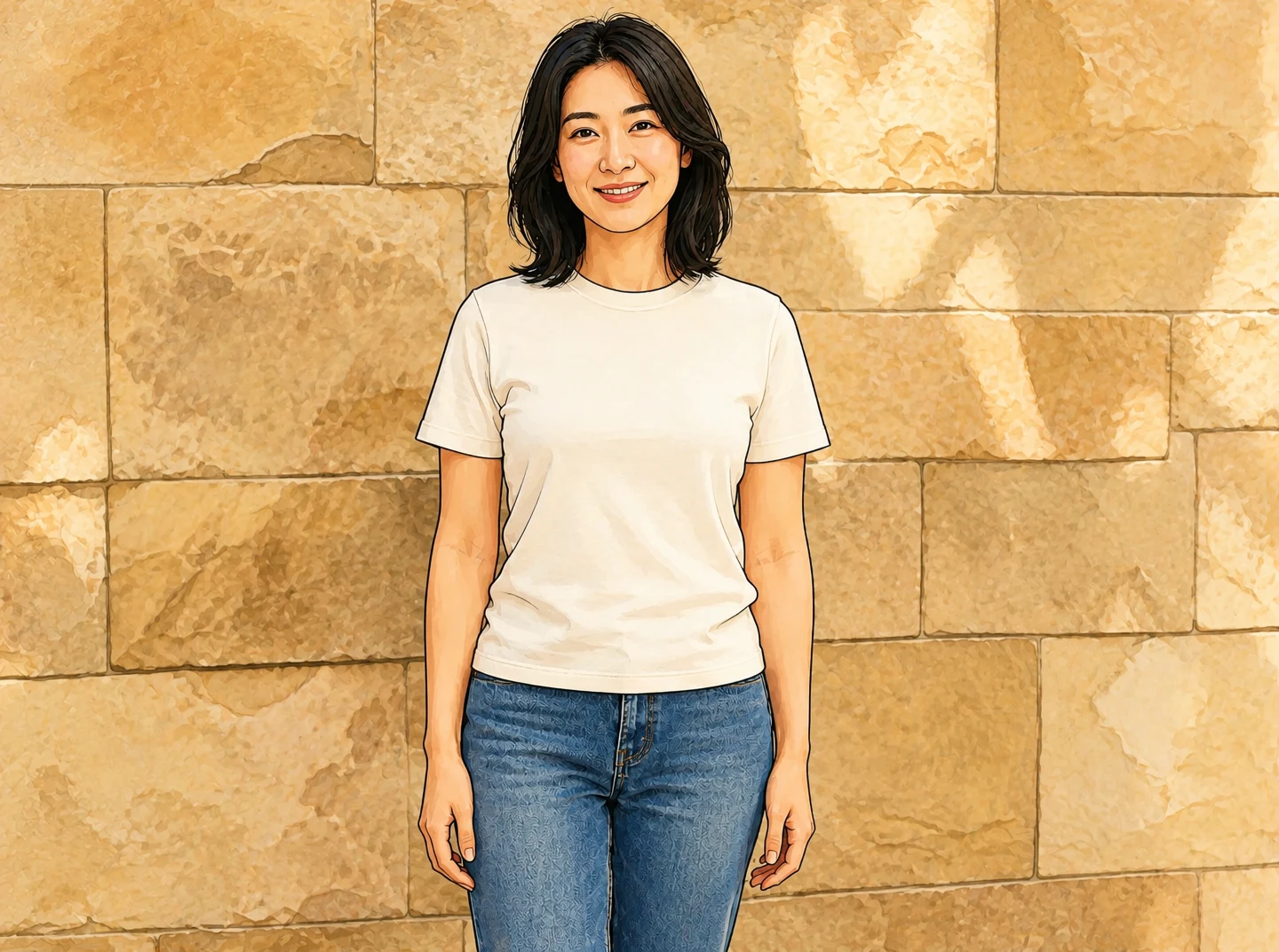
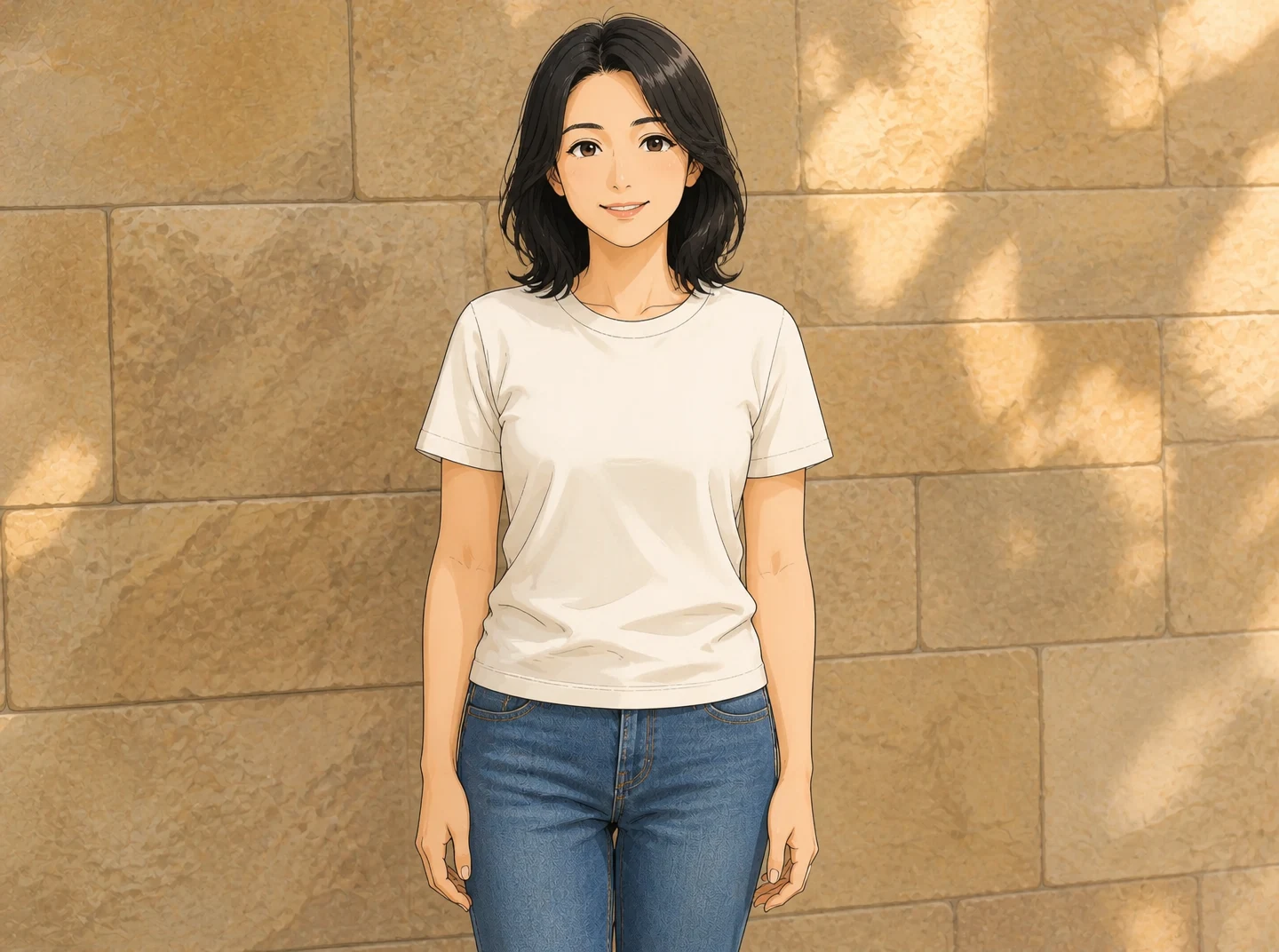
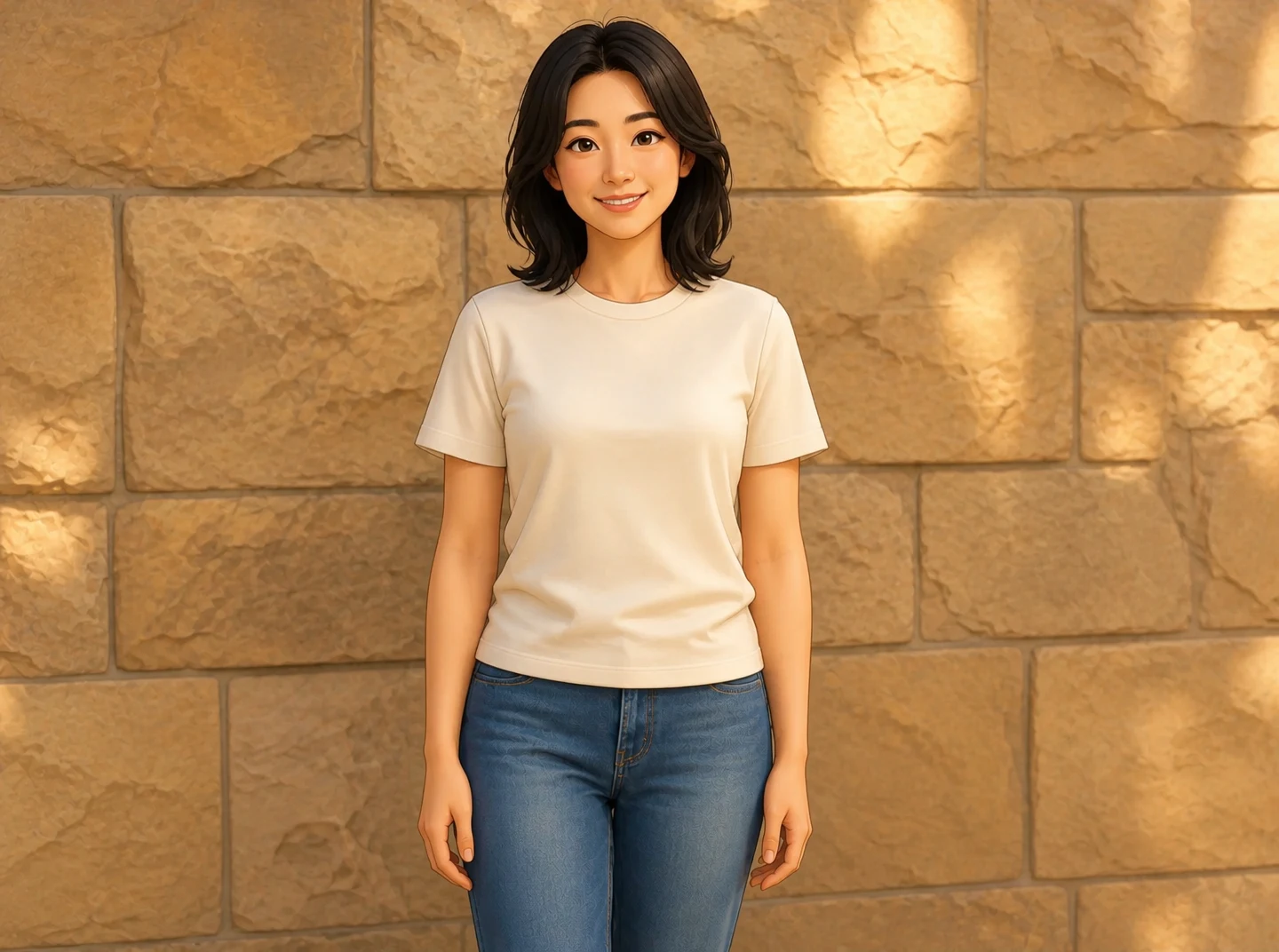
AI filter
Anime
Try an anime style while reviewing the subject’s recognizable features.
Use this preset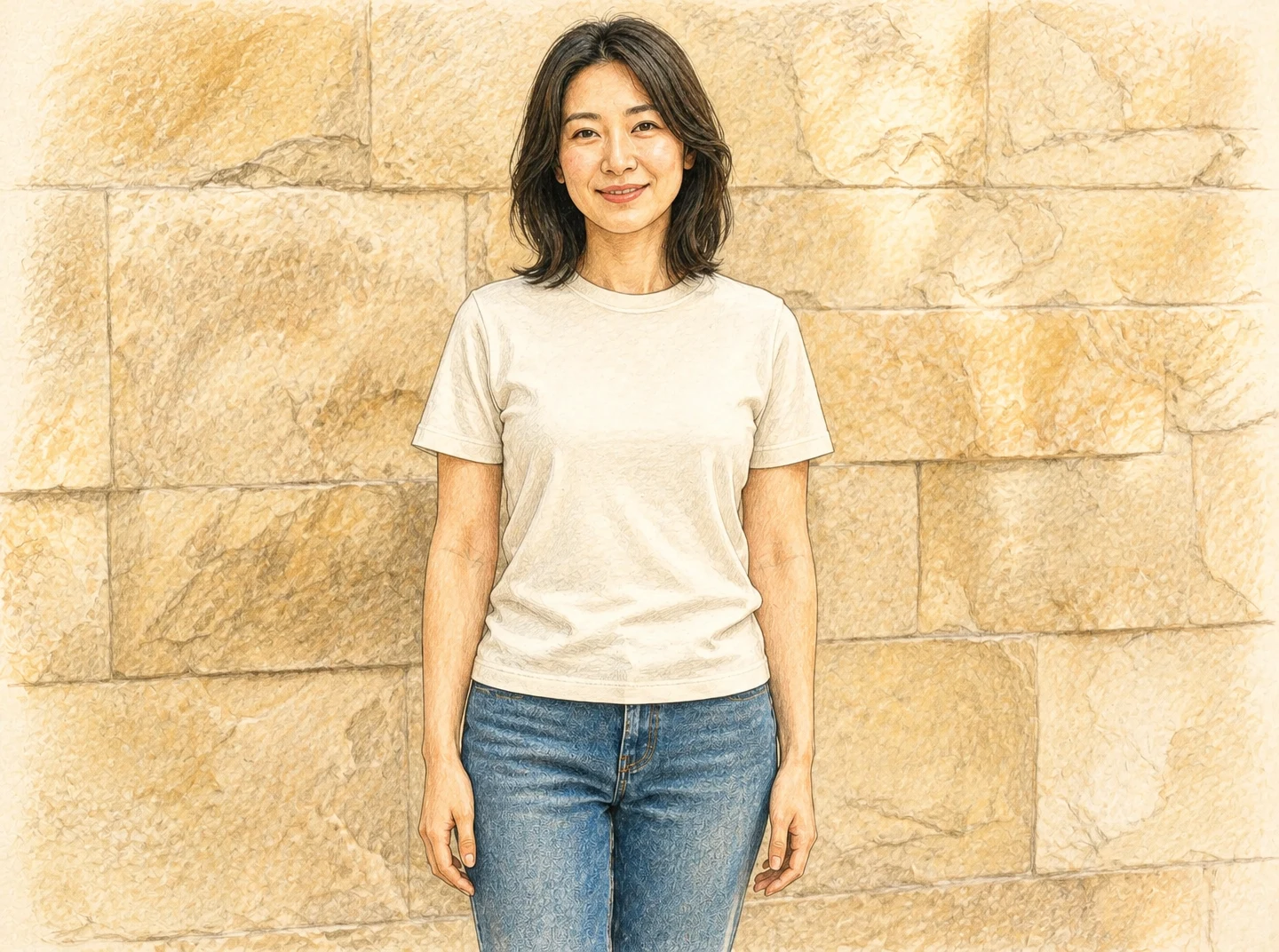
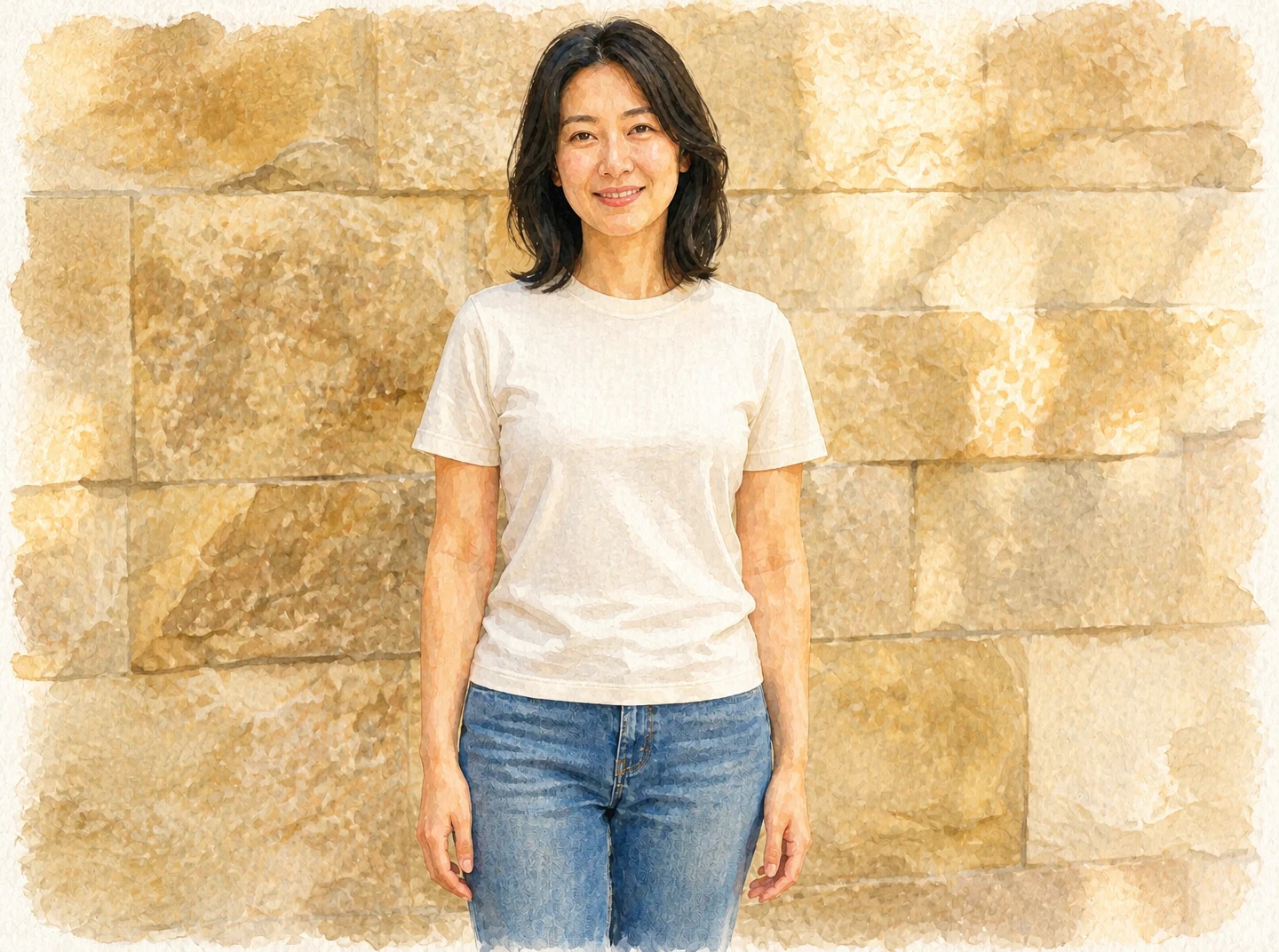
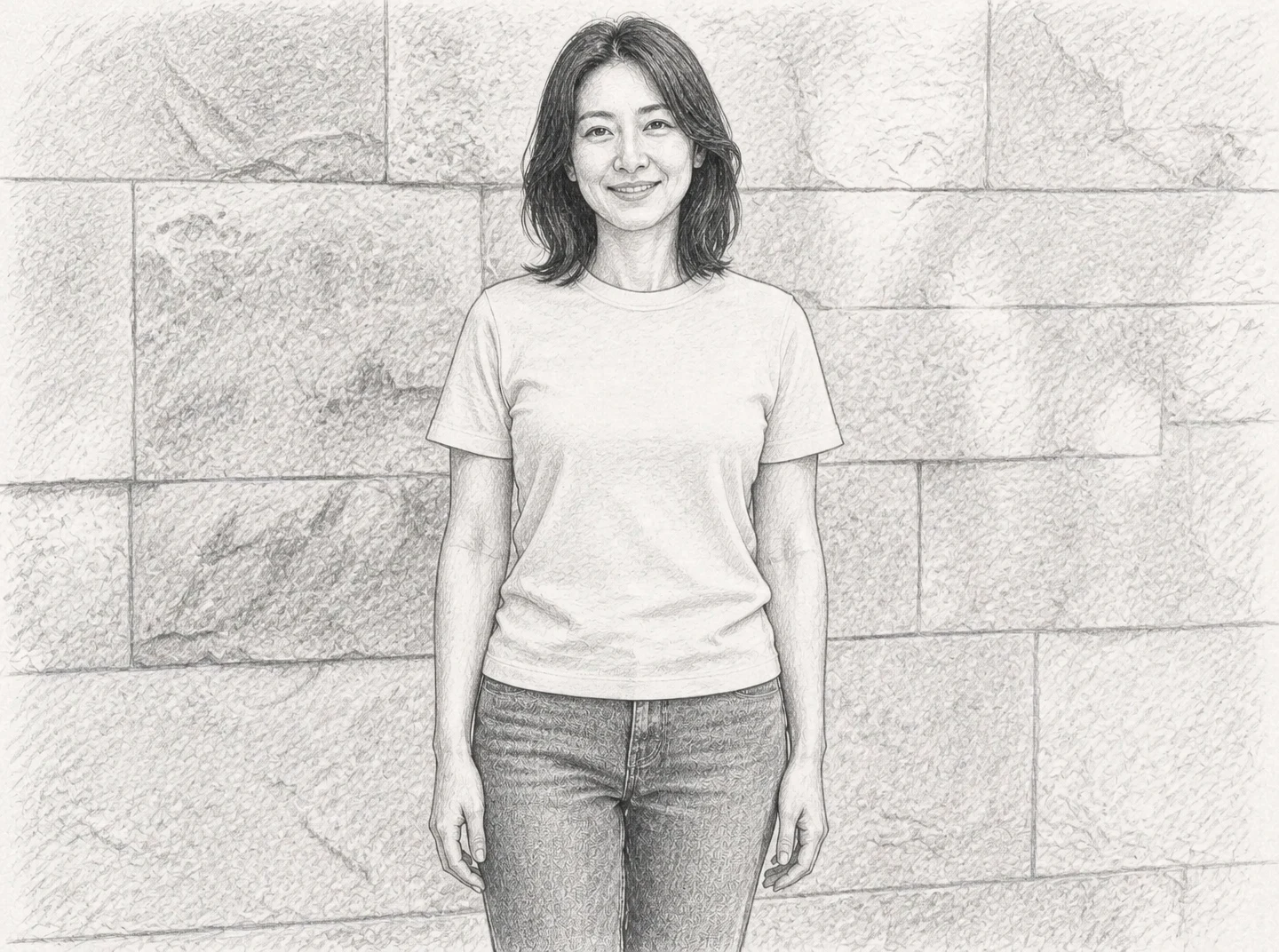
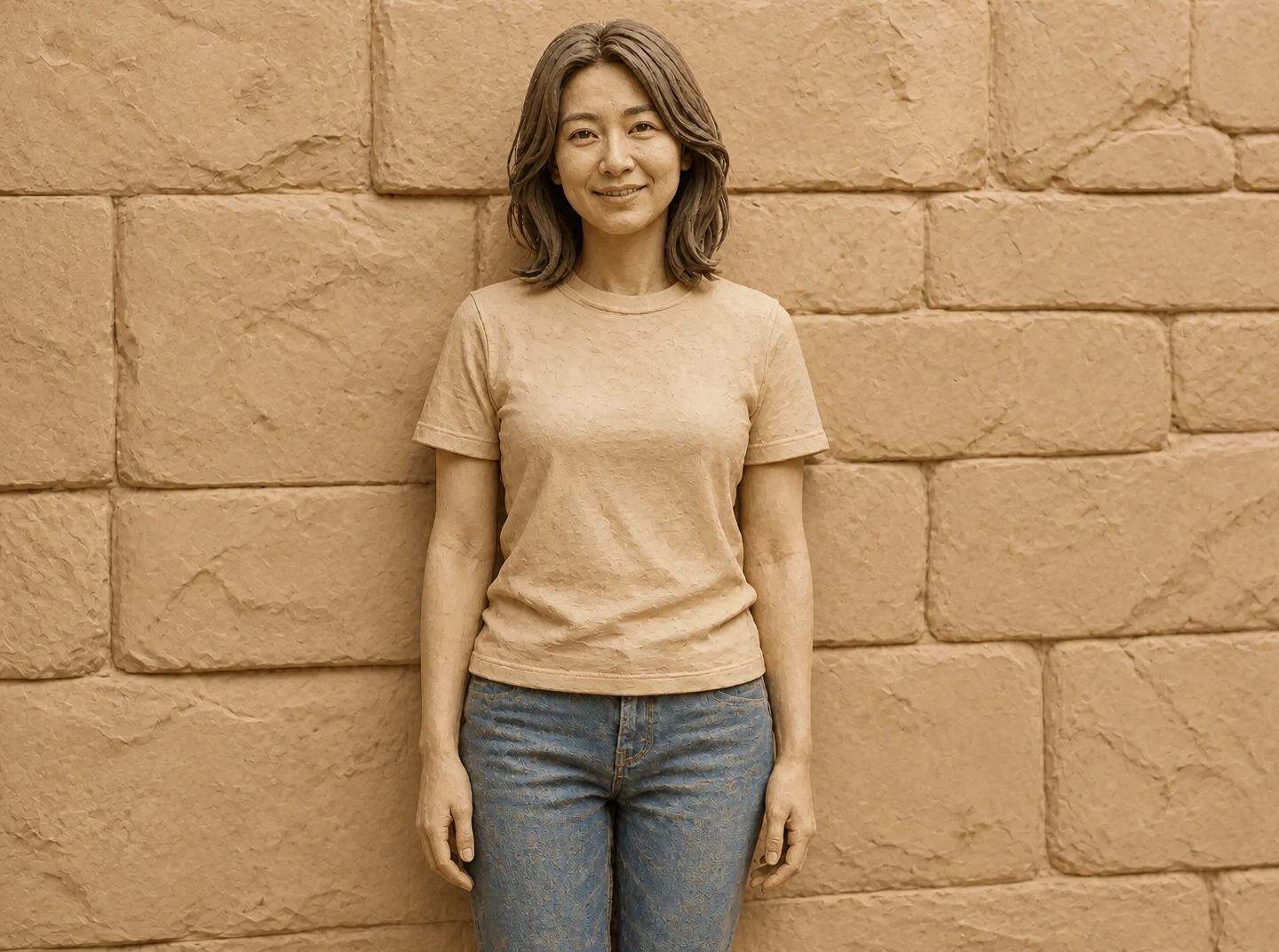
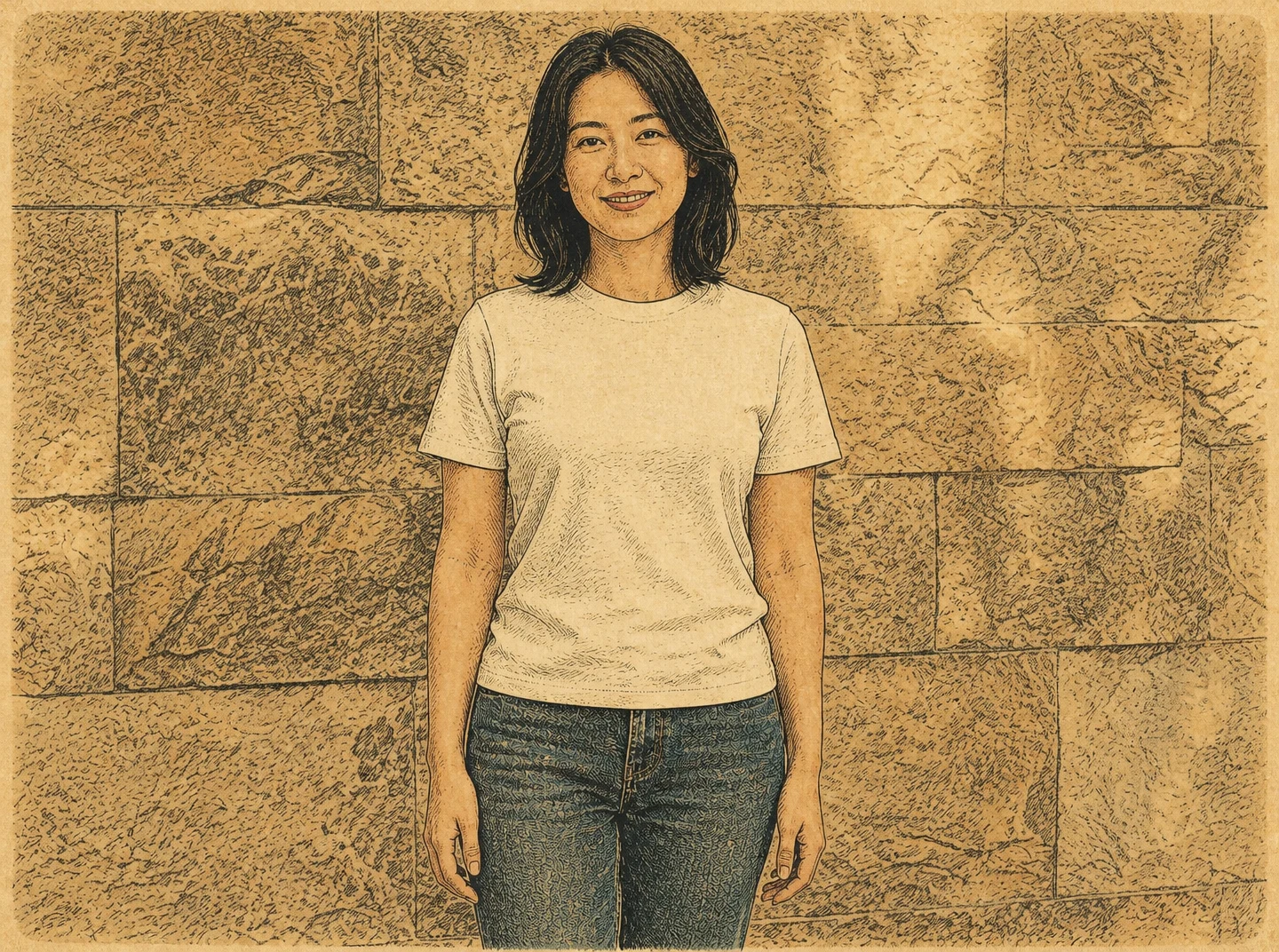
Portraits
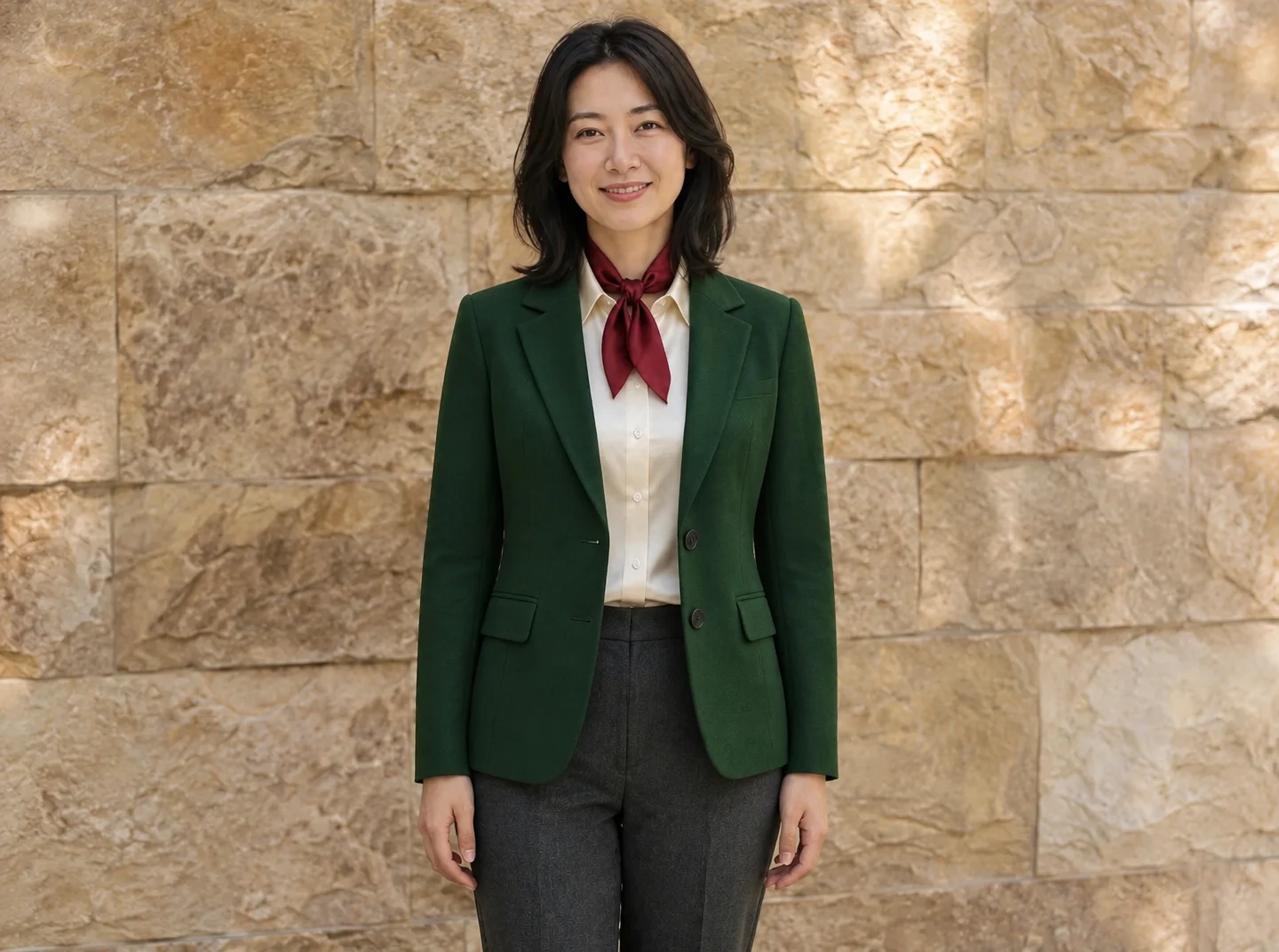
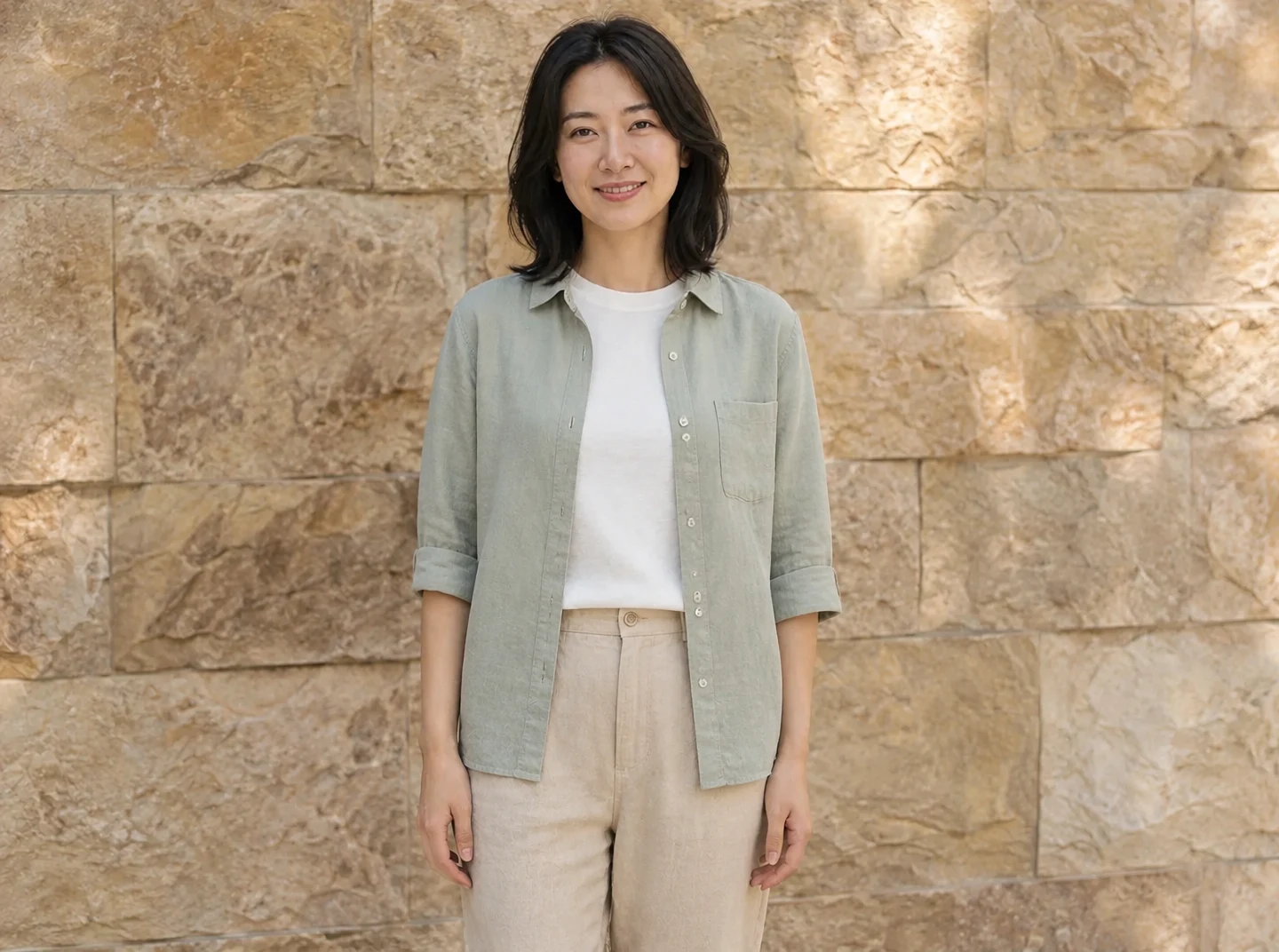
AI clothes changer
Casual
Explore a casual outfit using a description or garment reference.
Use this preset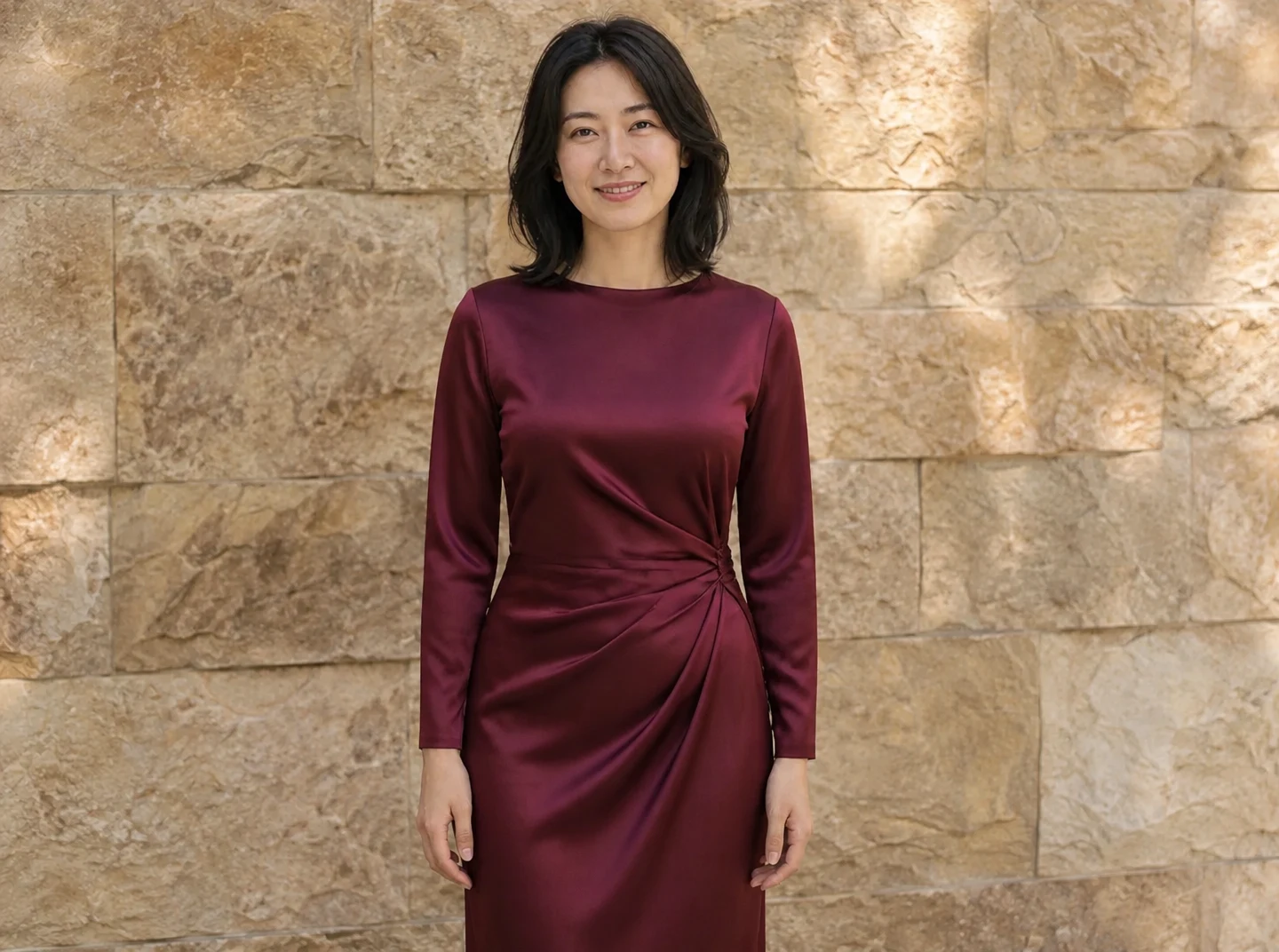
AI clothes changer
Occasion
Preview an outfit for an occasion and check the fit and identity.
Use this preset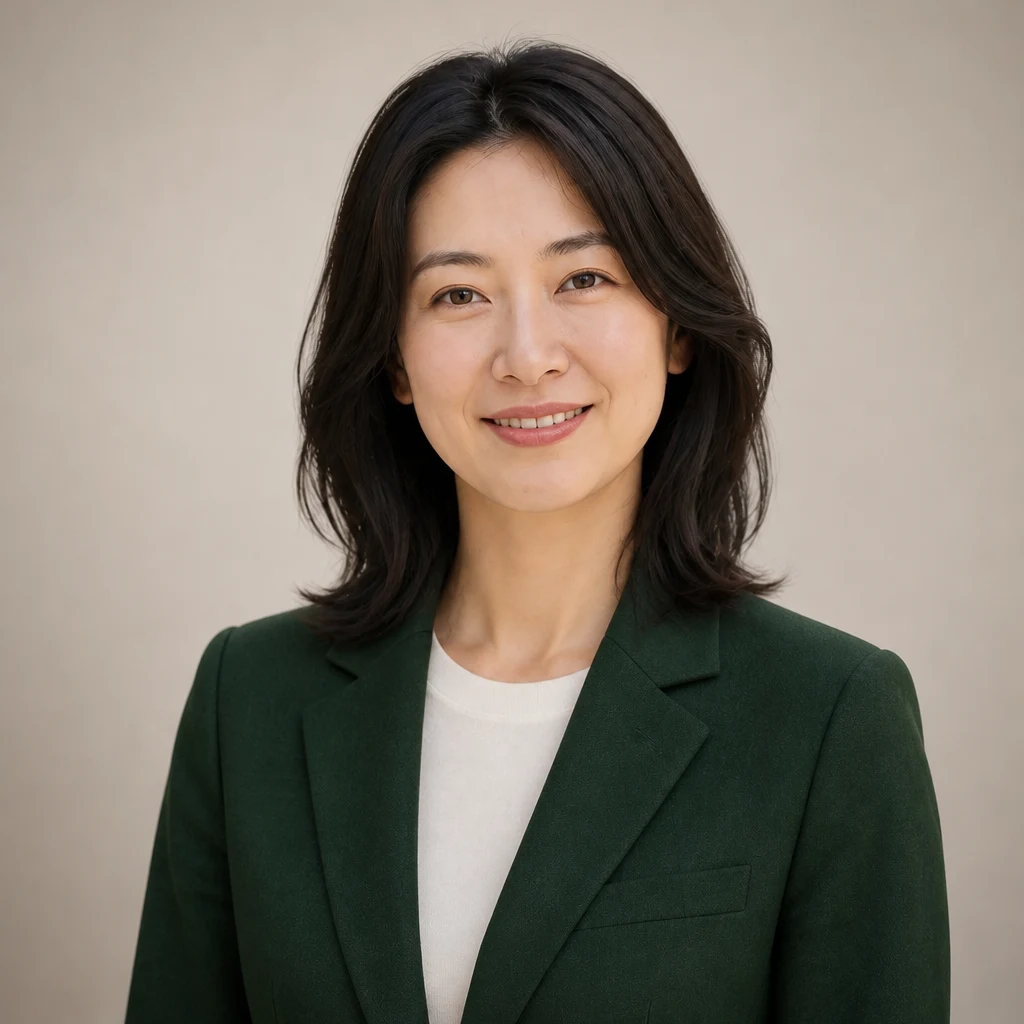
AI headshot generator
Formal business
Generate a formal professional headshot from an existing photo.
Use this preset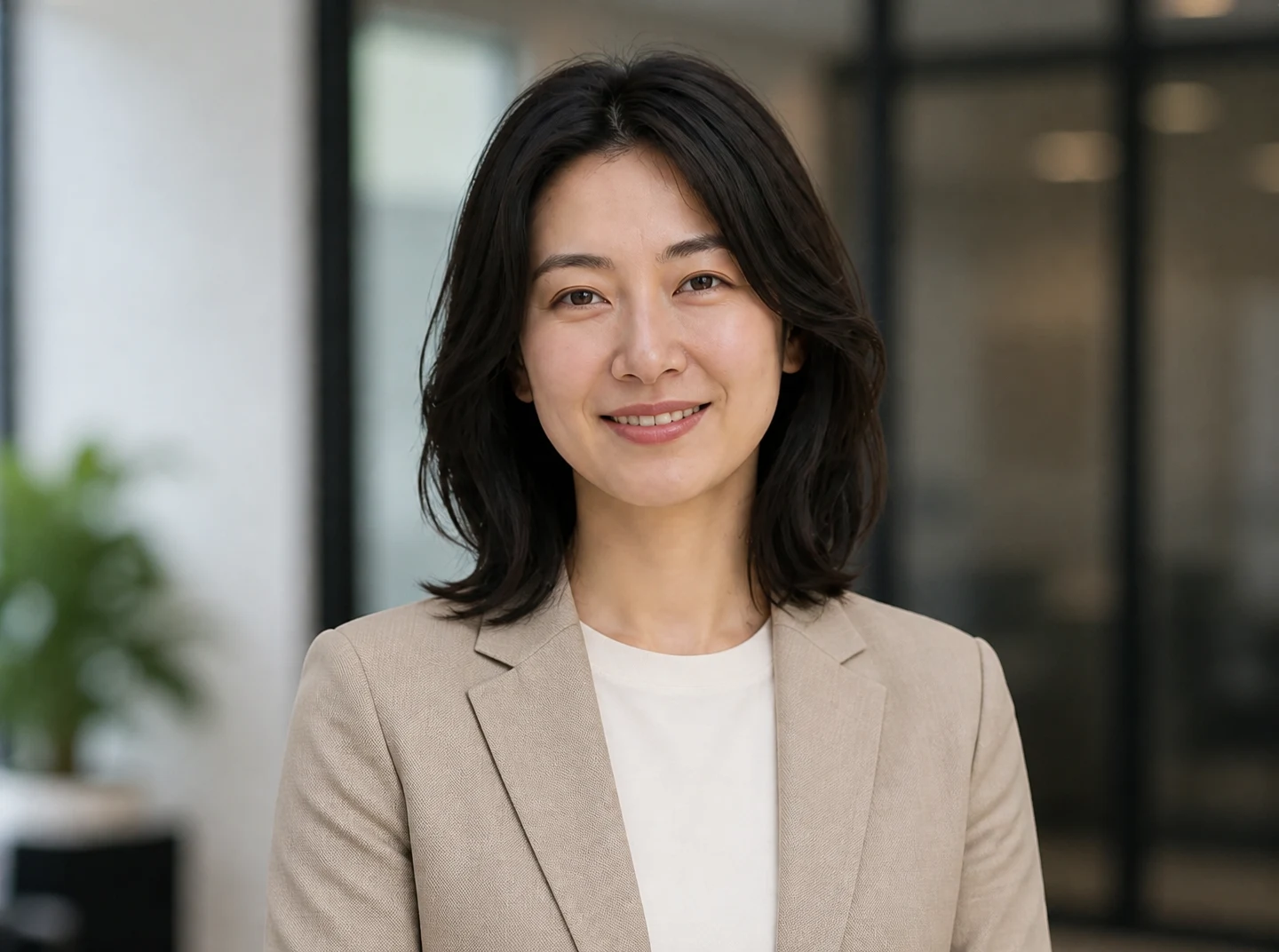
AI headshot generator
Business casual
Generate a business casual portrait for a professional profile.
Use this preset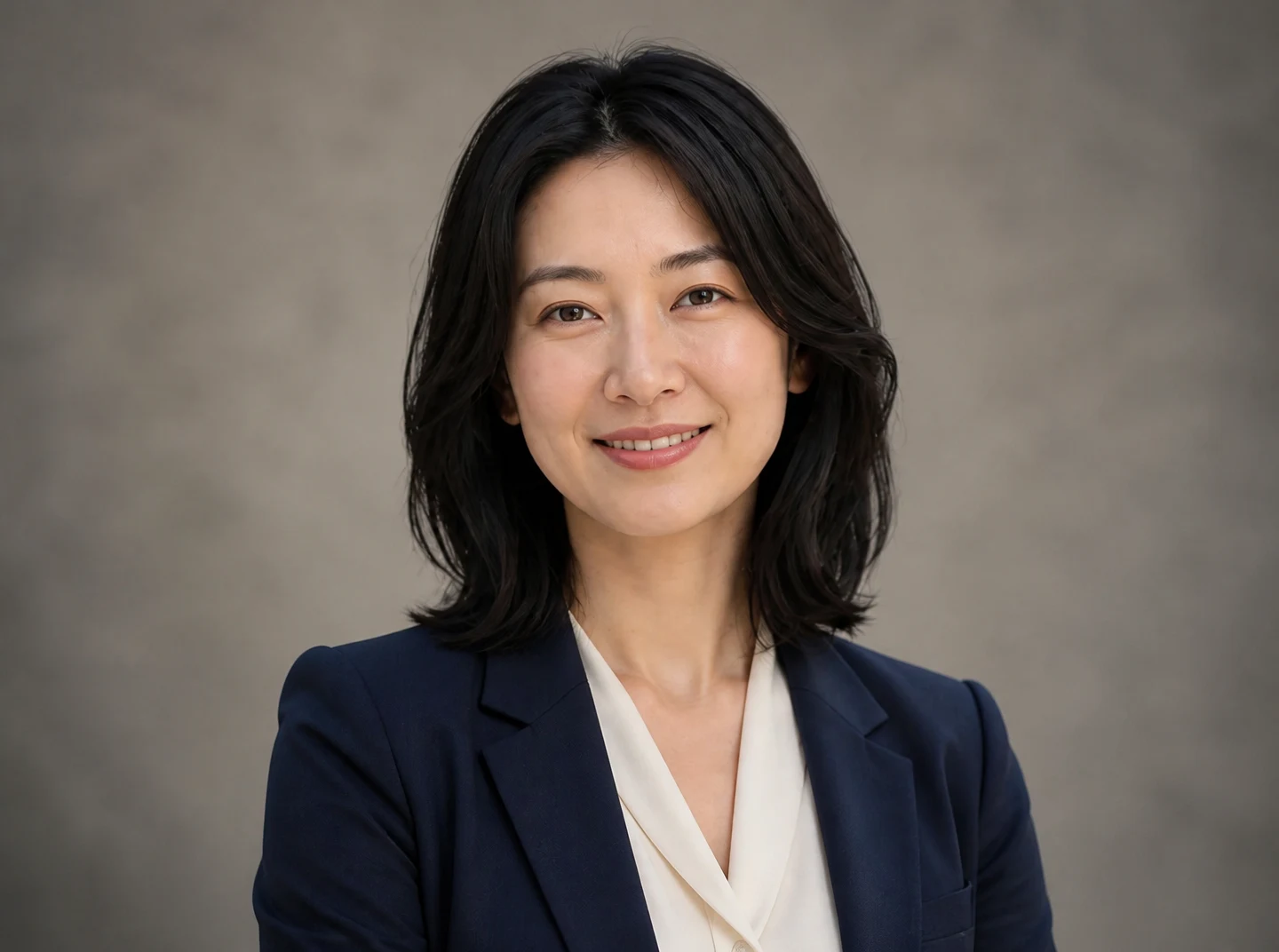
AI headshot generator
Creative
Try a creative professional portrait and check facial identity.
Use this preset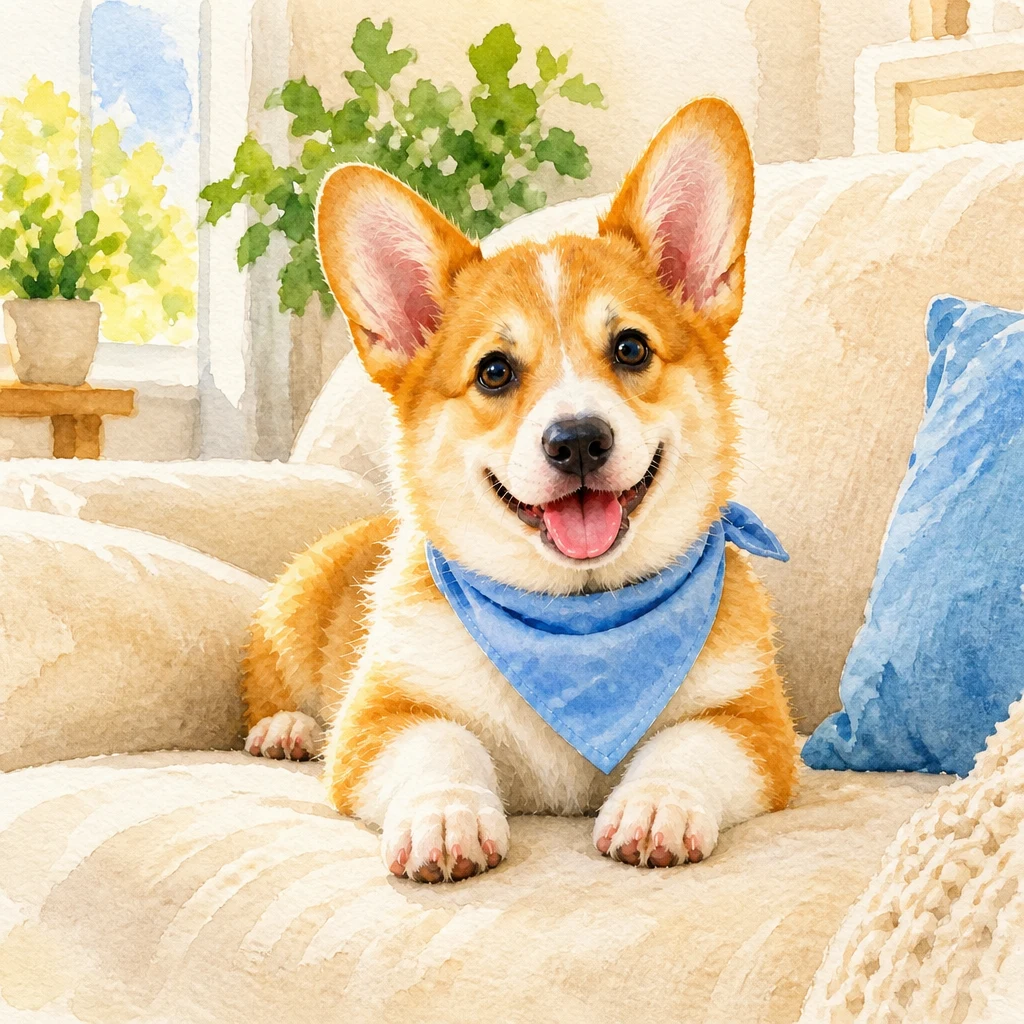
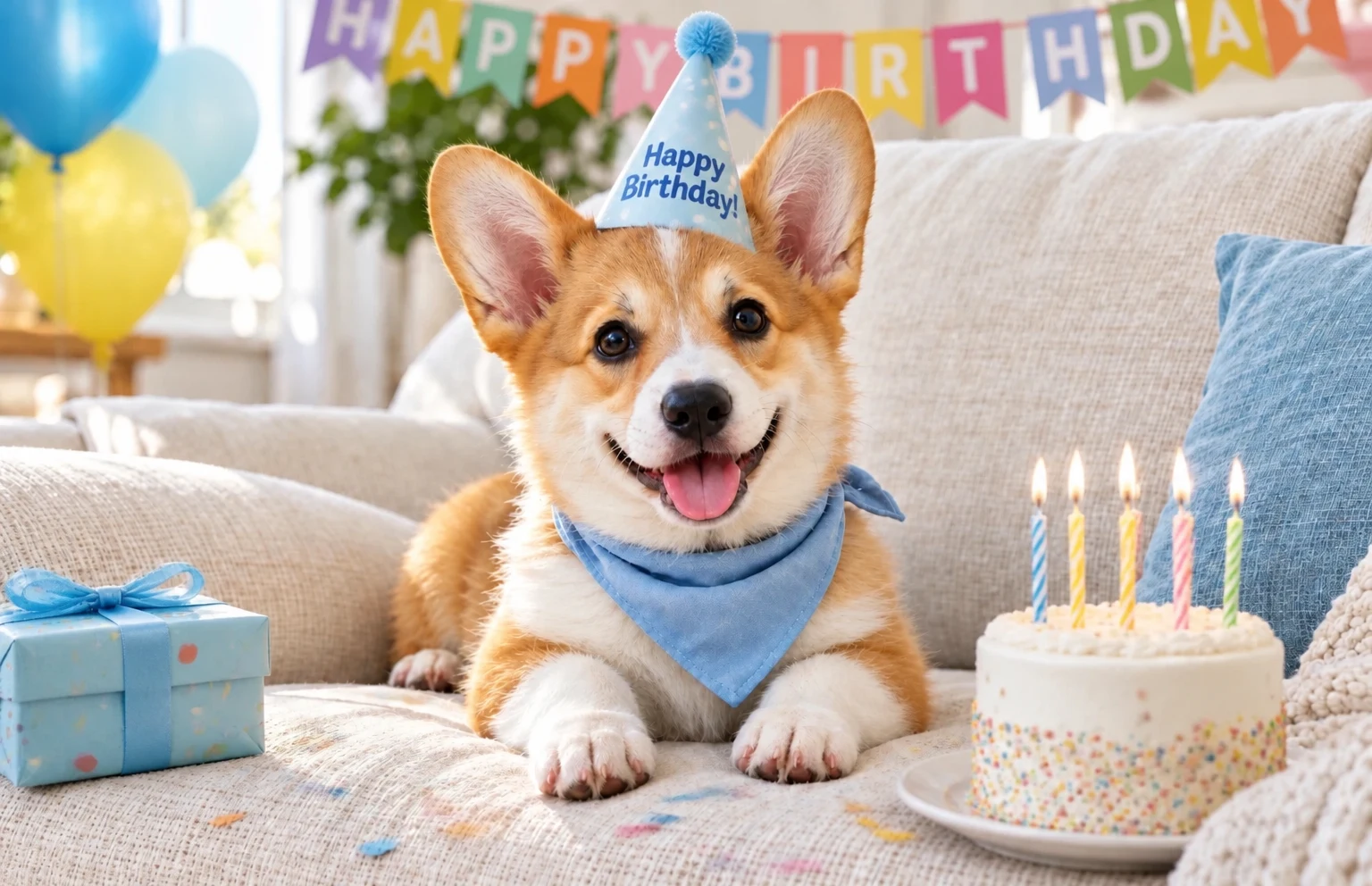
AI pet portrait
Watercolor
Generate a watercolor-style portrait based on your pet’s photo.
Use this preset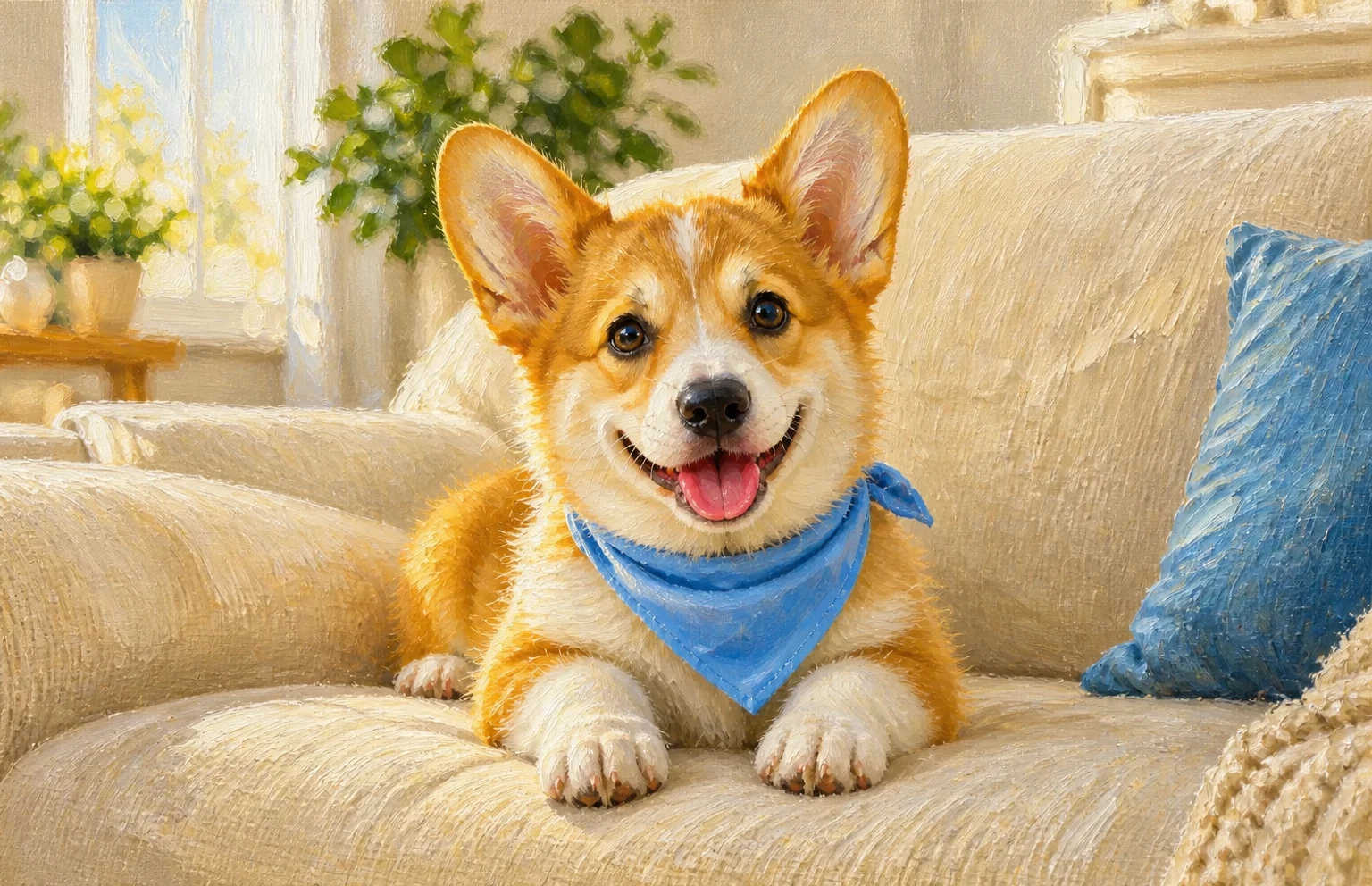

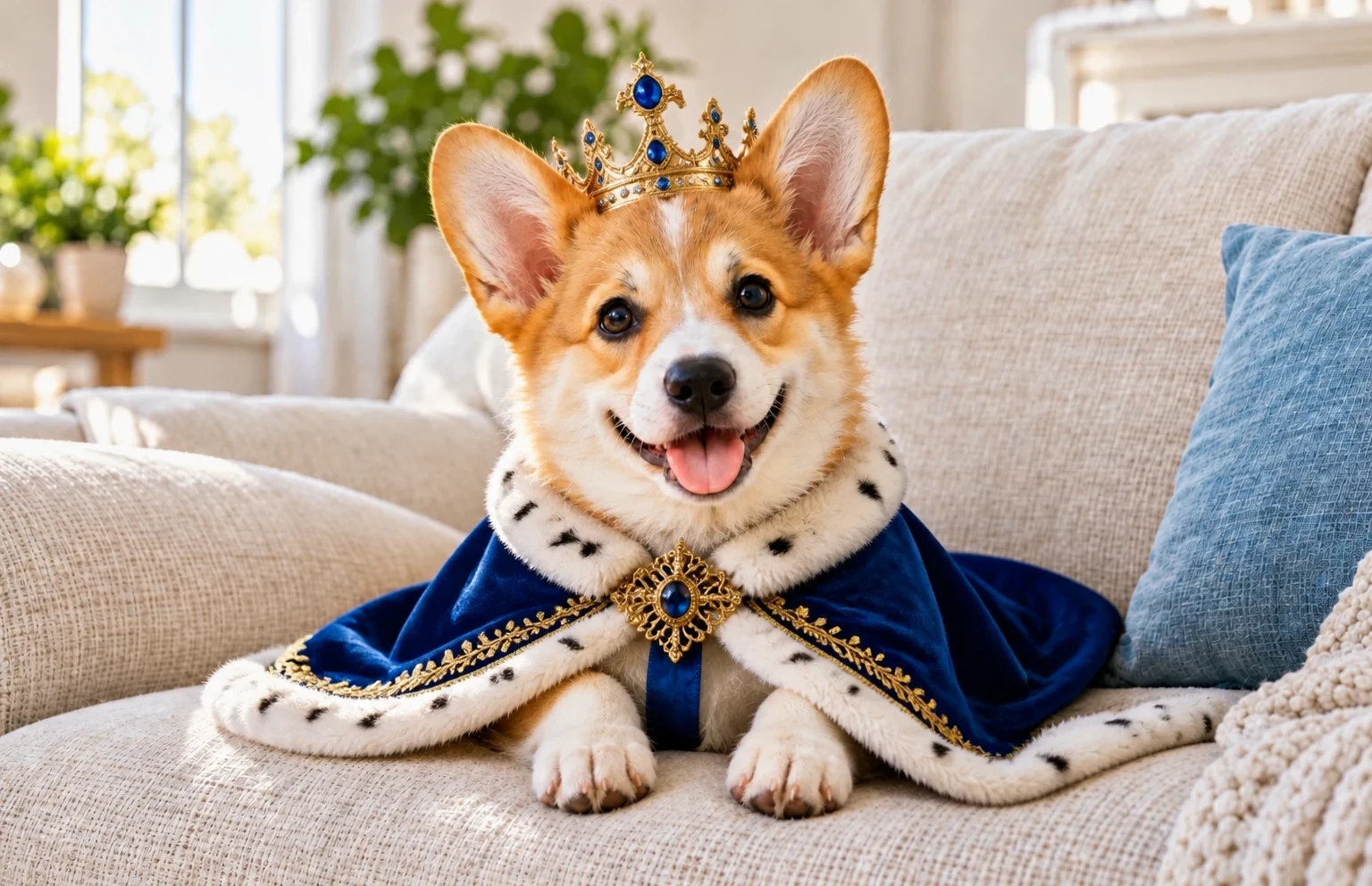
AI pet portrait
Royal portrait
Generate a royal-themed pet portrait and review the result.
Use this preset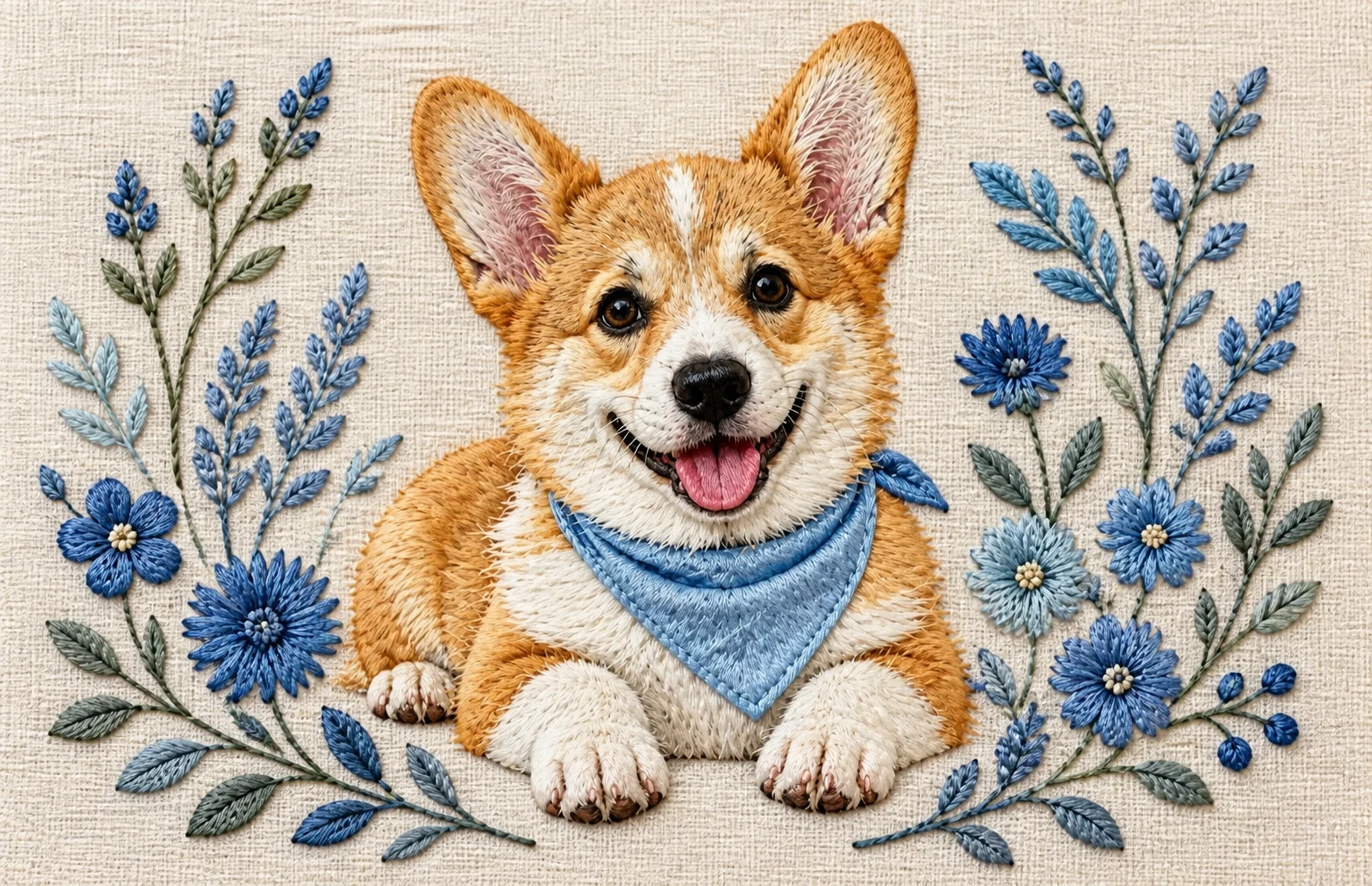
AI pet portrait
Custom
Describe a custom pet portrait idea and compare its features with your photo.
Use this preset
From an idea to your own edit
- 01
Find a style or task with search and categories.
- 02
Open the preset, upload your own image and adjust the settings.
- 03
Review the cost, process and compare before downloading.
Answers before your first edit
What happens when I use an image template?
A template opens its image tool and fills in a preset. Upload your own source, review the settings and click process when you are ready. Opening a template never starts a paid task.
Are these previews actual tool results?
Yes. Previews use our synthetic sample sources processed with the corresponding tool on Enhance My Photo. They are compressed for display and do not predict every photo’s outcome.
Can I change the template settings?
Yes. Change the available preset, instructions, references or output settings before processing. Each tool validates the combinations it supports.
Can a template generate an image without a source photo?
These templates are for editing existing images. Add a source photo or use the tool’s sample; this library does not provide pure text to image or video generation.