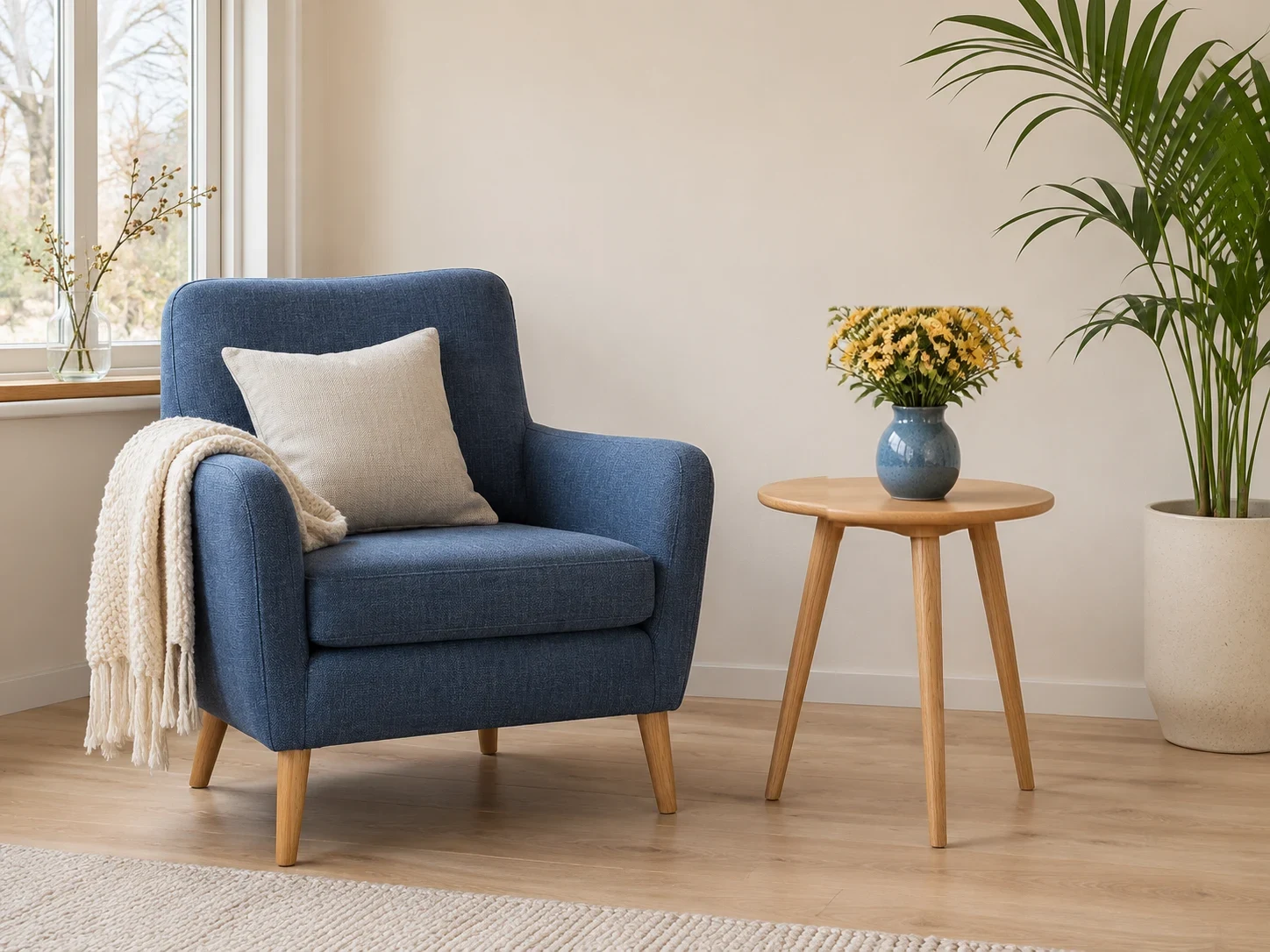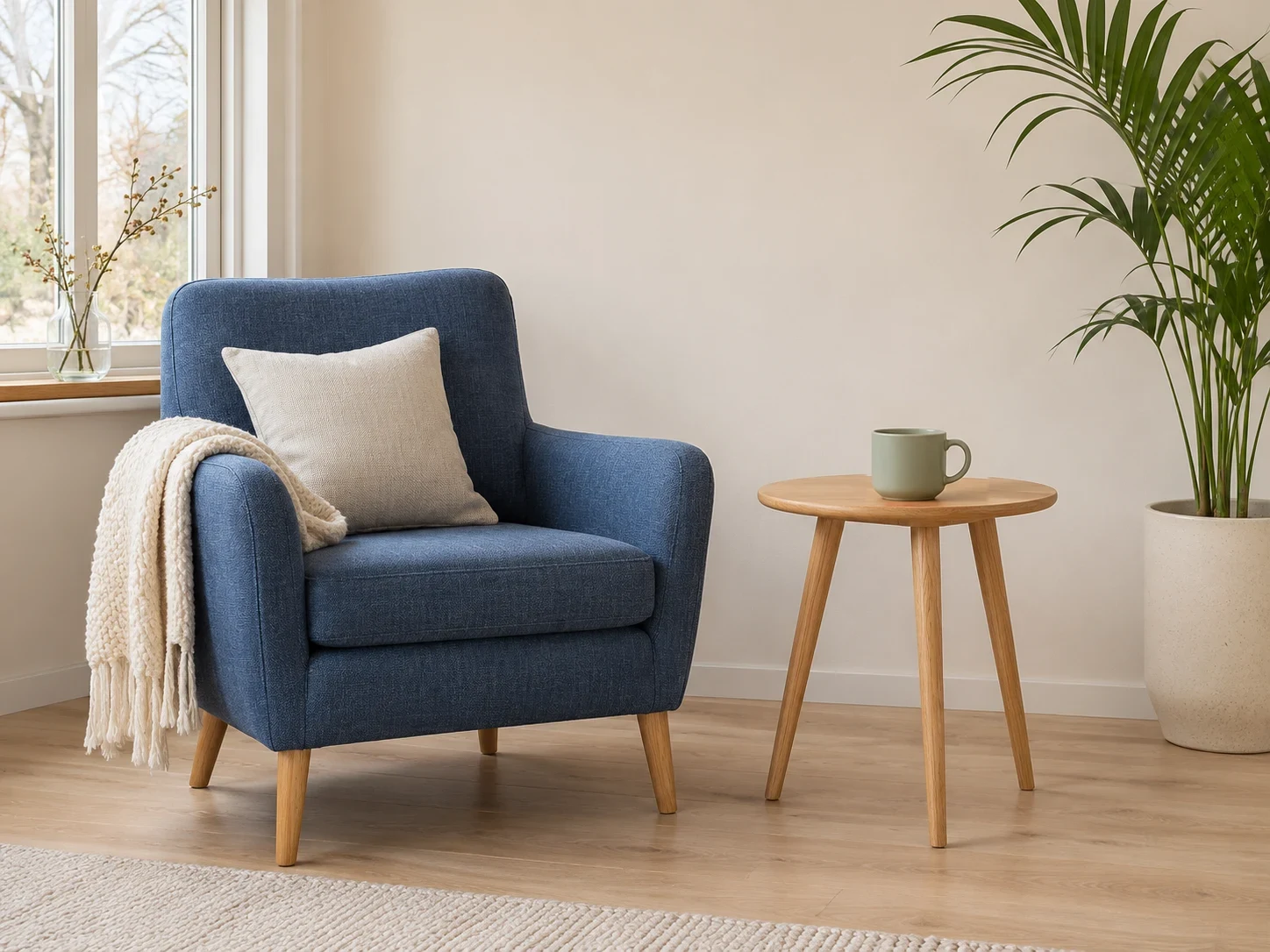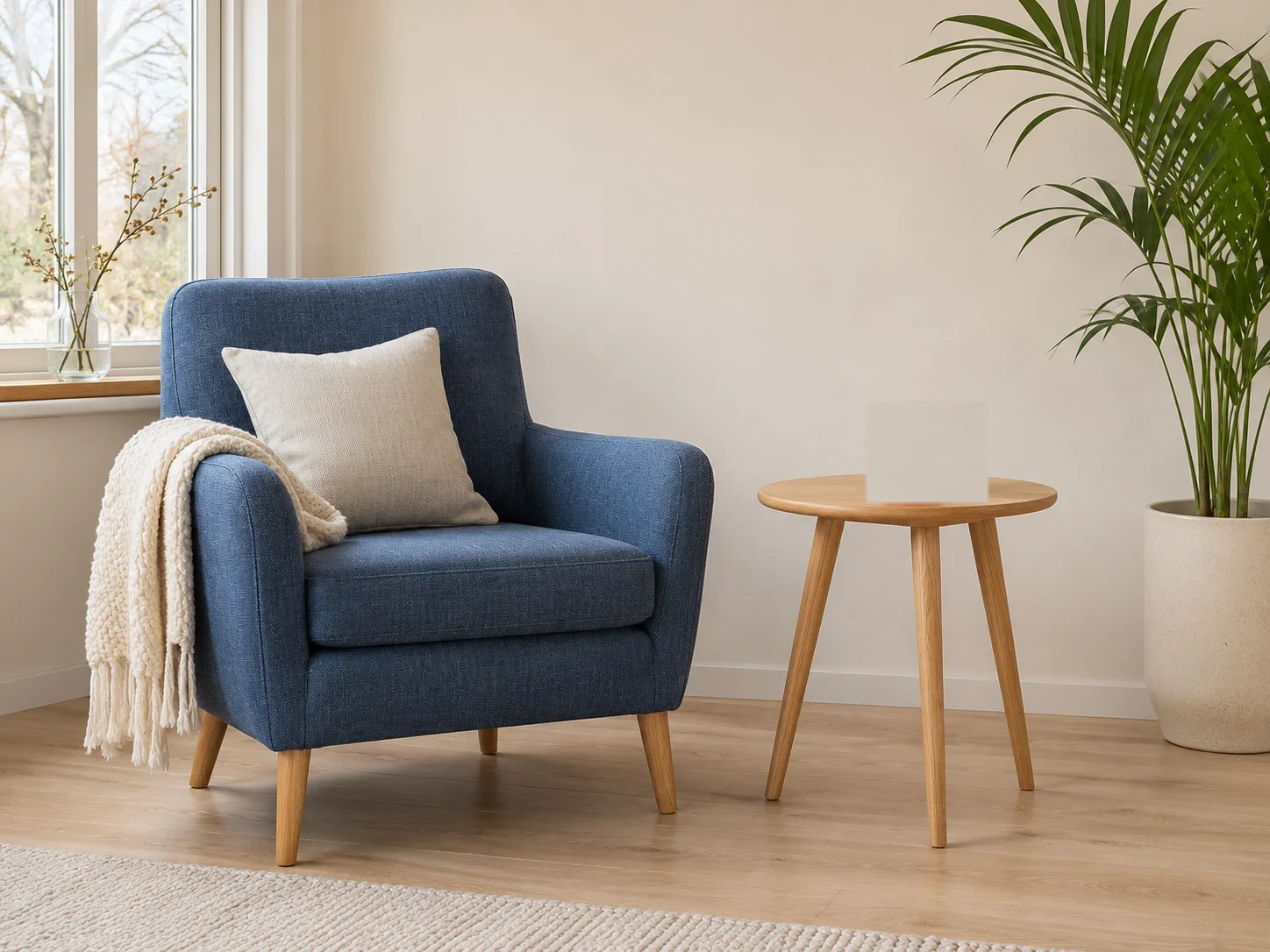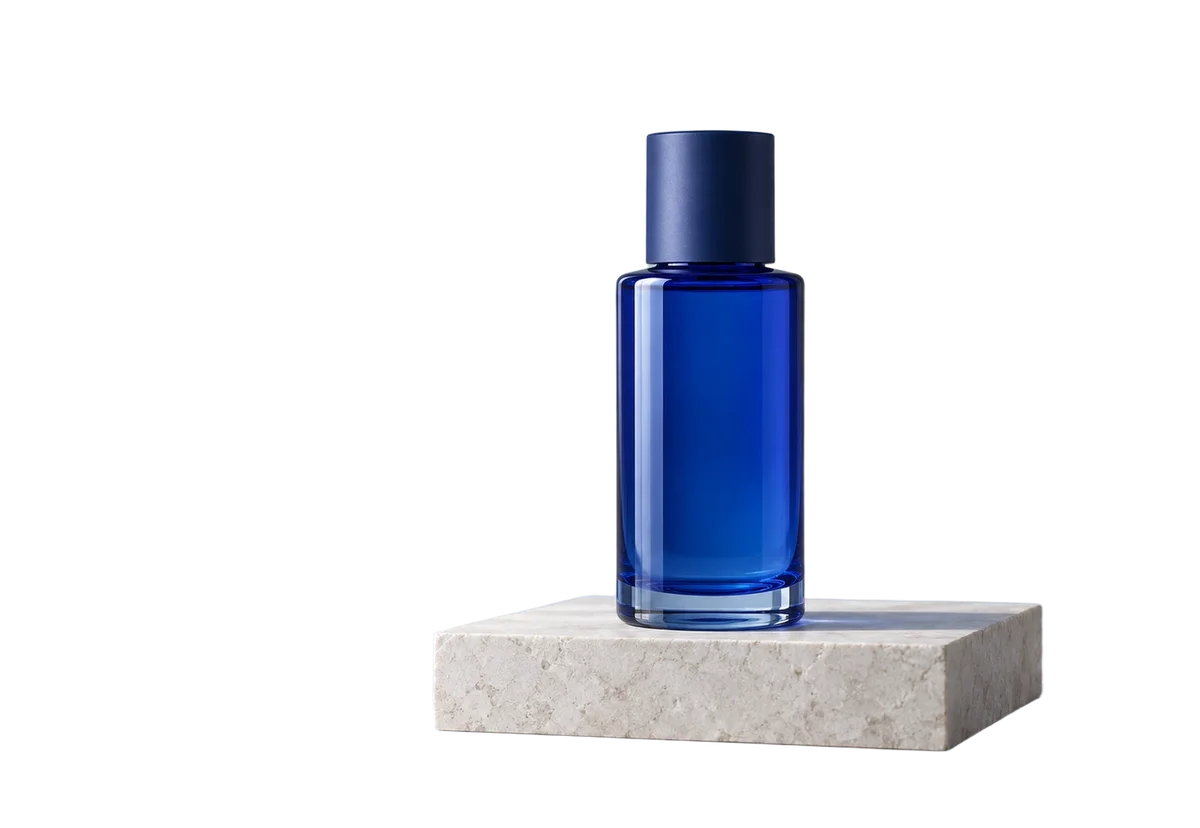
Loading the comparison…
Replace
Replace a selected accessory or object with a written description. Name the material, color and position you want.
Use this presetEnhanceMyPhoto image tools
Paint the area you want to change. Describe the replacement or provide an image, choose quality and compare the generated patch with the original.
JPG, PNG or WebP · up to 20 MB and 16 MP each
Up to 20 source images. Batch processing uses your existing membership access.
Loading tool configuration…
Review the credit cost before processing. Uploading and browsing presets do not use AI credits.
Ready
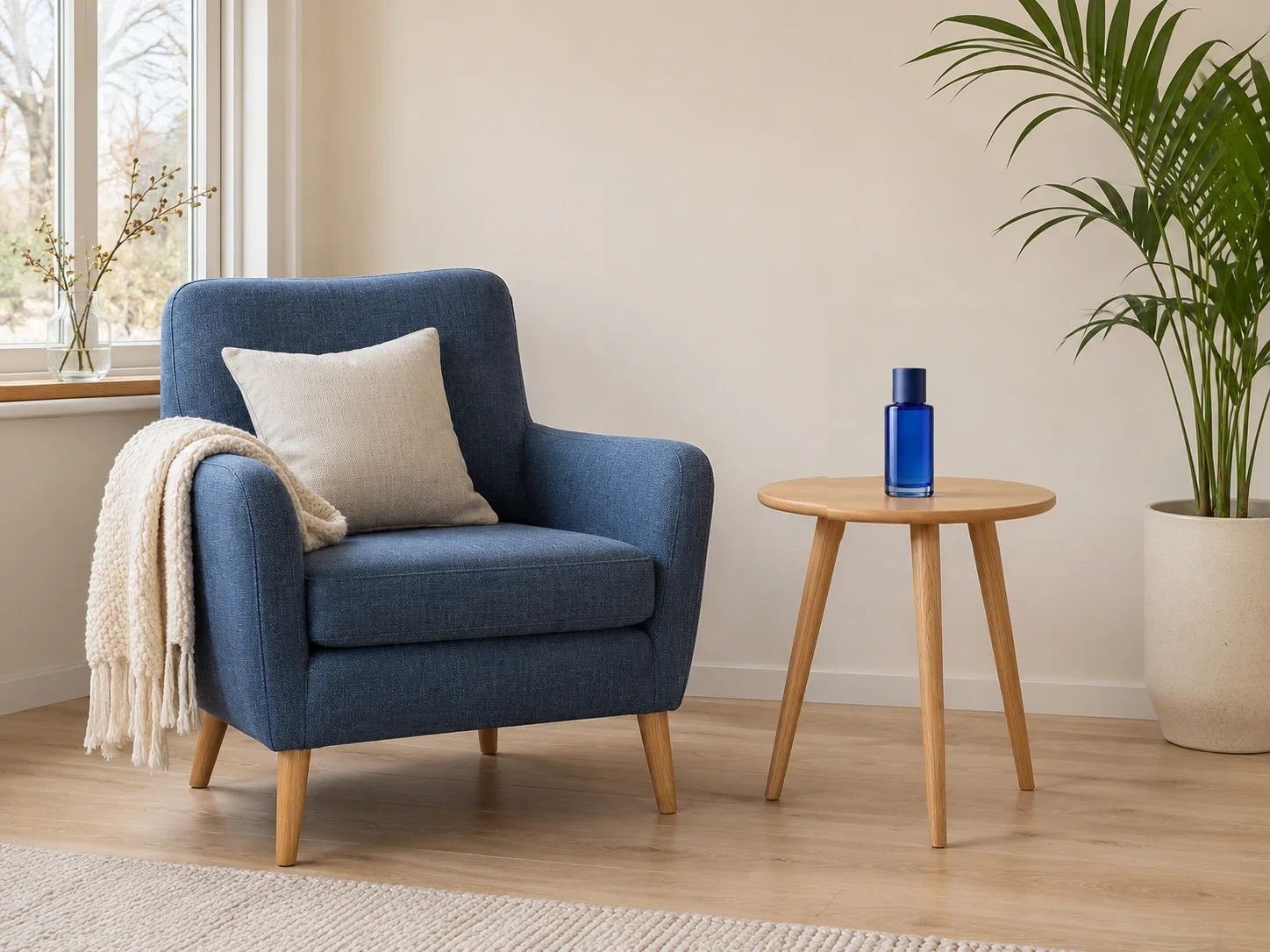
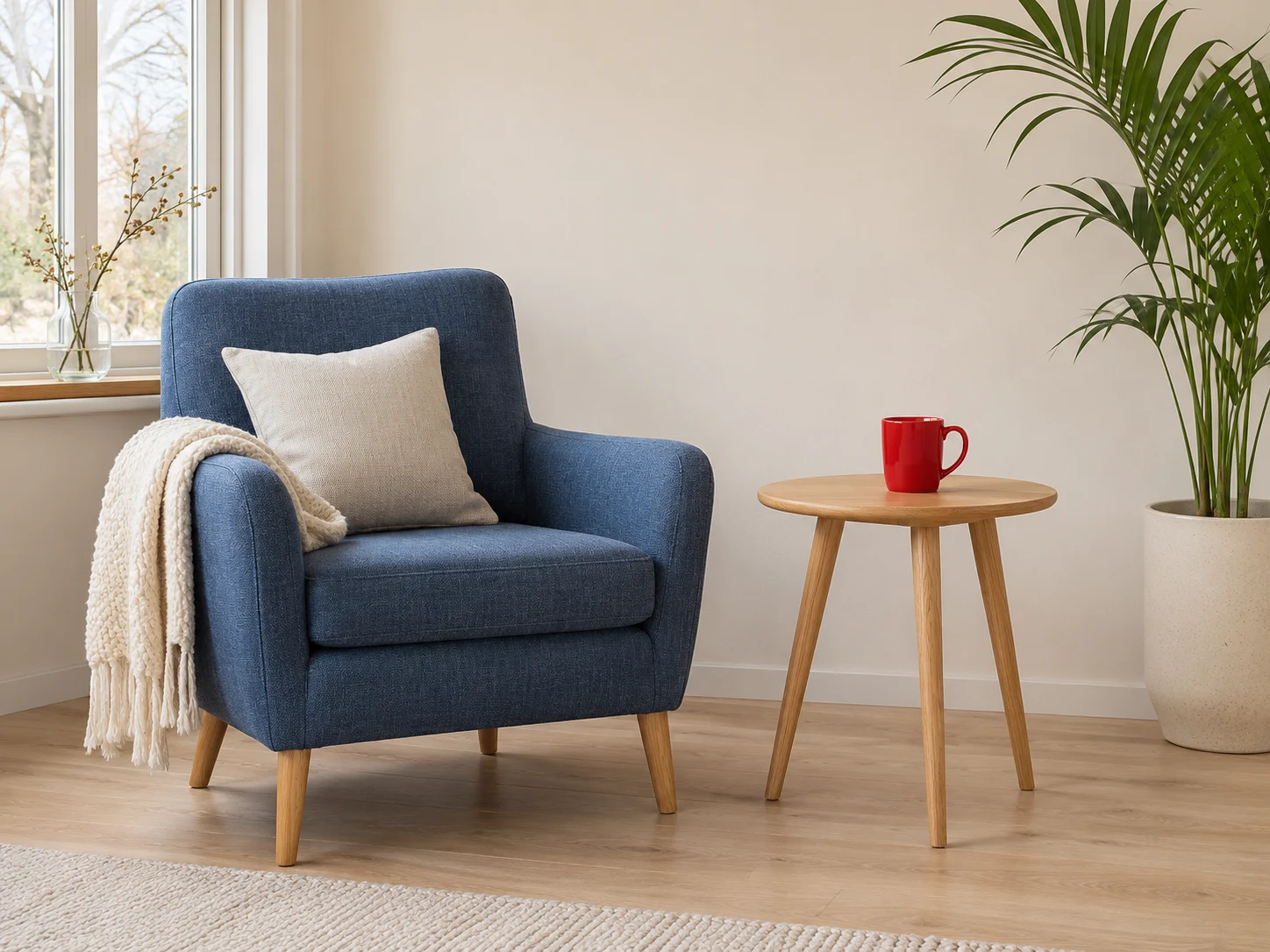 OriginalResult
About this tool
Generative fill replaces a saved selection with content described in words or guided by one reference image. Enhance My Photo matches the edit to the scene and composites it into the original image.
Processed result
Drag each comparison to inspect the edit. Choose a preset to try the same approach with your own photo.
Replace a selected accessory or object with a written description. Name the material, color and position you want.
Use this presetAdd a reference with the replacement role to guide the selected content. The original remains the source of the surrounding scene.
Use this presetChoose quality, compare the boundary and save another version if needed. Pixels outside the selection remain from the original.
Use this presetGenerative fill
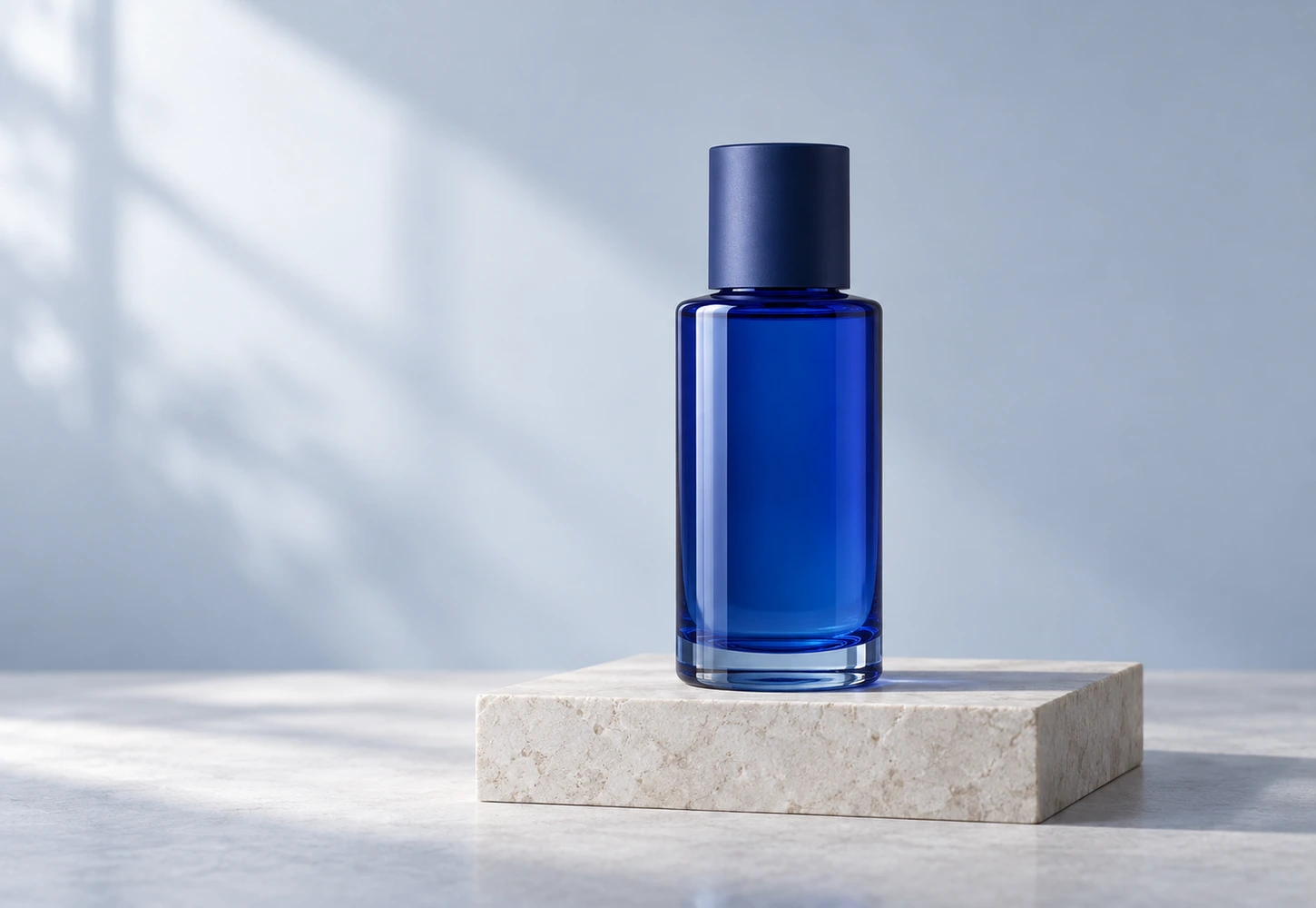
Add a reference with the replacement role to guide the selected content. The original remains the source of the surrounding scene.
These are example reference inputs. Your source supplies the subject; your references guide their assigned element. Add your own references in the workbench.
Generative fill
Upload your photo and paint the area to change. Save the selection.
Choose text or reference guidance. Describe the replacement or add one clear replacement image.
Review the cost, generate and inspect scale, perspective and edges. Download the PNG or use it as a new source.
A focused workflow for your image
Review the credit cost before processing. Uploading and browsing presets do not use AI credits.
Leave room for the entire replacement and its shadow. A narrow mask can cut off a larger object.
Use a reference with a similar viewing angle and explain which object should appear in the selected area.
For a second revision, use the result as a new source, save a fresh selection and review the new quote.
Previews show results made with this tool from our synthetic sample images. A preset fills in settings; it never starts processing or spends credits.
Generative fill
Yes. Reference mode accepts one separate image with a replacement role. The source remains Image 1 and the reference guides the selected region. Use a similar viewing angle for better results.
Yes. Reference mode uses the saved selection and one replacement reference together. The source image stays first; the reference guides the new content inside the selection.
No. This page edits a region within the existing image. Canvas expansion is outside this workflow.
Choose change color, select the object and describe the target color and material. Save the selection and inspect its edge after processing.
Upload a static JPG, PNG or WebP up to 20 MB and 16 megapixels. References have the same limits. Use the best original available.
The server checks the cost before processing. If the quote changes, you must confirm it. Uploading, choosing presets and viewing existing results do not start a paid generation.
Batch access follows your current membership, with up to 20 source images. Every masked edit needs its own saved selection. Failed items can be retried with a new quote.
Download the original result here. Signed in accounts can use history according to their retention policy. Temporary guest results need the active session and expire.
AI can estimate or redraw details. Compare faces, text, product labels and fine texture with your original. Keep the original and review the result before publishing.
YOUR NEXT STEP
Keep the result you like, then choose one focused tool for the next change.
Paint a precise selection, erase a distraction and let AI rebuild the selected area. Adjust your mask with undo, redo and an accessible rectangle selection.
Object removerDescribe a lighting, background or detail change. Compare the result with the original and check any important writing.
AI Image EditorRemove the background and export transparent PNG for a layout, product listing or collage. Check hair and glass edges.
Background RemoverAdd your source, choose the change, and review the credit cost before processing.
Edit your image