Loading the comparison…
Object
Remove a small object together with its shadow. Leave surrounding floor, wall or foliage available as context.
Use this presetEnhanceMyPhoto image tools
Paint a precise selection, erase a distraction and let AI rebuild the selected area. Adjust your mask with undo, redo and an accessible rectangle selection.
JPG, PNG or WebP · up to 20 MB and 16 MP each
Up to 20 source images. Batch processing uses your existing membership access.
Loading tool configuration…
Review the credit cost before processing. Uploading and browsing presets do not use AI credits.
Ready
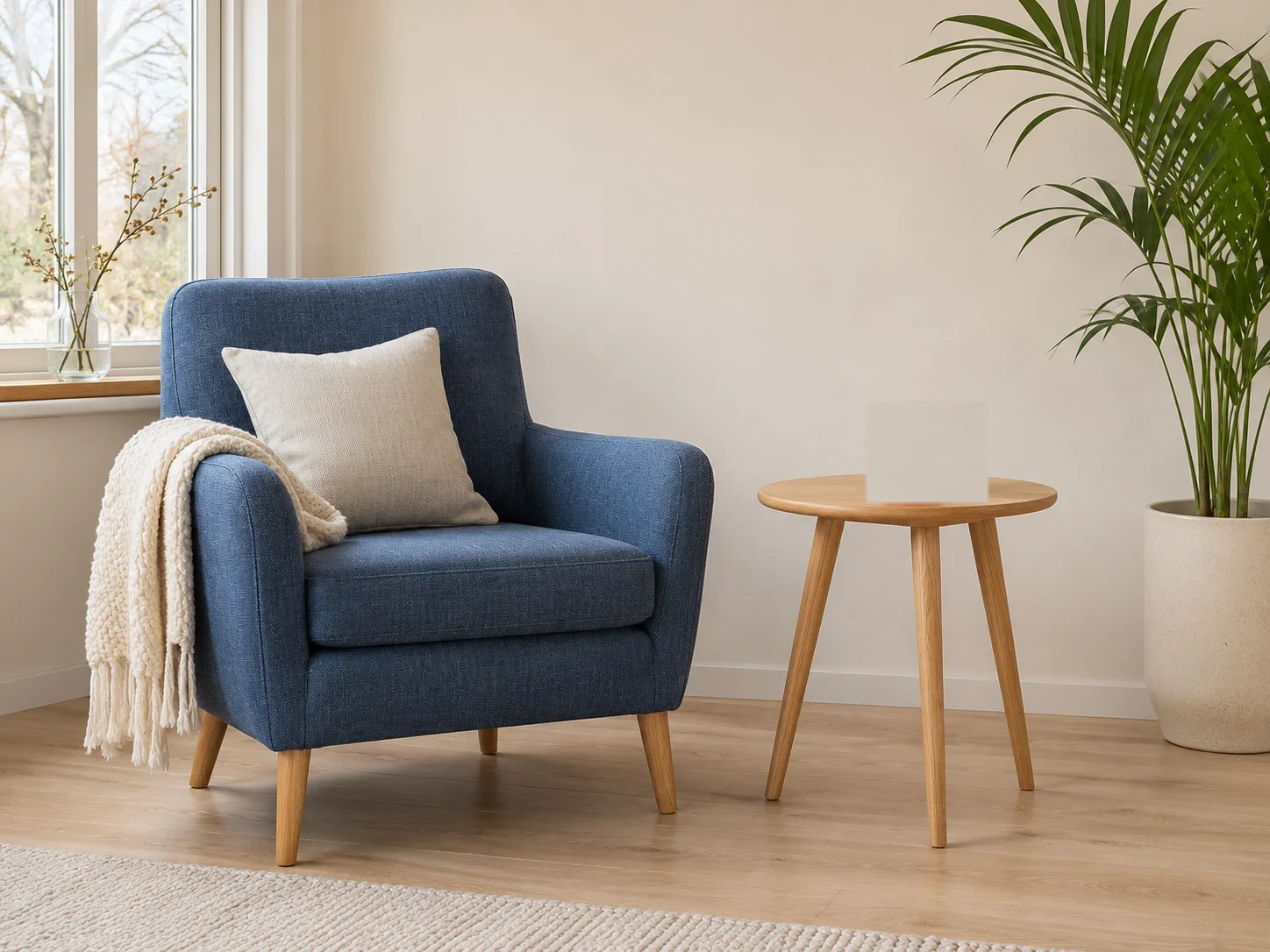
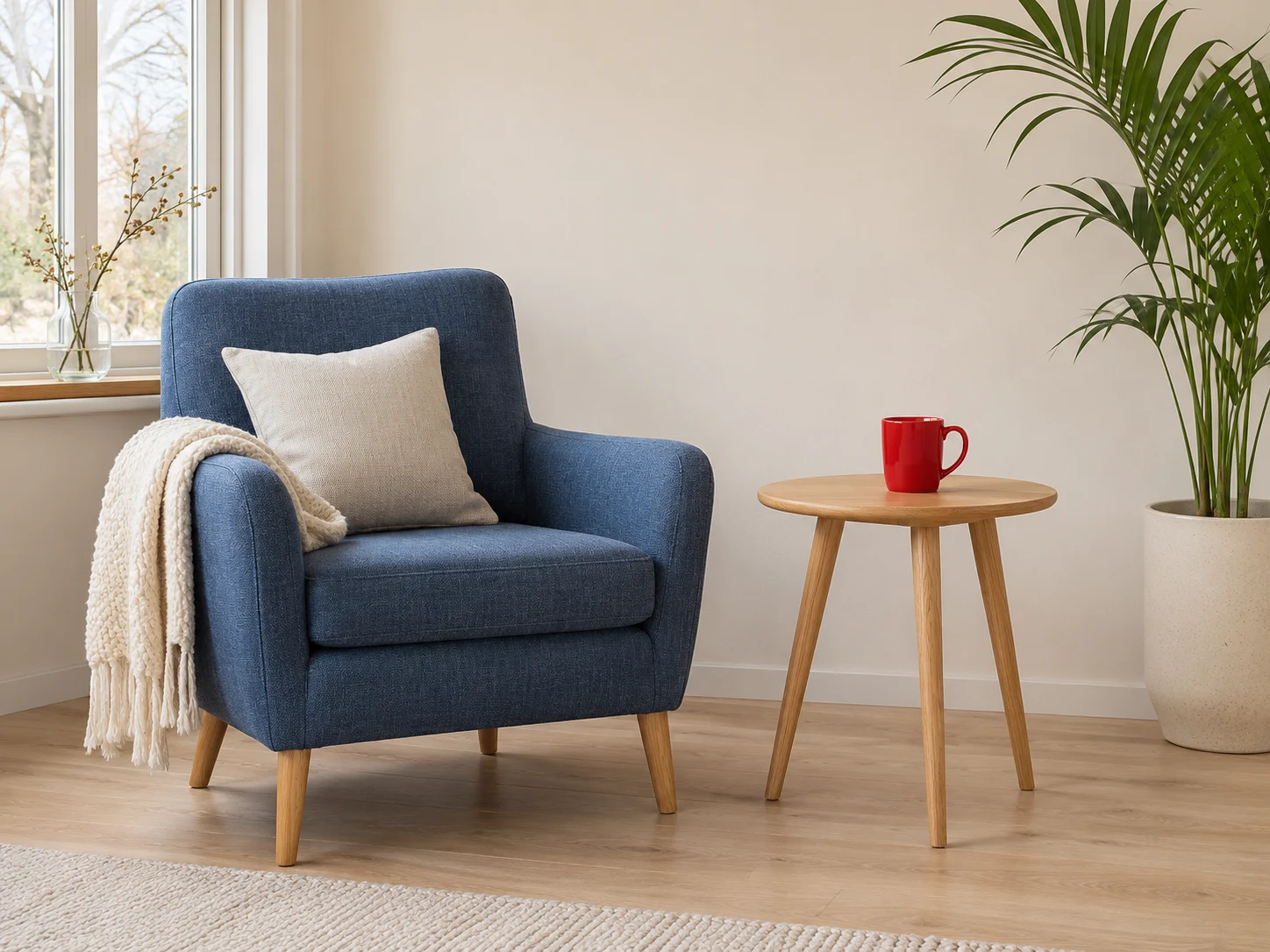 OriginalResult
About this tool
An object remover reconstructs a painted area using the surrounding scene. Use Enhance My Photo to clean a distraction, background person or unwanted text while retaining the original pixels outside your saved selection.
Processed result
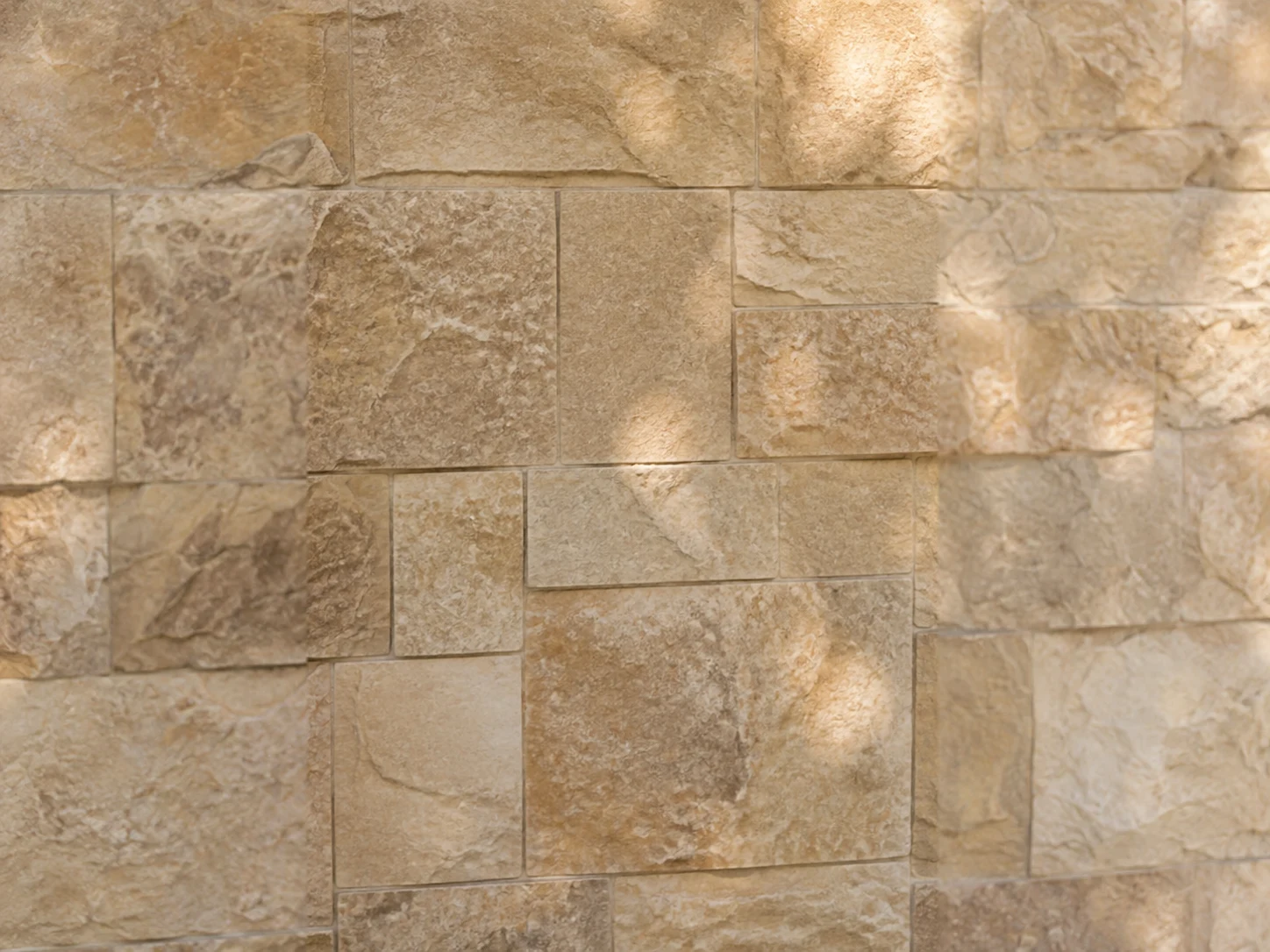
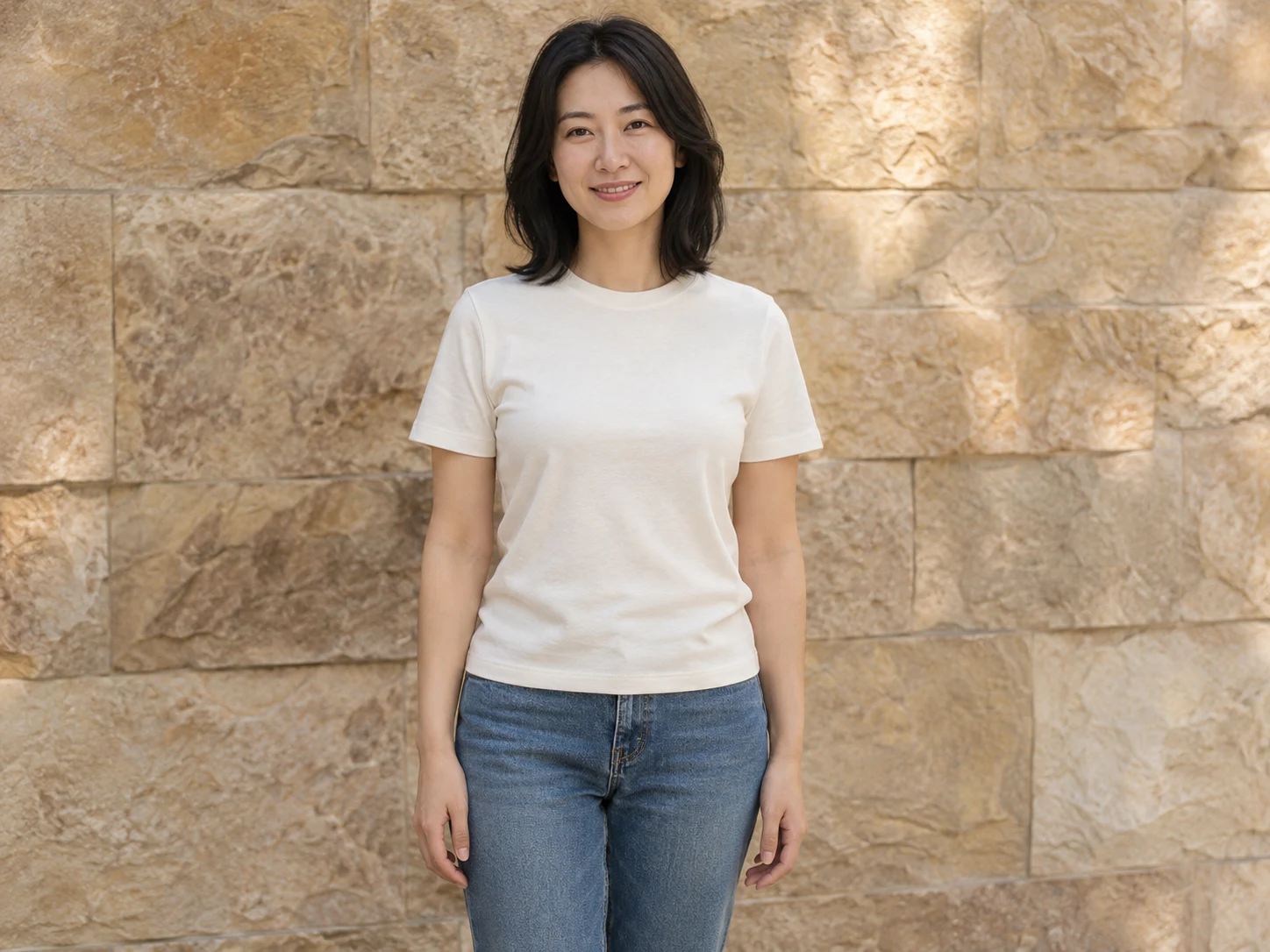
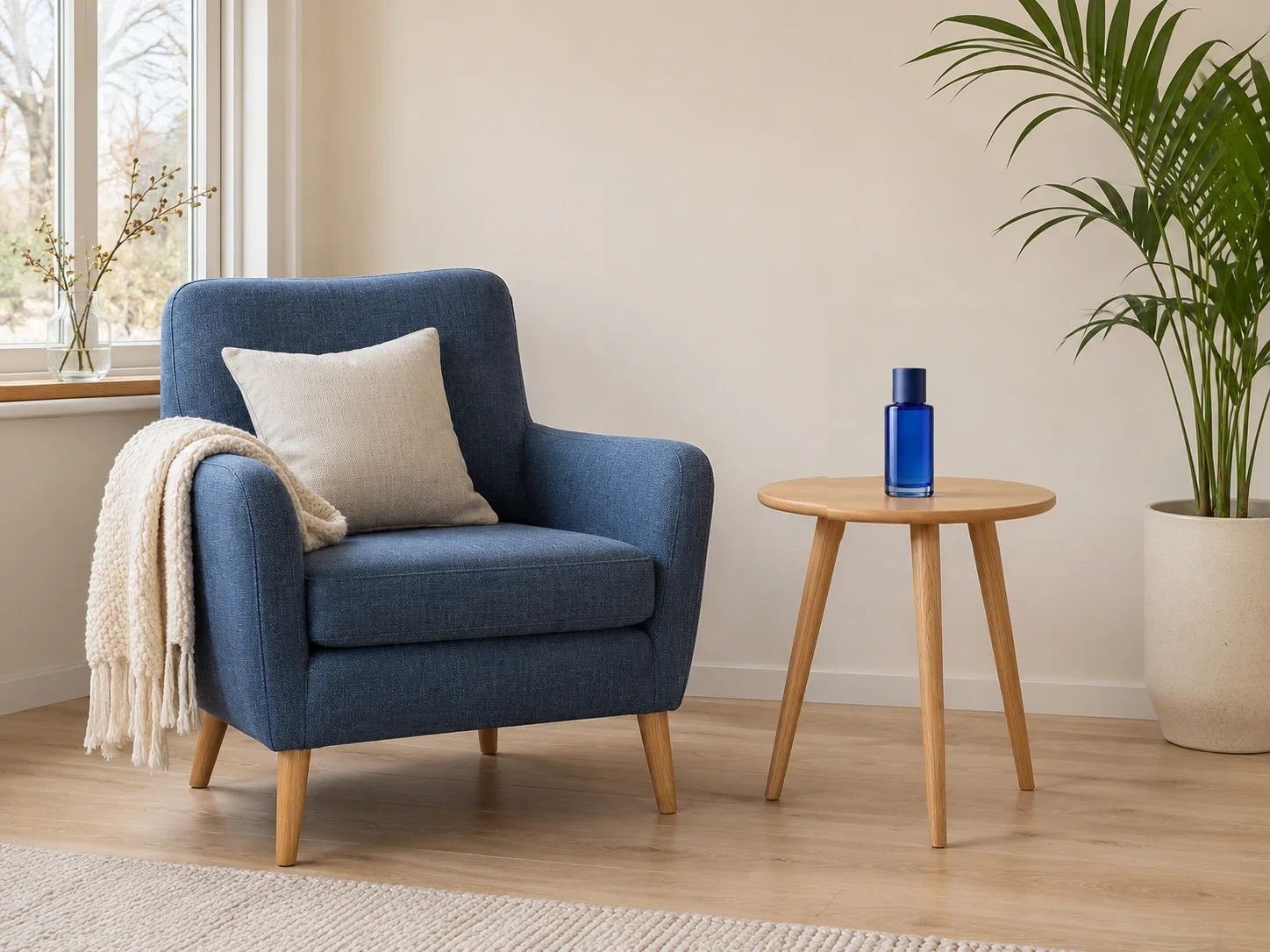
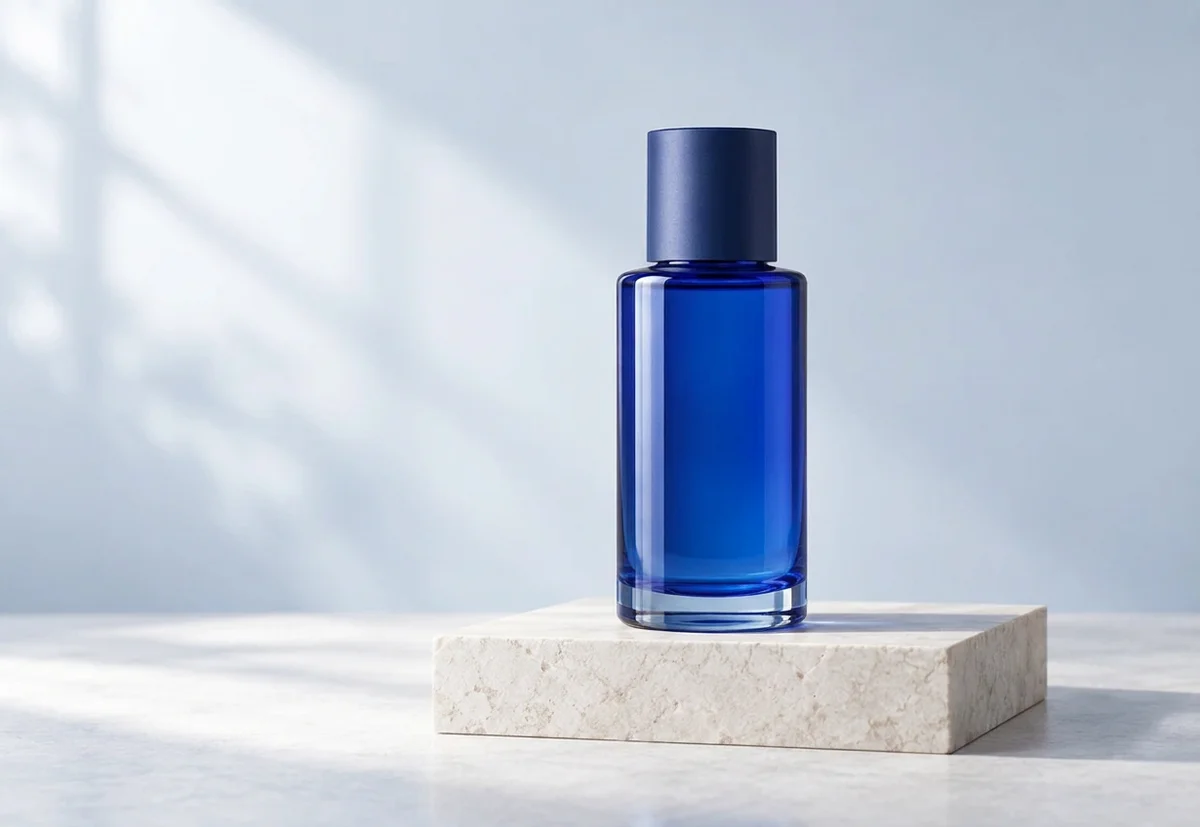
Drag each comparison to inspect the edit. Choose a preset to try the same approach with your own photo.
Remove a small object together with its shadow. Leave surrounding floor, wall or foliage available as context.
Use this presetChoose people mode for a background passerby. Keep the mask away from the main subject’s face and clothing.
Use this presetUse text mode for an unwanted annotation in an image you can edit. Fine patterns underneath may need another pass.
Use this presetObject remover
Upload the photo and choose object, people or text cleanup.
Paint the whole distraction, refine with the eraser and save the selection. Undo, redo, zoom and keyboard rectangles are available.
Review credits, process and inspect the repaired edge. Download the PNG or use the result for another edit.
A focused workflow for your image
Review the credit cost before processing. Uploading and browsing presets do not use AI credits.
Include the complete outline and connected shadow, with a small margin. A partial mask can leave fragments.
For tiles, rails and brickwork, remove one distraction at a time and check alignment.
Use Generative Fill when you want to add a specific replacement rather than remove the selected content.
Previews show results made with this tool from our synthetic sample images. A preset fills in settings; it never starts processing or spends credits.
Object remover
The selected region is reconstructed and blended onto the original. Pixels outside the selection are retained by the server. Include connected shadows and leave useful surrounding context.
Choose people, paint the person and their shadow, then save the selection. Leave the main subject outside the mask and inspect the reconstructed background.
Yes. Open the rectangle controls, set left, top, width and height percentages, add the rectangle and save. Undo and redo work with these selections too.
Return to the original and enlarge the selection to include the complete outline and shadow. Keep enough neighboring scene visible to guide the repair.
Upload a static JPG, PNG or WebP up to 20 MB and 16 megapixels. References have the same limits. Use the best original available.
The server checks the cost before processing. If the quote changes, you must confirm it. Uploading, choosing presets and viewing existing results do not start a paid generation.
Batch access follows your current membership, with up to 20 source images. Every masked edit needs its own saved selection. Failed items can be retried with a new quote.
Download the original result here. Signed in accounts can use history according to their retention policy. Temporary guest results need the active session and expire.
AI can estimate or redraw details. Compare faces, text, product labels and fine texture with your original. Keep the original and review the result before publishing.
YOUR NEXT STEP
Keep the result you like, then choose one focused tool for the next change.
Paint the area you want to change. Describe the replacement or provide an image, choose quality and compare the generated patch with the original.
Generative fillDescribe a lighting, background or detail change. Compare the result with the original and check any important writing.
AI Image EditorRemove the background and export transparent PNG for a layout, product listing or collage. Check hair and glass edges.
Background RemoverAdd your source, choose the change, and review the credit cost before processing.
Edit your image